Author Archives: Anthony Rizzo
Database Security – Desktop
Database Security Settings
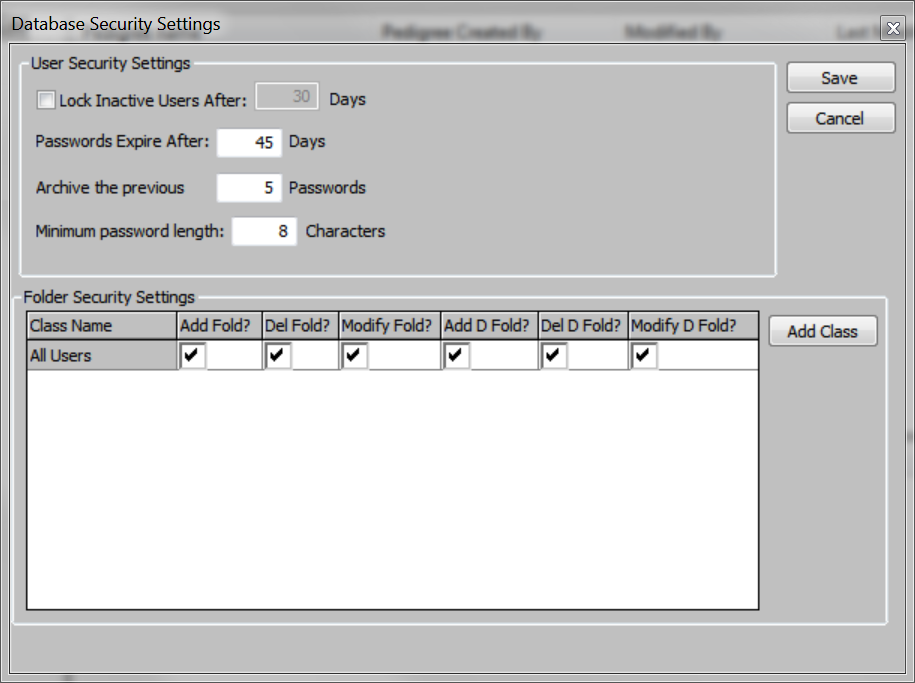
The database’s security policy can be adjusted to change the following settings:
- Lock Inactive Users After – Sets the number of days before an inactive account (no login activity) is locked.
- Password Expires After – Set the amount of time that Progeny will prompt the user to create a new password.
- Archive the previous ___ Passwords – Define the number of passwords that have to be different before the same password can be used again.
- Minimum password length – Set the minimum length of Progeny user passwords.
To access these options, from the main Progeny screen right-click the database root (or in a blank area of the left pane below the folders)
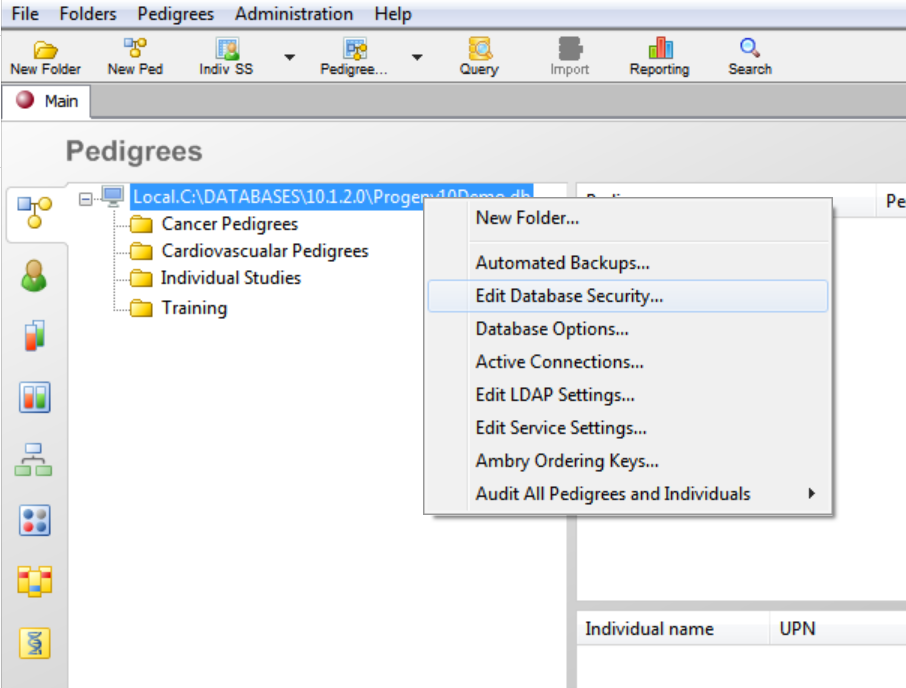
Click the Edit Database Security menu option.
To set Database Folder Security
- On the navigation bar, click the Pedigrees or Individuals module button to open the window.
- In the module, right-click on the folder for which you are setting the security, and on the context menu that opens, click Edit Folder.
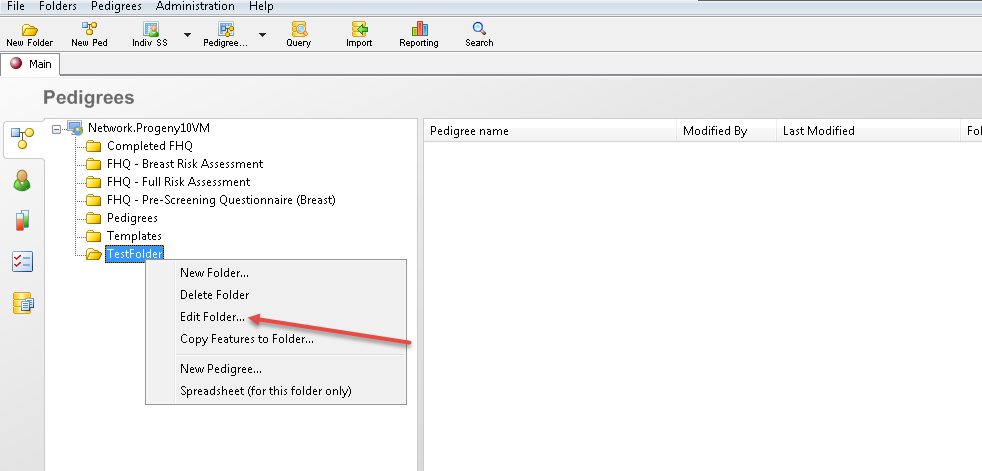
- The Modify Folder Settings dialog box opens. The name of the selected folder is displayed in the Folder Name field.
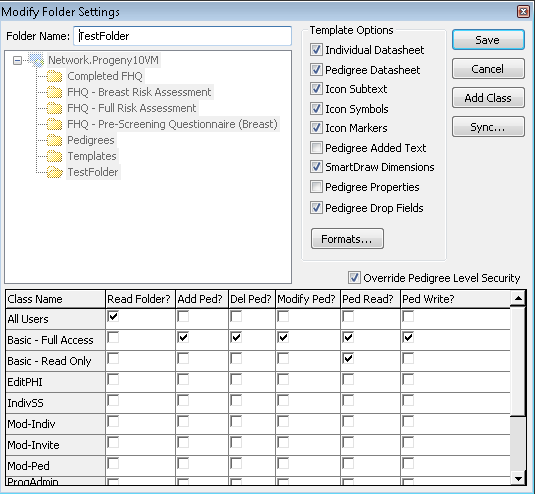
- Do one or more of the following:
- Modify the security settings for different classes of users listed under the Class Name column (All Users class exists by default) by checking or unchecking the boxes under each permission. The permissions are defined below:
- Read Folder?—Open and view the contents of the folder.
- Add Ped?—Add pedigrees to the folder.
- Del Ped?—Delete pedigrees from the folder.
- Modify Ped?—Modify pedigrees in the folder.
- Click Add Class to open the New User Class dialog box to create a new user class, and then set the folder security for the new class being added.
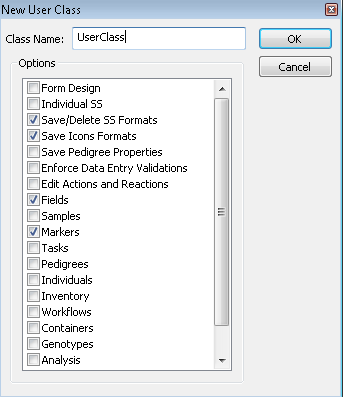
- If you have assigned pedigree-level security to one more pedigree in the folder, and you want to override the security settings for these pedigrees based on the security settings at the folder level, select the Override Pedigree Level Security checkbox, and then set the appropriate pedigree-level security for the different classes of users.
- Ped Read? – View the data in the pedigree.
- Ped Write? – Write data to the pedigree.
- Modify the security settings for different classes of users listed under the Class Name column (All Users class exists by default) by checking or unchecking the boxes under each permission. The permissions are defined below:
- Click Save once security settings have been assigned in the Modify Folder Settings A message opens indicating the settings for the folder were successfully changed. Click OK to close the message and return to the Pedigrees window.
To Set Pedigree Level Security
- On the navigation bar, click the Pedigrees button to open the Pedigrees
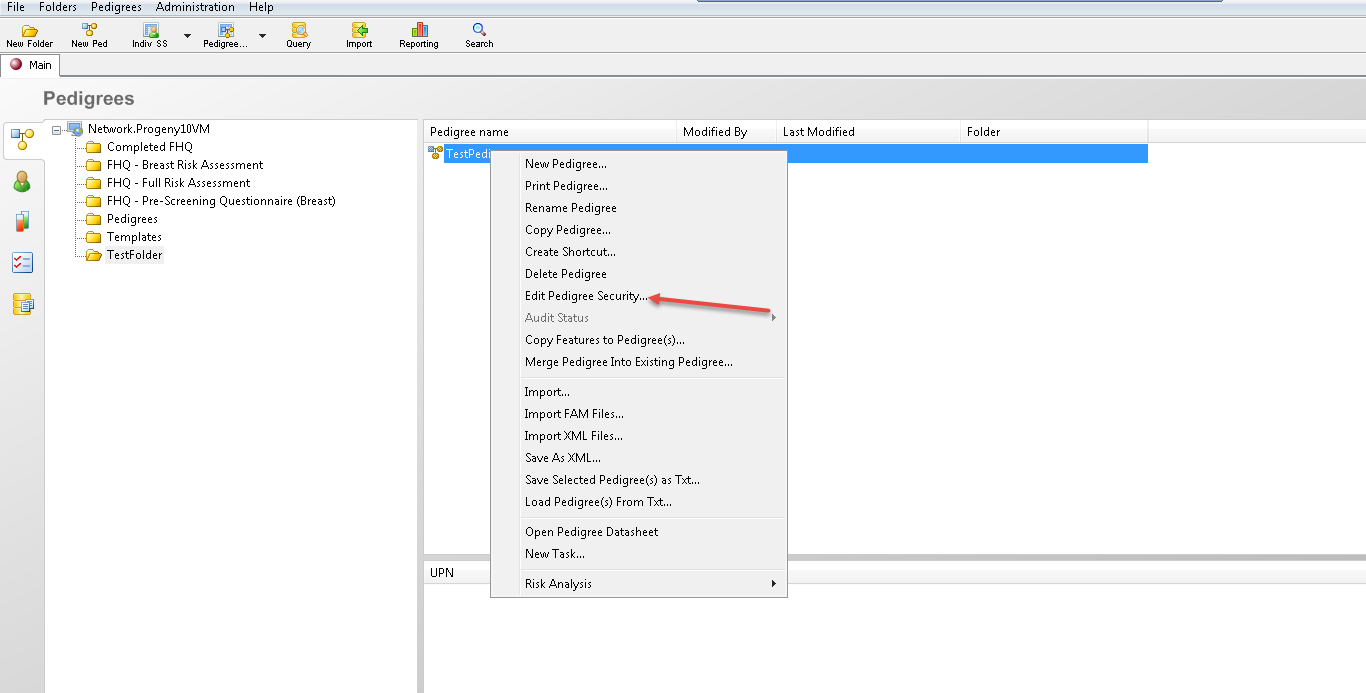
- On the Pedigrees window toolbar, right-click on the pedigree for which you are setting the security, and on the context menu that opens, click Edit Pedigree Security.
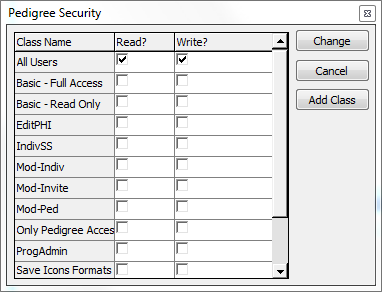
- Do one or more of the following:
- Modify the security settings for All Users or for the different classes of users.
- Read?—Open and view the contents of the pedigree.
- Write?—Modify the contents in the pedigree.
- Add Class to open the New User Class dialog box to create a new user class, and then set the folder security for the new class being added.
- Modify the security settings for All Users or for the different classes of users.
Database Security
Database Security Settings
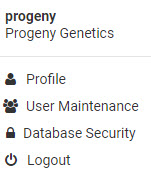
To manage the security of the database, click on the User Profile image and click on Database Security. you will then be able to manage settings related to passwords, user lockout period, and folder security settings.
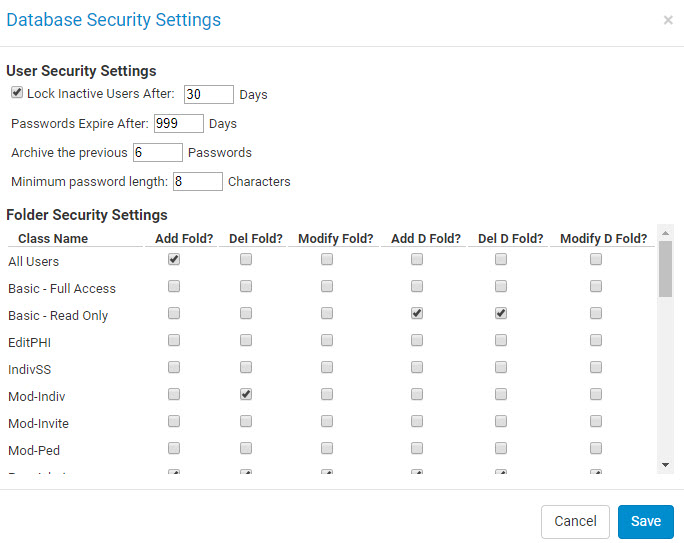
- Lock Inactive Users After – If enabled, you can set the amount of days for when a user is locked out if they haven’t log into the database.
- Passwords Expire After – The amount of days where a user’s password is expired and is then prompted to enter a new password.
- Archive the previous – The number of past passwords that the user can’t use for a new password.
- Minimum password length – The minimum number of characters a password is required to have.
- Folder Security Settings – The security for the folders in the database.
- Add Fold – Allows adding of pedigree/individual folders.
- Del Fold – Allows deleting of pedigree/individual folders.
- Modify Field – Allows modifying pedigree/individual folders.
- Add D Field – Allows adding of field folders in the fields module.
- Delete D Field – Allows deleting of field folders in the fields module.
- Modify D Field – Allows modifying of field folders in the fields module.
User Maintenance
Managing Users
The User Maintenance section is used for creating, deleting, editing, and managing users and their permissions within Progeny. This section can be accessed from the User Profile icon and then clicking, User Maintenance.
Adding a new user
- To add a new user, click the New User button.
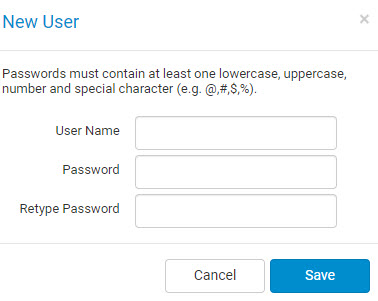
- The new user windows appears where you can specify the user name, password, and the confirmation of the password.
Modifying User Permissions
After the new user is added, you can select the user from the list of users to see the user information.

- Profile Format – If users are using Profile formats, you can click to select the profile.
- Manage – Allows the customization of the profile formats so that specified classes and permissions can be set.
- Locked – Enabling this option will lock the selected user’s account and prevent them from having any access to the Progeny database. If a user makes too many attempts to login to a Progeny account with the wrong password, the account will be locked automatically. Uncheck this option to unlock the account.
- Administrator – This option will make the selected account an administrator within Progeny. An administrative user has access to the User Maintenance section and are not limited by user classes.
- Show settings – Shows the permissions settings for the user.
- Security – On the security tab, you can assign a user to user classes. User classes have specific permissions in terms of what access they have to certain folders and also what permissions they have in the database.
- Add Class – Creates a new user class.
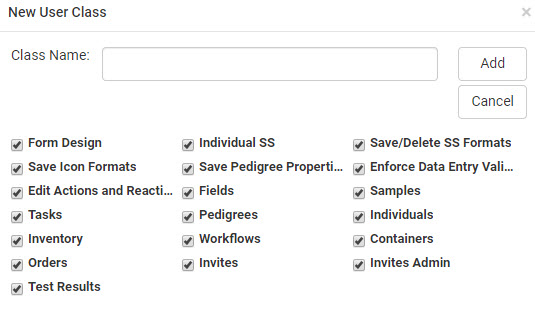
- Form Design – Allows access to create and modify the datasheet formats.
- Save Icon Formats – Allows access to save icon formats (subtext and symbols formats)
- Edit Actions and Reactions – Allows access to edit Actions and Reactions (LIMS module items)
- Tasks – Allows access to the Tasks module. The Tasks module is used to create tasks and reminders.
- Inventory – Allows access to the Inventory module (LIMS module item).
- Orders – Allows access to the Orders module. The Orders module is used to track Ambry Genetics Tests.
- Test Results – Allows access to the Test Results button. This button allows users to enter Genetic Testing data for patients.
- Individual SS – Allows access to the Spreadsheets module.
- Save Pedigree Properties – Allows access to save changes that are made in the Pedigree Settings section of a pedigree.
- Fields – Allows access to the Fields module to manage fields.
- Pedigrees – Allows a user access to the Pedigrees module.
- Workflows – Allows access to the Workflows module (LIMS module item).
- Invites – Allows access to the Invites module. The Invites module is used to send out Family History Questionnaires (FHQ) to patients.
- Save/Delete SS Formats – Allows access to save and delete spreadsheet formats.
- Enforce Data Entry Validations – Forces a user to adhere to any field restrictions that are set for fields when entering data.
- Samples – Allows access to the Samples module (LIMS module item).
- Individuals – Allows access to the Individuals module.
- Containers – Allows access to the Containers module (LIMS module item).
- Invites Admin – Allows access to the Edit Questionnaires and the Email Templates modules. This two modules are used to manage a FHQ and the email templates users for the questionnaires.
- Edit Class – This option will be grayed out if a class is not selected. Allows the modification of the licensing for the selected class.
- Delete Class – This option will be grayed out if a class is not selected. Deletes a class.

- Add Class – Creates a new user class.
- Licensing – Allows the modification of what permissions are associated with the user.
- Use class based options – When enabled, only the licensing options that were specified in classes within the Security tab are used.
- Formats – In this tab an administrator can assign formats to a user – in cases where the folders have default formatting assigned, assigning a format to a user in this tab will force Progeny to override the folder configuration and display the user’s defaults from this menu instead.

- Individual Datasheet – The datasheet for entering patient data.
- Pedigree Datasheet – The datasheet for entering pedigree level data.
- Sample Datasheet – The datasheet for entering sample level data.
- Show Spreadsheet – The spreadsheet format that is shown when the Show Spreadsheet button is selected from the Pedigree Canvas.
- Subtext Format – The subtext format that displays data under an individual on the Pedigree canvas.
- Symbols Format – The symbol format that displays a symbol inside of individuals on the Pedigree canvas.
- Pedigree Drop Fields – The format that display fields on the Pedigree canvas.
- Ambry IDs – The unique keys that ties a user in Progeny to AmbryPort for ordering of genetic tests.Reach out to Progeny Support for assistance on how to get this information.

- Security – On the security tab, you can assign a user to user classes. User classes have specific permissions in terms of what access they have to certain folders and also what permissions they have in the database.
Testing Keys
This allows you to setup the unique AmbryPort Organization keys to be linked to the correct organization in AmbryPort. Reach out to Progeny Support for assistance on how to get this information.
Subtext and Symbols
The Subtext/Symbols button on the Pedigree Canvas allows users to customize the subtext and symbols formats in the database. Once the Subtext/Symbols button is clicked, a new pane opens on the left side of the pedigree.
Subtext
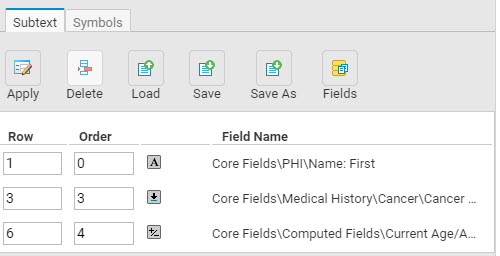
- Apply – The Apply button can be clicked to apply the current subtext settings to the pedigree canvas. This does not save the format but allows a preview of the subtext to be shown on the pedigree.
- Delete – By default, this option is grayed out until a subtext row item is selected. This deletes the subtext row.
- Load – Loads a subtext format.
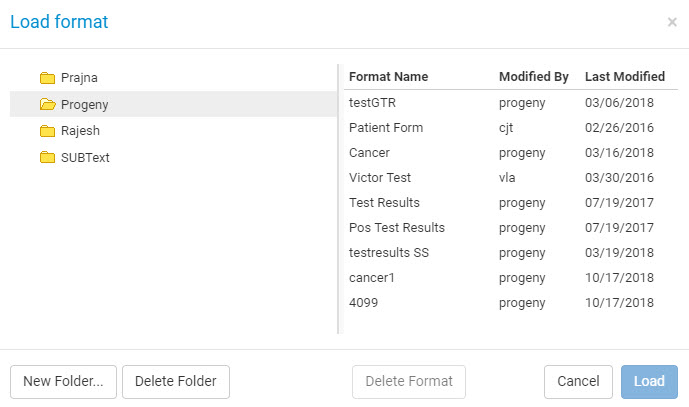
- New Folder – Creates a new folder to store the subtext formats.
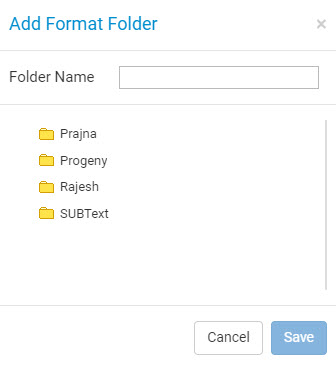
- Folder Name – The name of the subtext format being saved.
- Delete Folder – Deletes the selected subtext folder.
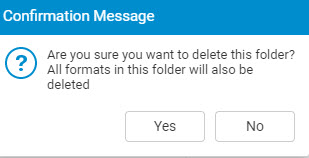
- Delete Format – This option is grayed out by default until a subtext format is selected. Deletes the selected subtext format after the user confirms on the confirmation message that appears.
- Cancel – Cancels the loading of a format and returns back to the Subtext pane.
- Load – This option is grayed out by default until a subtext format is selected. Loads the selected subtext format.
- New Folder – Creates a new folder to store the subtext formats.
- Save – Saves any changes that were made to a subtext format and overwrites the format that was loaded.
- Save As – Saves the current subtext format and any changes made to another format.
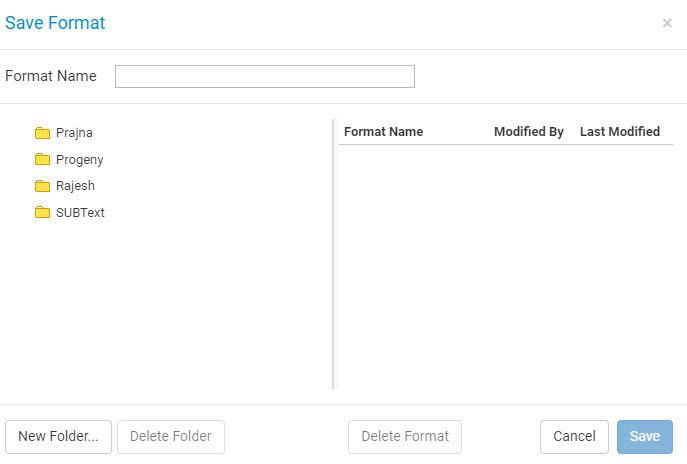
- Format Name – The name of the subtext format.
- Save – Saves the subtext format.
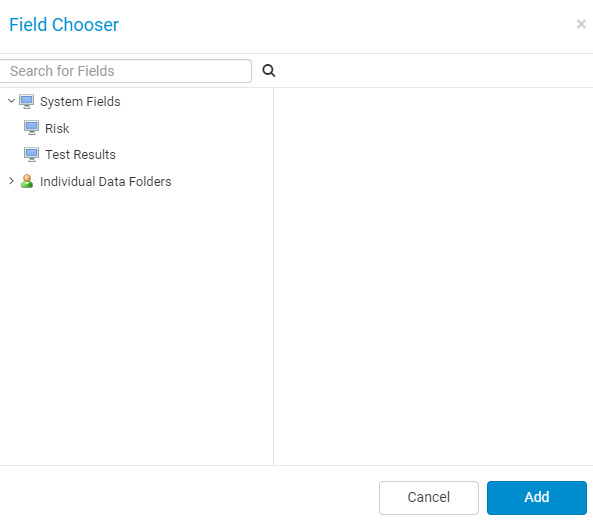
- Fields – Brings up the Field Chooser to be able to select field and add them to the subtext pane.
Symbols
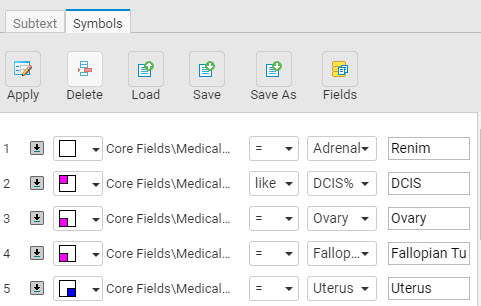
- Apply – The Apply button can be clicked to apply the current symbols settings to the pedigree canvas. This does not save the format but allows a preview of the symbol to be shown on the pedigree.
- Delete – By default, this option is grayed out until a symbol row item is selected. This deletes the symbol row.
- Load – Loads a symbol format.
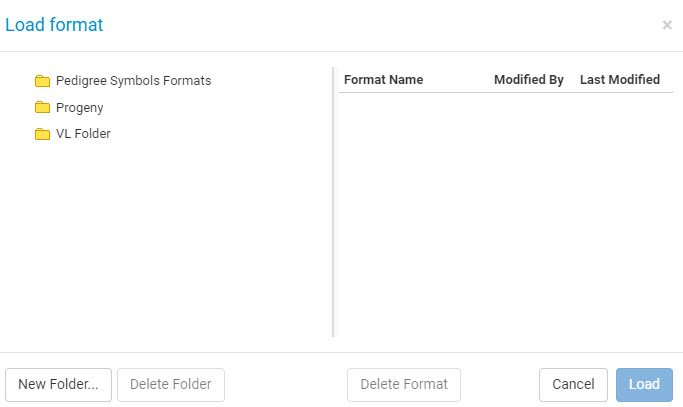
- New Folder – Creates a new folder to store the symbol format.
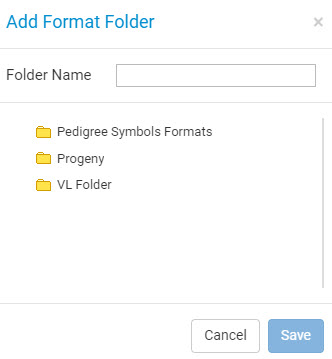
- Folder Name – The name of the symbol format being saved.
- Delete Folder – Deletes the selected symbol folder.
- Delete Format – This option is grayed out by default until a symbol format is selected. Deletes the selected symbol format after the user confirms on the confirmation message that appears.
- Cancel – Cancels the loading of a format and returns back to the Symbols pane.
- Load – This option is grayed out by default until a symbol format is selected. Loads the selected symbol format.
- New Folder – Creates a new folder to store the symbol format.
- Save – Saves any changes that were made to a symbol format and overwrites the format that was loaded.
- Save As – Saves the current symbol format and any changes made to another format.
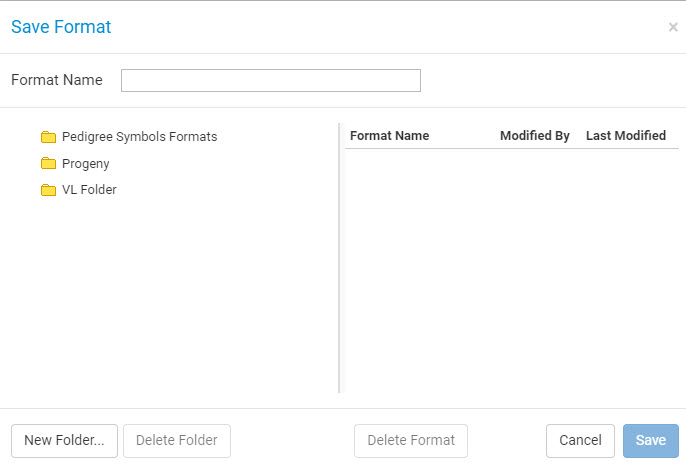
- Format Name – The name of the symbol format.
- Save – Saves the symbol format.
- Fields – Brings up the Field Chooser to be able to select field and add them to the subtext pane.
Datasheet Module
The Datasheet module allows a user to manage all the Individual, Pedigree, and Table datasheets in the database. You can customize existing datasheet formats and create new ones.
Once you open the Datasheet module, there are two buttons, the Load Datasheet and the New Datasheet.
- Load Datasheet – loads a datasheet format (Individual, Pedigree, or Table) from the folder that is selected.
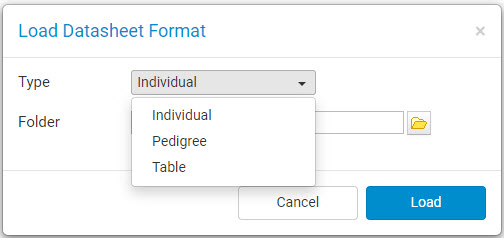
- New Datasheet – creates a new datasheet based on the type selected, the folder to save it in, and the name of the format.
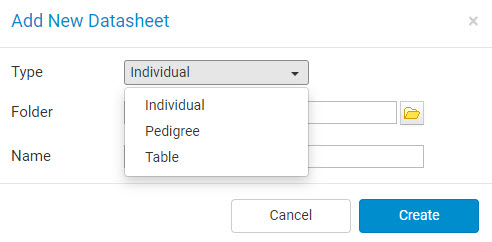
Datasheet Buttons
When you are complete with choosing either option, you will then be brought to the Datasheet Design section. You will see a toolbar with buttons that are used to design the datasheet.
- Tabs
- Add Tab – Adds a new tab to the right of the datasheet with the specified tab name.
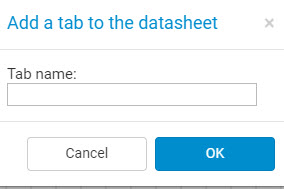
- Rename Tab – Renames the current tab you is selected.
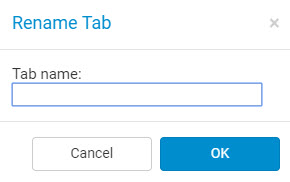
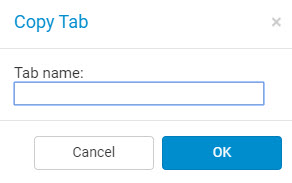
- Copy Tab – Copies the current selected tab to be pasted.
- Paste Tab – By default, this option will be grayed out, unless you have first used the Copy tab option. Then this option will become available. This pastes the tab to the right of the datasheet with the name that is given.
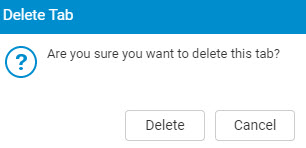
- Delete Tab – Deletes the currently selected tab after you confirm on the Delete Tab window.
- Add Tab – Adds a new tab to the right of the datasheet with the specified tab name.
- Add Text – Adds a free text box to the datasheet where you can enter any text.
- Save – Saves the current format as the format name that the format was created with.
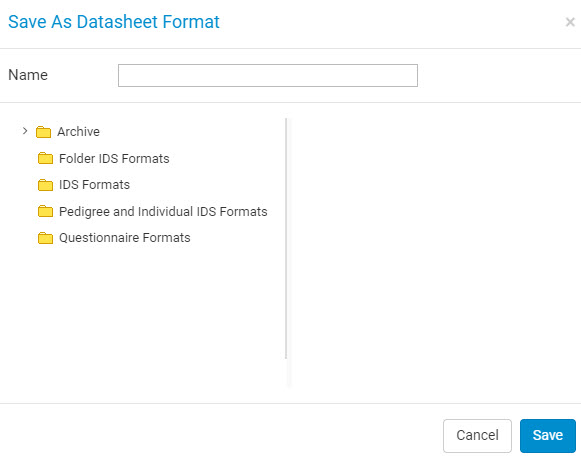
- Save As – Saves the datasheet format under a different format name.
- Print – Prints the selected tab of the datasheet format.
- Grid Opt
- Show Grid – Shows the grid-lines for the datasheet.
- Show Page Breaks – Shows the Page Breaks on the datasheet.
- Snap to Grid – Snaps fields to the edges of the grids so that they are aligned and more organized.
- Show/Edit Tab Order – Lock the datasheet formatting so you can modify the tab order of the fields. Clicking inside a field sets that field, starting with 1 being the first one to tab to, then the number increments for other fields that are clicked on for the order of tabbing. Select this option again to cancel the editing of the tab orders and go back to the datasheet editing mode.
- Reset Tab Order – Reset the order of tabbing back to the default when the fields were added to the datasheet.
- Show Margins – Shows the margins for the datasheet on how it will appear based on the option selected below.
- FHQ – Shows the margins for how the datasheet will look from the Patient view. This is typically the Family History Questionnaires for when the patients are filling out their information.
- Tablet – Shows the margins for how the datasheet will look on a tablet.
- Custom – You can specify the length and width of the margins to see how the datasheet will look.
- Horizontal Grid – Adjust the horizontal grid line size.
- Vertical Grid – Adjust the vertical grid line size.
- Undo – Undos the action of moving and sizing fields.
- Redo – Redos the action of moving and sizing fields.
- Copy – Copies a field on the datasheet to be pasted on another tab. This is initially grayed out until a field is selected.
- Paste – By default this is grayed out until the Copy button has been used first, in which case, you can then use the Paste button to paste a field onto the existing tab.
- Select All – Selects all the fields and text boxes on the datasheet.
- Alignment – Aligns multiple selected fields according to the first field that was selected in that group.
- Align Left – Aligns the fields’ left edge to the left edge position as the first field.
- Align Right – Aligns the fields’ right edge to the right edge position as the first field.
- Align Top – Aligns the fields’ top edge to the top edge position as the first field.
- Align Bottom – Aligns the fields’ bottom edge to the bottom edge position as the first field.
- Size Horz – Sizes the fields to the same horizontal width as the first field.
- Size Vert – Sizes the fields to the same vertical height as the first field.
Field Properties
The Field Properties pane on the right side displays various settings that can be changed for the selected field(s).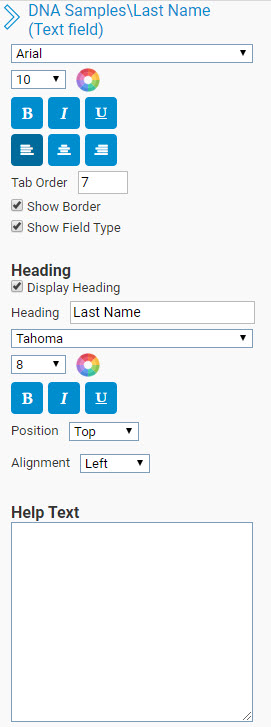
- The Field path and type is displayed.
- The font for the field’s data.
- The font size for the field’s data.
- The color for the field’s data.
- Bold for the field’s data.
- Italics for the field’s data.
- Underline for the field’s data.
- Left alignment for the field’s data.
- Center alignment for the field’s data.
- Right alignment for the field’s data.
- Tab Oder – Used to specify the tabbing order of a specific field. 1 being the first field can can be tabbed to and 2 would be the second field that can be tabbed to.
- Show Border – Shows the border of the field.
- Show Field Type – Shows a symbol specifying the type of field.
- Heading
- Display Heading – Displays the heading of the field from the text box below.
- Heading – The heading to be displayed near the field.
- The font for the field’s heading.
- The font size for the field’s heading.
- The color for the field’s heading.
- Bold for the field’s heading.
- Italics for the field’s heading.
- Underline for the field’s heading.
- Position – The heading text position being to the Top, Left, Bottom, or Right of the field.
- Alignment – The heading text alignment being either to the Left, Center, or Right of the field.
- Help Text – The help text that is added to a field as a small question mark icon. When the user moves the mouse over the icon, they will see the help text.
Fields Module
The fields module allows a user to manage all data fields within the database. System fields are excluded as those fields cannot be modified. From this module administrative users are able to import and export, edit
Saving fields
Fields can be saved into a text file to be exported into another Progeny database.
- Click the Save List button.
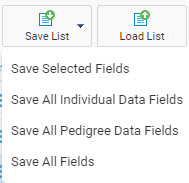
- You will then have 4 options to choose from, 3 depending on whether you have any fields selected.
- Save Selected Fields – Saves only the fields you have selected. Multiple fields can be selected using the CTRL or SHIFT buttons on the keyboard.
- Save All Individual Data Fields – Saves all individual level fields in the database.
- Save All Pedigree Data Fields – Saves all pedigree level fields in the database.
- Save All Fields – Saves all fields in the database.
- After you select your option, you will then be prompted where to save the file.
Loading fields
Fields can be imported from another Progeny database is they were first exported from the fields module in that database. This only works if the file is a text file.
- Click the Load List button.

- Then select the file that contains the fields. This will then load the fields into the database in the same folder path where it existed in the previous database.
Creating New Fields
To create new fields, click the New Field button. 
This will bring up the Add New Field window where you can specify the settings and information for the new field that you are adding.
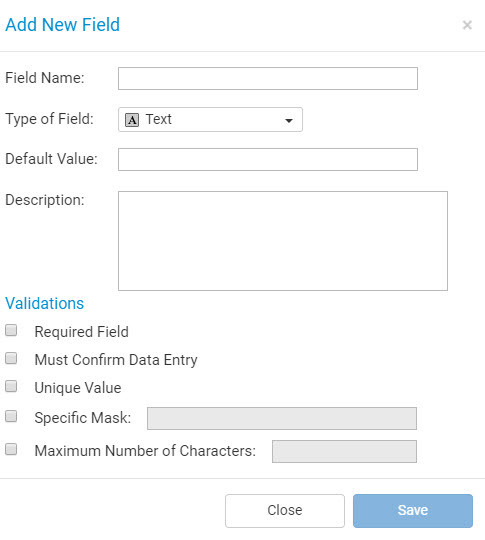
- Field Name
- Type of Field
- Text – holds data with any characters
- Date – holds data in a date format
- Number – holds numbers
- Yes/No – data in the form of a checkbox with yes = checked and no = unchecked
- Drop-down – data in the form of a list of items
- Image – data in the form of an image file
- Lookup Table – data in the form of a list of items which can include multiple columns of items
- Table – data in the form of a table where multiple data rows can be added
- Computed – data in the form of computation using SQL
- Table Summary – data in the form of summarizing fields
- Hyperlink – data in the form of a internet hyperlink
- Default value – the default data value for the field
- For Yes/No fields, the options are N or Y.
- Description – a description of the field
- Required Field – when enabled, the field requires data to be entered before being able to save data for the individual/pedigree or move forward in a questionnaire
- Must Confirm Data Entry – when enabled, you will be prompted to verify the data in the field before being able to save data for the individual/pedigree or moving forward in a questionnaire
- Unique Value – requires the field to have unique data within the database among individuals/pedigrees
- Specific Mask – Defines how you must enter data into the field to maintain consistency and to make your database easier to manage. For example, with the underscore character (_) representing a single character, an input mask of (___)___-____ would require a phone number in this format: (574)968-0822
- Maximum Number of Characters – the maximum number of characters that you can enter in a field.
- Within Specific Range (Date and Number fields only) – the specific set of ranges that the field data must be within.
Text Fields
A text field is for alphanumeric data (all digits and printable characters). You can enter up to a maximum of 32,000 characters in a text field. A text field is the most generic and least restrictive of all the available field types.
Date Fields
A date field contains a calendar. You can use the calendar to enter a date or you can simply enter the date in the field. Dates are displayed in a date field based on the
regional settings for the client.
Number Fields
You can enter only the digits 0 through 9 in a number field. Decimals and negative numbers are allowed; however, no other characters, either alphabetic or special (such as dashes or commas) are allowed. If you want to sort data based on numeric values, then you must use a numeric field. You cannot sort based on numeric values if the data is
entered in a text field.
Yes/No Fields
A Yes/No field is a checkbox field that holds a value of either 1 (to indicate Yes) or 0 (to indicate No). Progeny always stores a value in a database for a checkbox field whether the field is checked. If the field is checked, Progeny stores a value of “1” in the database. If the field is not checked, Progeny stores a value of “0” in the database.
Drop Down Fields
A drop-down field displays a pre-defined list of items from which you can select. To open the list, simply click in the field. You can scroll through the list and select one item at a time. The items are mutually exclusive. For example, you might create a drop-down field named “Race,” and the available items are African American, American Indian, Asian,
and so on. When you are adding/editing a drop-down field, the order in which you enter the items on the Add Drop Down Values section is the order in which the items are displayed in the drop-down list. If you are selecting from a lengthy
drop-down list on a datasheet, you can enter the first few letters of the name of the item that you want to select, and the list is dynamically updated with the items that meet your search criteria.
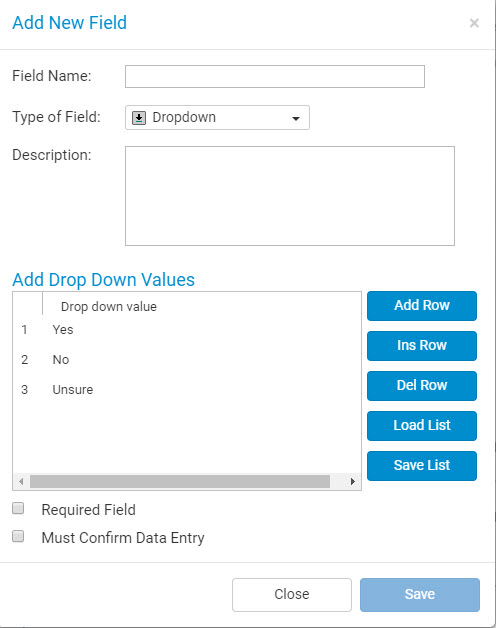
- Add Rows – adds a new row at the bottom of the drop-down list
- Ins Row – inserts a new row at the row that is currently selected
- Del Row – deletes the selected row
- Load List – load a list of drop-down items from a text file
- Save List – saves the current drop-down items into a text file
Image Fields
An image field can display an image file in one of the following formats—.bmp, .gif, .png, .tiff, and .jpg/.jpeg. When you click on an image field, you are prompted to browse to the location of the image file that you want to display. You then scroll to the appropriate image file and select it. After you select the image file, the image is displayed in the Image field.
Lookup Table Fields
A lookup table field is a field similar to a drop-down field but with the ability of having multiple columns. It contains a drop-down list of fields that are related in some way. Each row within the drop-down contains a predefined “lookup” value which refers to a set of data fields that can be updated to remain current. For example, you might create a lookup table called Referring Physician that would allow a user to simply select a physician’s name from the list, thereby associating all the physician’s current contact information such as the physician’s phone number, the physician’s email, institution, and ID.
There will be an Edit Table button where you can edit the structure of the Lookup Table by selecting which fields should be in the table.
Table Fields
A table field allows you to enter multiple values for the same set of data fields. For example, you might add a table called Visit Information that would allow a user to enter Visit Date field (a date field), the Visit Type field (a text field), and the Visit Purpose field (a drop-down field).
There will be an Edit Table button where you can edit the structure of the Table by selecting which fields should be in the table.
Computed Fields
You cannot enter data into a computed field. Instead, a computed field contains an expression that yields a value that is automatically calculated each time the window that contains the field is opened. For example, a computed field for Current Age is defined as the difference in years between the date that is in the Current Date field and the date
that is in the Date of Birth field.
Table Summary Fields
Like a summary field, a table summary field is a computed field that summarizes a given column of a table. For example, you might create a table called Visit Information with a field in it called Visit Date and you want to see what the most recent visit date is for a specific patient. You can create a table summary field called Most Recent Visit Date
that displays the most recent visit date for a patient that has five distinct visit date entries in the Visit Record table.
Hyperlink Fields
A hyperlink field contains a hyperlink to an external file, program, or website. Simply click on the link in the field to open the file, program, or website. For example, a hyperlink field named Email could contain an individual’s email address. When you click on the email address in the field, an untitled email addressed to the individual opens in the available email client such as Microsoft Outlook. Hyperlink fields can also be used to load and view documents.
Fields Action Menu
The main Fields Module has an action menu next to each field that is displayed.
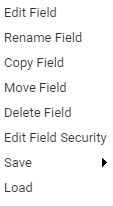
- Edit Field – Allows you to edit the field settings,
- Rename Fields – Allows you to rename the field.
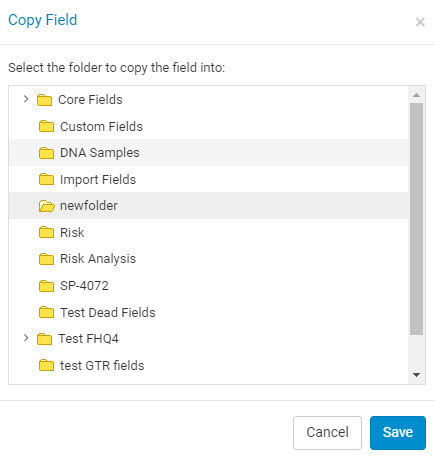
- Copy Field – Copies a field to the specified folder.
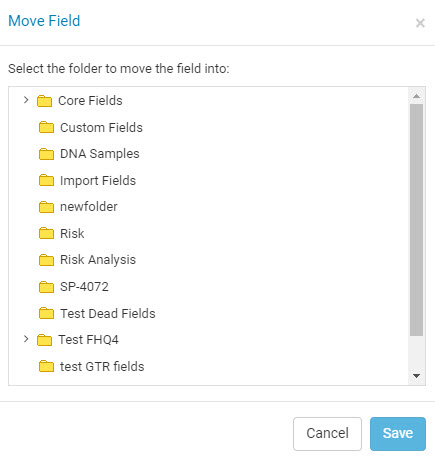
- Move Field – Moves a field from one folder to another.
- Delete Field – Deletes a field from the database.

- Edit Field Security – Edits the security for the fields where you can specify which classes of users have Read and/or Write access to the field in the database.
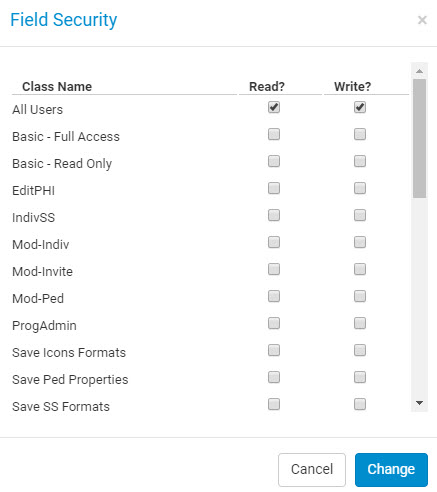
- Save – Save fields in a text format that can be imported in another Progeny database.
- Save Selected Fields – Saves only the fields you have selected. Multiple fields can be selected using the CTRL or SHIFT buttons on the keyboard.
- Save All Individual Data Fields – Saves all individual level fields in the database.
- Save All Pedigree Data Fields – Saves all pedigree level fields in the database.
- Save All Fields – Saves all fields in the database.
- Load – Loads fields from a text file that was imported from another Progeny database.
Folder Action Menu
- New Folder – Creates a new field folder with the name and security settings that are specified.
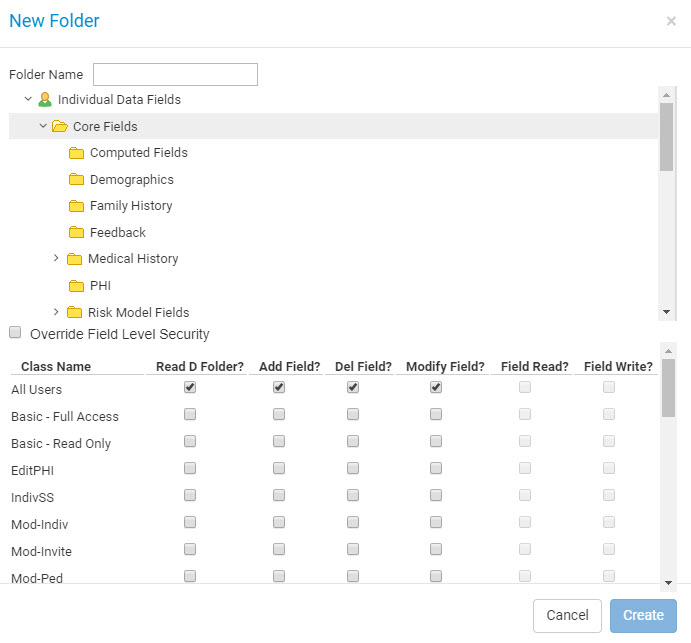
- Folder Name – The name for the field folder.
- Override Field Level Security – Overrides the individual field security level for fields in the folder with the folder level security.
- Edit Folder Security
- Read D Folder? – The permission to read the folder and see the fields to modify.
- Add Field? – The permission to add fields to the folder.
- Del Field? – The permission to delete fields in the folder.
- Modify Field? – The permission to be able to edit a field.
- Field Read? – Only applies when Override Field Level Security is checked. The permission to allow users to read the data in that field on datasheets and spreadsheets.
- Field Write? – Only applies when Override Field Level Security is checked. The permission to allow users to modify the data in that field on datasheets and spreadsheets.
- Move Folder – Moved the folder to another folder.
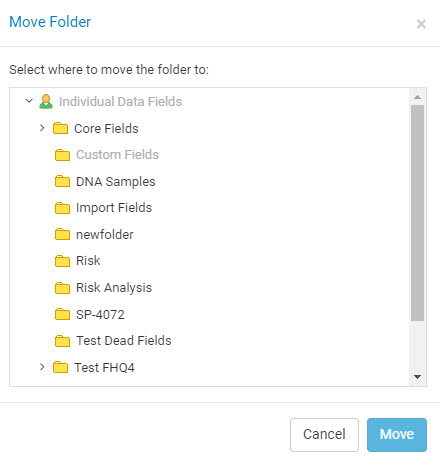
- Rename Folder – Renames the folder.
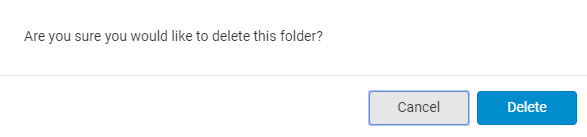
- Delete Folder – Deletes the folder.
Referral Criteria
Users can determine if individuals meet referral or testing criteria based on various national guidelines for breast/ovarian, colorectal, and other cancers. This can be calculated alongside the current risk models and will be reflected in the existing risk panel on the left side of the pedigree. The PDF risk report also includes these results.
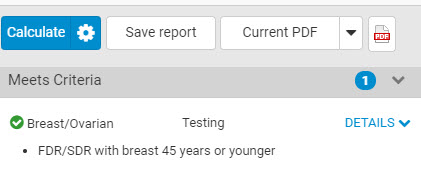
There are 3 categories for Referral: Breast/Ovarian, Colorectal, and Other. If a patient meets the criteria for testing it will display, “Testing”, If they meet criteria for referral it will display, “Referral,” and if they meet criteria for both it will display “Testing/Referral”. If they don’t meet the criteria, the category will not be listed and it will display “Proband does not meet criteria.”
Using the Referral Criteria feature
- To use this feature, open any pedigree and click the Show Risk button

- This will open up the Risk Assessment Module. Click on the gear icon that is located to the right of the Calculate button.

- This will then open up the Criteria and Risk Settings. Ensure that the Determine criteria for referral/testing box is checked.

- Then click Continue to save the settings. You can then click the Calculate button to run the Risk Model which will show any criteria that have been met for the family. See the example below.
Patient Lookup Module
The Patient Lookup module allows patients to look up their pedigree in Progeny with a special hyperlink and then launch a new questionnaire or continue an existing one. The patient will go through a short set of validations including a customizable unique identifier such as MRN and their date of birth. Depending on the configuration of the module, patients can also create new records for themselves in Progeny if they don’t already exist.
Using the Module
Using the Patient Lookup Link from the Questionnaire that was configured, you can now go to the Patient Lookup Login Screen. The patient can then enter their MRN and click Search.
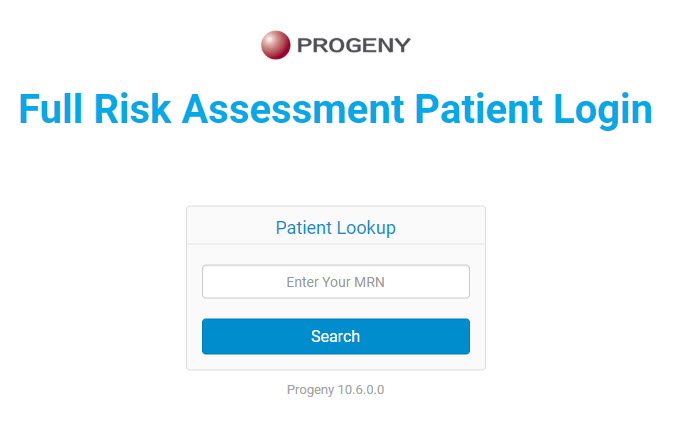
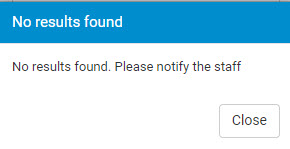
Depending on the settings configured for the questionnaire, either a message will be displayed informing that no results were found and the patient should contact the clinic.
 Or, the patient will be asked to confirm the MRN again, and if it is not found the second time, a pedigree will automatically be created with the patient and the specified MRN would be assigned. The patient would then be redirected to begin their questionnaire.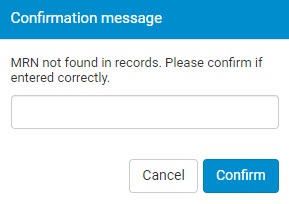
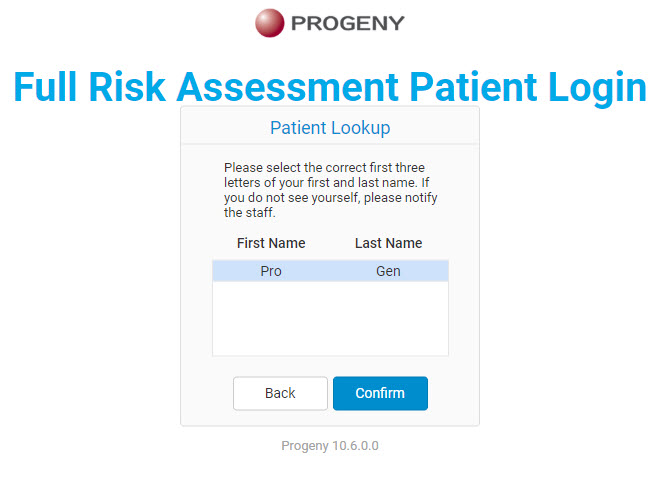
If the MRN is found in the database, then a list of matching First Name and Last Name will be shown. The patient would then select their matching information, then click Confirm
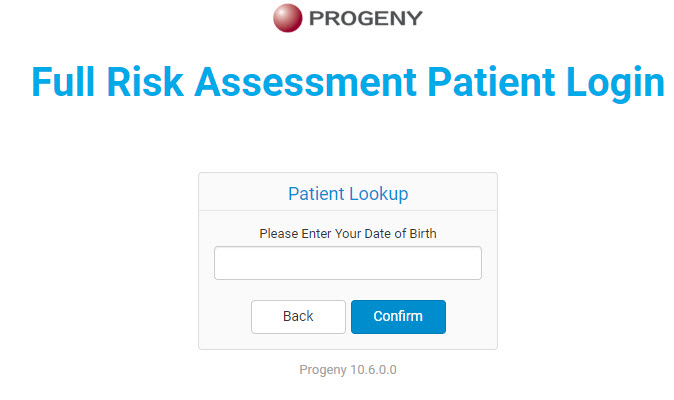
Verification of Date of Birth will then be required to continue.
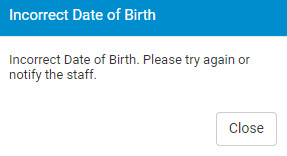
Once verification is passed, the patient will then be redirected to their questionnaire. If verification fails, a message will display indicating incorrect Date of Birth, in which the patient can then try another date of birth or contact the clinic.
Configuring the module
- Navigate to the Edit Questionnaires module in Progeny Web.
- Select the questionnaire in which to activate the Patient Lookup module.
- Select the last tab for the questionnaire. This is the tab called Patient Lookup.
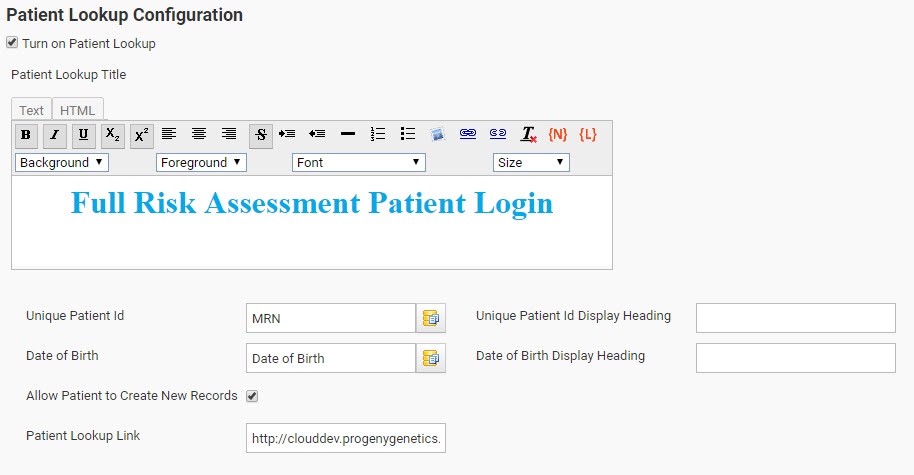
- In this tab, you can configure the Patient Lookup module based on your preferences.
- Turn on Patient Lookup – Enable this option to activate the Patient Lookup feature.
- Patient Lookup Title – Use this Text/HTML formatting text area to input the text that is displayed on the Patient Lookup module.
- Unique Patient ID – Select the unique identifying field that is used in the database for identifying patients. Typically, this is the MRN field.
- Unique Patient ID Display Heading – By default, on the Patient Lookup module, it displays the text, “Enter Your MRN” in the text area for patients to enter the unique field/value being asked for, in the case that the name of the field mapped for the Unique Patient Id was the MRN field. You can enter any text in this section to customize what is shown. For example, entering “Medical Record Number” will then apply that text on the Patient Lookup module page to be “Enter Your Medical Record Number” instead of the field name “MRN”.
- Date of Birth – Select the Date of Birth field that is being used in the database.
- Date of Birth Display Heading – By default, on the Patient Lookup module, it displays the text, “Please Enter Your Date of Birth” in the date area for patients to enter their date of birth for the validation, in the case that the name of the field mapped for the Date of Birth was the Date of Birth field. You can enter any text in this section to customize what is shown. For example, entering “DOB” will then apply that text on the Patient Lookup module page to be “Please Enter Your DOB” instead of the field name “Date of Birth”.
- Allow Patient to Create New Records – Enable this option if you want patients to be able to create a new pedigree and start a new questionnaire based on the MRN they entered if the MRN was not found in the database.
- Patient Lookup Link – This is the URL for patients to access the Patient Lookup Module.
Adding a Half-Sibling
Half-Siblings
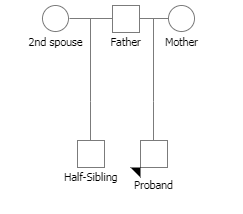
- To add a half sibling to the pedigree, first, make sure that the parent of the individual already has another spouse, if not, add another spouse to the parent.
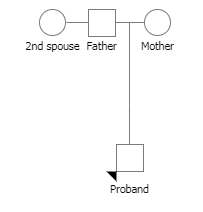
- Add a child to the second spouse and that child will then be the half-sibling of the proband.