
All Individuals/Only Probands
Individuals Module can be drilled down to display Only Probands, or All Individuals.

New Individual Button
An individual who is not a member of a pedigree is referred to as a singlet. After creating a singlet, the singlet can be moved to an existing pedigree or to a new pedigree. To add individuals to your database without attaching them to a pedigree, click the + New Individual button.

The Add New Individual dialogue box opens. Enter the name of the new individual, select the gender for the individual, then select the data folder to which the individual is being added. Once you click Save, a message will then indicate that the individual was successfully created.

This will open the Add New Individual window.
- Select a folder to save the individual into.
- Type the name of the individual.
- Select the sex for the individual.
- If you would like to launch a new questionnaire for this individual, click Launch New Questionnaire.
- If you would like to just create the individual, select Create.
Individuals Action Menu (Individual that is within a pedigree)
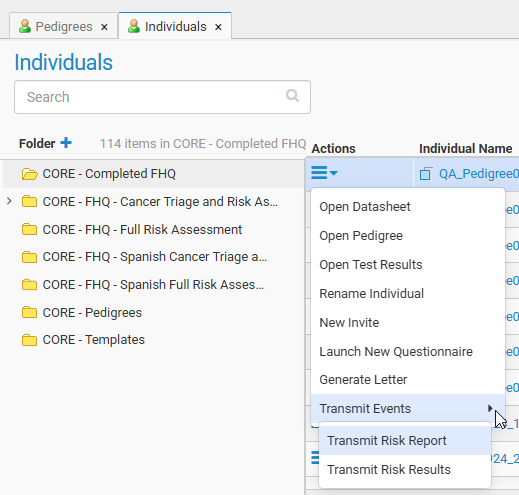
- Open Datasheet – opens the individual datasheet for individual
- Open Pedigree – opens the pedigree canvas for pedigree in which individual lives
- Open Test Results – opens the Test Results module for individual
- Rename Individual – renames the individual
- New Invite – creates new FHQ invite for individual
- Launch New Questionnaire – launches new FHQ for individual
- Generate Letter – generates new letter for individual
- Transmit Events
- Transmit Risk Report – transmits risk report to EHR for individual
- Transmit Risk Results – transmits risk results to EHR for individual
Individuals Action Menu (singlet, individual not within a pedigree)

- Open Datasheet – opens the individual datasheet for individual
- Open Test Results – opens the Test Results module for individual
- Move to pedigree – allows user to select to move individual to an existing pedigree or a new pedigree
- Rename Individual – renames the individual
- Change Sex – allows user to change sex for individual
- Delete Individual – allows user to delete individual
- New Invite – creates new FHQ invite for individual
- Launch New Questionnaire – launches new FHQ for individual
- Edit Individual Security – allows for individual security configuration
- Generate Letter – generates new letter for individual
Multiple individuals selected – Actions Menu
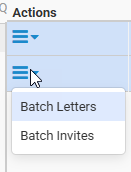
- Batch Letters – generates a letter for all selected individuals
- Batch Invites – sends a new invitation to all selected individuals
Invites Action Menu
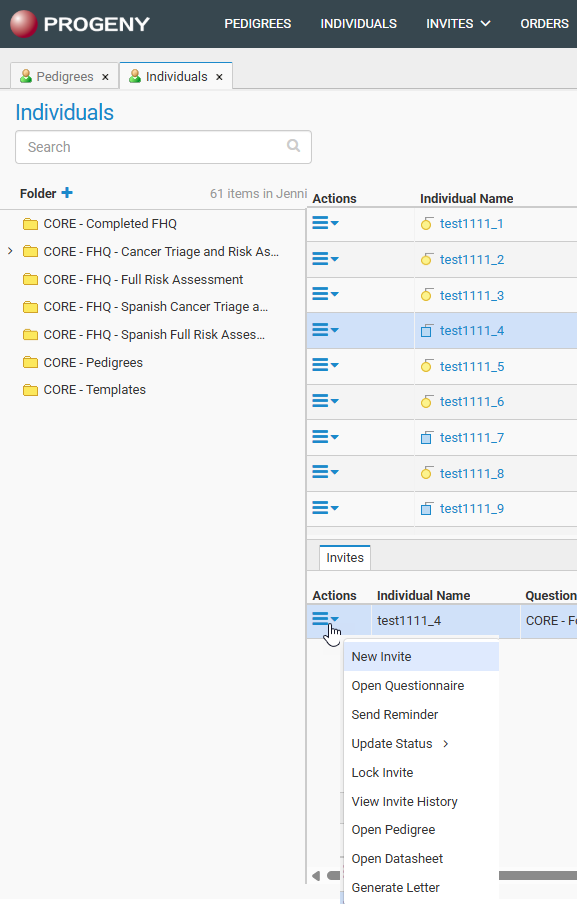
- New Invite – sends a new invitation to the individual
- Open Questionnaire – opens existing questionnaire
- Send Reminder – sends a reminder email for the individual
- Update Status – manually changes status of the questionnaire:
- Completed Manually
- Inactive
- Reviewed
- Lock Invite – locks the invitation so that it cannot be accessed
- View Invite History – shows a history log of the invite
- Open Pedigree – opens pedigree for individual (not available if singlet)
- Open Datasheet –opens the individual’s datasheet for the individual
- Generate Letter – generates new letter for individual