Individual Datasheet (IDS) – Desktop

Individual Datasheets – Individual Datasheets are used to enter and view information about individuals in your Progeny database. An Individual Datasheet can contain individual database fields, pedigree database fields, and marker database fields.

Pedigree Datasheets – The Pedigree Datasheet is used to enter and view information about pedigrees in your Progeny database. A Pedigree Datasheet can contain pedigree database fields and marker database fields.

To create and format a datasheet
  1. At the top of an Individual Datasheet, click Form Design.
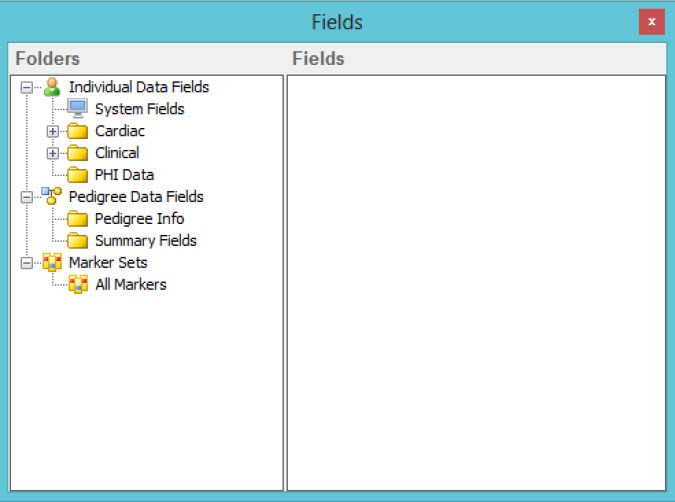
  2. On the datasheet toolbar, click the Fields button to open the Fields window.

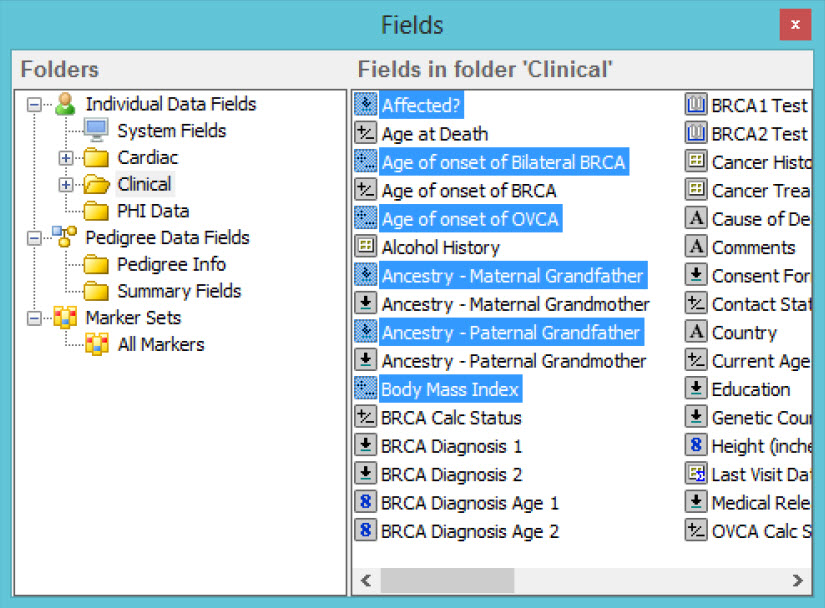
  3. This dialog box contains all the fields (grouped by folder) that you can add to the datasheet. It also lists the System Fields that you can add to the datasheet. For example, if you are creating an individual datasheet, then the dialog box lists all the Individual Data Fields, all the Pedigree Data Fields, and all the Marker Sets that you can add to the datasheet. See image below:
  4. If the datasheet is to be a single sheet, (that is, no tabs), then continue to Step 5; otherwise, for each tab that you are adding to the datasheet, on the toolbar, click the Add Tab button to open the Add a tab to the datasheet dialog box, enter a name for the new tab, and then click OK.
  5. The order of fields when you press tab can be changed by selecting Format > Tab Order from the menu bar, and clicking the fields in the order you would like them to be entered.
  6. In the left pane of the Fields window, open the folder that contains the field or fields that you are adding to the datasheet. The list of fields contained in the folder is displayed in the right pane of the Fields window.
  7. If applicable, make sure that the correct tab is open and then from the right pane of the Fields window, drag the needed field or fields (CTRL+click to select multiple fields) to the datasheet.
To align multiple fields
  1. CTRL+click to select the fields that you are aligning.
  2. On the toolbar, click the Style button to open the Style toolbar.

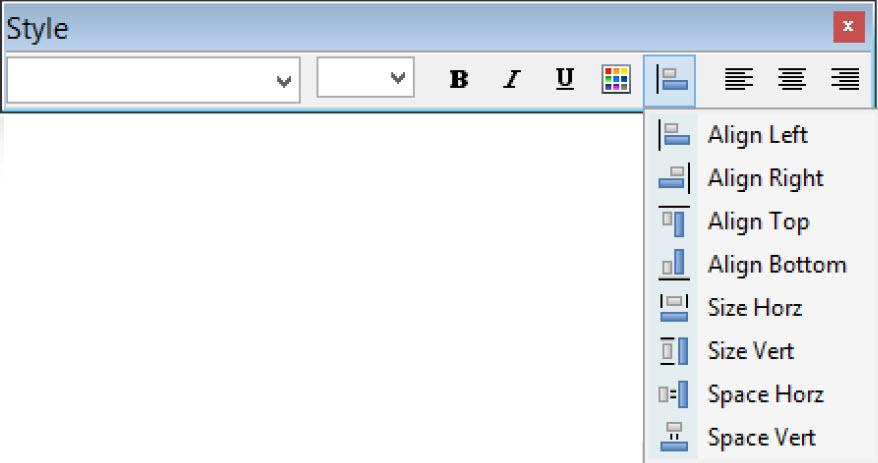
  3. On the Style toolbar, click the Alignment button to open a menu with a variety of options for modifying the field alignment. Drag a box around the fields you wish to align, or CTRL+click to select your fields, then select an alignment option.

Alignment Button Options


Option


Description

Align LeftFrom top to bottom, vertically aligns the left edges of the selected fields.
Align RightFrom top to bottom, vertically aligns the right edges of the selected fields.
Align TopFrom left to right, horizontally aligns the top edges of the selected fields.
Align BottomFrom left to right, horizontally aligns the bottom edges of the selected fields.
Size HorzSets the width of all the selected fields to the same width as the first selected field.
Size VertSets the height of all the selected fields to the same height as the first selected field.
Space HorzSets the horizontal spacing between all the selected fields to the same as the spacing between the first two selected fields.
Space VertSets the vertical spacing between all the selected fields to same as the spacing between the first two selected fields.
To add static text to a datasheet

Static text is free-standing text that is not tied to any field on a datasheet. You can add static text anywhere on a datasheet.

  1. On the toolbar, click the Add Text button.
  2. A blank text box with the phrase “Static Text” is displayed on the worksheet.
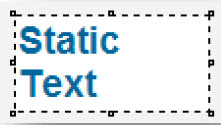
  3. Click on the phrase “Static Text” to select it, and then replace the phrase with the appropriate text.
  4. Drag the top, side, or corner handles to resize the text box as needed.
  5. Click and hold on the text box and drag it to the desired location on the datasheet.
  6. While the text box is highlighted, right-click it and select “Change Font” to change the font or font size.
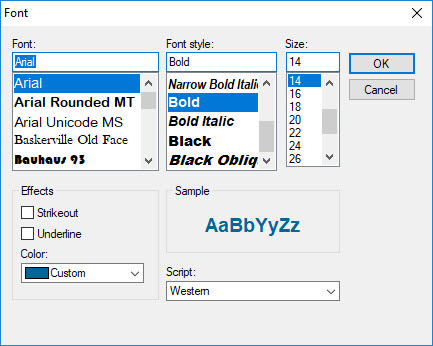
  7. From the Font window, you can change the font of the text as well as the size and color of the text.
To change the font or color of words in a Static Textbox
  1. Enter Form Design mode.
  2. Select the text in the “Static Text Field” you would like to change.
  3. Click Style from the top menu bar.
  4. From here, you can change the size and color of the font, as well as the justification, and whether the text is highlighted, italic, or underlined.
To set the properties for all the fields on the datasheet

You can set the same default properties for all the fields on the datasheet and all static text in a single step.

  1. On the toolbar, click the Properties button to open the Properties dialog box.

  2. If needed, open the Default Settings tab.
  3. Set the default values as needed.
Option Description
Show GridDisplays a background grid (a set of intersecting lines used to align objects) on the datasheet.
Show Page BreaksDisplays the edges of the print pages in Print Preview mode.
Snap to GridWhen moving a field, aligns (or ‘snaps’) the field to the nearest intersection of lines in the grid, even if the grid is not visible.
DataShow Border—Shows the border around all fields.

Show Field Type—Displays the icon for each field at the top left corner of the field.

Data Alignment—The horizontal alignment of the data that is displayed in the fields. Values are Left, Center, and Right.

HeadingDisplay Heading—Displays the field name as the field heading for each field.

Heading Position—The location of the field heading relative to the field. Values are Top, Left, Bottom, and Right.

Heading Alignment—The alignment of the field heading relative to the field. Values are Left (aligned with the left edge of the field), Center (centered relative to the field), and Right (aligned with the right edge of the field.

Use the formatting options to format the font color, font type, font size, and font properties (Bold, Italics, or Underline) for the data that is entered into a field and the field headings.

To set the field properties on a field by field basis

You can set the properties for all fields on the datasheet, including static text fields, on a field by field basis.

  1. Select the field for which you are setting the properties.
  2. On the toolbar, click the Properties button to open the Properties window.
  3. If needed, open the Field Properties The field location (including the name of its folder) is displayed in Field Name and you cannot change this value.
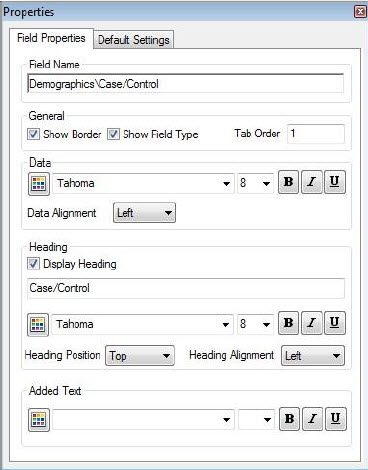
  4. Set the default values as needed.
Option Description
GeneralShow Border – Shows the border around the field.

Show Field Type – Displays the icon for the field at the top left corner of the field.

Tab Order – The order in which a user tabs through the fields on a datasheet. The default tab order is the order in which you added the fields to the datasheet.

DataData Alignment – The horizontal alignment of the data that is displayed in the field. Values are Left, Center, and Right.
HeadingDisplay Heading – Displays a user-defined value as the heading for the field.

Note: Any value that you enter here does not overwrite the database name for the field. It is simply a display value for the field on the datasheet.

Heading Position – The location of the field heading relative to the field. Values are Top, Left, Bottom, and Right.

Heading Alignment – The alignment of the field heading relative to the field. Values are Left (aligned with the left edge of the field), Center (centered relative to the field), and Right (aligned with the right edge of the field.

Use the formatting options to format the font color, font type, font size, and font properties (Bold, Italics, or Underline) for the data that is entered into the field, the field heading, or any static text on the datasheet.

Working with Tables in a Datasheet

Data entry for most of the fields in a datasheet is very straightforward and is described for each field type in Database Field Types. The tab order for the fields determines the order in which you move through the fields on the datasheet and enter data in them. A variety of options, however, are available for working with table fields in datasheets, including resizing a table, saving and loading table formats, and entering data either directly into the table or creating table datasheets and entering the data into a table through its table datasheet.

To resize a table

When adding a table field to a datasheet, the table is added with a default size (width and height). Resize the window to suit your specific needs.

  1. At the top of the datasheet, click Form Design.
  2. Click in the table field to select it.
  3. Resizing handles will appear on the table.
  4. Drag the top, side, or corner handles to resize the table as needed.
To format a table in a datasheet

When adding a table to a datasheet, the order in which the fields (columns) are displayed in the Define the Table Structure pane in the Add New Field dialog box is the order in which the rows are displayed in the table in the datasheet. It is possible to change this order and the new order can be saved as a table format. You can save multiple formats for the same table and load different formats for the same table in different datasheets (but you can only have one format loaded per table per datasheet).

  1. In Form Design mode, right-click on the table in the datasheet, and on the context menu that opens, click Show Fields.
    • The Select Fields window opens. This window lists all of the fields in the table and their current order in the table.
  2. In the Order column, enter the new order for the table fields.
  3. Optionally, to sort the table display, enter the Sort Order for the table fields.
    • For example, to sort the data in the Visit Table in the previous image above by the most recent visit date, in the Sort Order column for Visit Date, enter a “1,” and then select Asc (which indicates Ascending order).
  4. Click the Run button to change the order of the table fields in the datasheet.
  5. Optionally, to save this new order of rows as a table format, click the Save Fmt button.
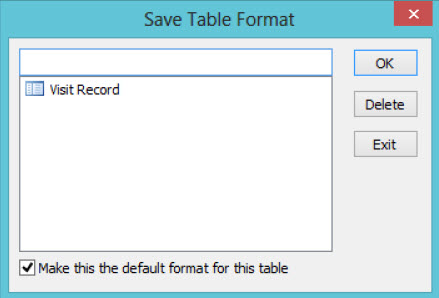
    • The Save Table Format window opens.
  6. Enter a name for the table format, and if you want to make this format the default format for the table, leave the Make this the default format for this table checkbox selected.
  7. Click OK to commit your choice and exit the Save Table Format window.
To load a different format for a table in a datasheet

When adding a table field with multiple formats to a datasheet, the table is added in its default format. You can load a different format for the table.

  1. In Form Design mode, right-click on the table in the datasheet, and on the context menu that opens, click Show Fields. The Select Fields window opens. This window lists all of the fields in the table and their current order in the table.
  2. Click the Load Format The Load Table Format window opens. This window lists all of the available formats for the table.
    • Select the format that you want to apply to the table, and then click OK. The Load Table Format window closes.
  3. Click the Run button to apply the selected format to the table.
To enter data directly into a table in a datasheet
  1. At the top of the datasheet, click Data Entry.
  2. Right-click in the table, and on the context menu that opens, click Add Row.
    • A new blank row opens for adding data.
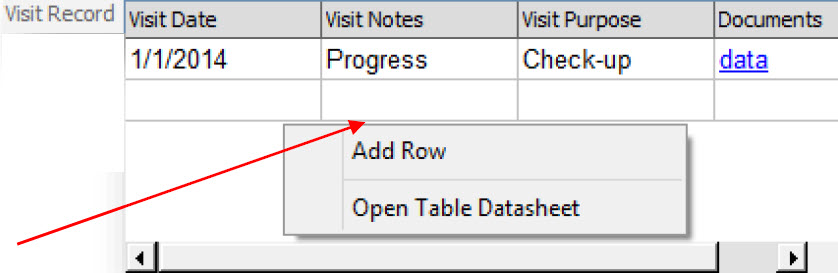
  3. Click in each table cell of the blank row to add the necessary data.
To create a table datasheet

If you have a table in a datasheet that has a large number of fields in which to enter data, then data entry can become quite cumbersome. To make data entry easier for a large table, you can set up a table datasheet for the table. The table datasheet displays all the fields for a table row in a single view. You do not have to scroll through a table row to add data to each field in the row. You can create a table datasheet from both the Form Design mode and the Data Entry mode.

To create a table datasheet while in Form Design mode
  1. Right-click on the table, and on the context menu that opens, click Show Fields.
    • The Select Fields window opens. This window lists all of the fields in the table and their current order in the table.
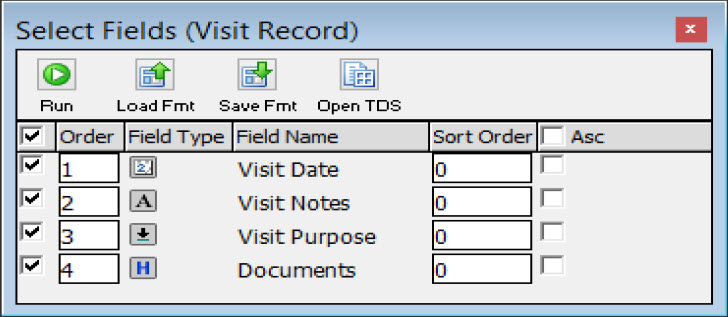
  2. Click the Open TDS button.
  3. Select Form Design and then the Fields from the top bar
  4. Drag the needed field or fields (CTRL-click to select multiple fields) to the datasheet.
  5. Once complete, select Save Fmt from the top bar to save the format
To create a table datasheet in Data Entry mode
  1. Right-click on the table, and on the context menu that opens, click Open Table Datasheet.
  2. Select Form Design and then the Fields from the top bar.
  3. Drag the needed field or fields (CTRL+click to select multiple fields) to the datasheet.
  4. Once complete, select Save Fmt from the top bar to save the format
To enter data into a table datasheet
  1. In Data Entry mode, right-click on the table, and on the context menu that opens, click Open Data Table Sheet.
    • A blank row in the table datasheet opens.

  2. Enter the data in the table row.
  3. Click the Save Data button.
  4. To add a new data row, click the New Row button.
  5. Repeat Steps 2-4 until all the necessary data is added to the table.
Row Select ButtonsDescription
Move to the first row in table datasheet.
Move to the previous row in table datasheet.
Move to the next row in table datasheet.
Move to the last row in table datasheet.
Saving and Loading Datasheet Formats

After you have created a datasheet with a specific format, you can save the format. You can then retrieve this saved format and load it into another datasheet of the same type.

To save a datasheet format
  1. Create and format the datasheet as needed.
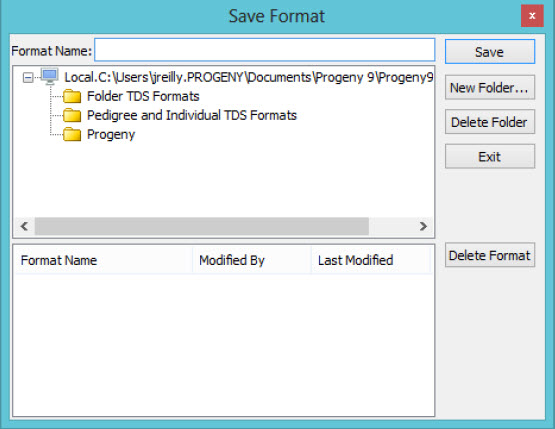
  2. On the toolbar, click the Save Fmt button.
    • The Save Format dialog box opens.
  3. Enter a name for the datasheet format, and then do one of the following:
    1. Select a folder.
    2. Click New Folder… and on the Add Format Folder dialog box that opens, do the following:
      1. Enter the name of the new folder in which to save to format.
      2. Select the location for the new folder. The folder can be stored at the root level or it can be a sub-folder of another folder.
  4. Click Save on the Save Format dialog box to commit the format and close the Save Format window.
To load a datasheet format

You can a retrieve a saved datasheet format and load it

  1. Open the datasheet into which you are loading a saved format.
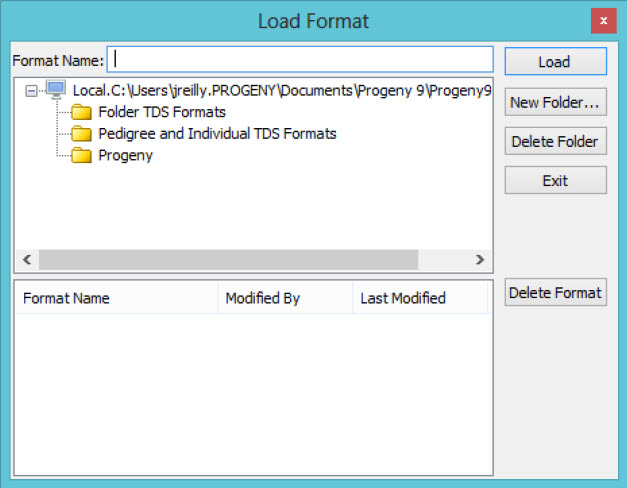
  2. On the toolbar, click the Load Fmt button.
    • The Load Format dialog box opens.
  1. Open the folder that contains the datasheet format that you are loading, select the format, and then click Load.
    • The datasheet is refreshed with the loaded format. You can now edit the datasheet, enter data, and so on.
Printing a Datasheet

You can print a datasheet in either portrait or landscape mode. You can always view the page breaks for multiple page datasheets before you print the datasheet.

To print a datasheet
  1. Optionally, before you print the datasheet, to view the page breaks on each page, do the following:
  2. At the top of the datasheet, click Form Design.
  3. On the toolbar, click the Properties button to open the Properties dialog box.
  4. If needed, open the Default Settings tab.
  5. Select Show Page Breaks.
  6. Optionally, right-click on the datasheet and on the context menu that opens, click Print Setup to open the Print Setup dialog box and confirm or modify the printing options as needed.
  7. On the datasheet toolbar, click the Print button.

View Video: Edit Questionnaire Datasheet

Letter Generation in Progeny

Individual’s module

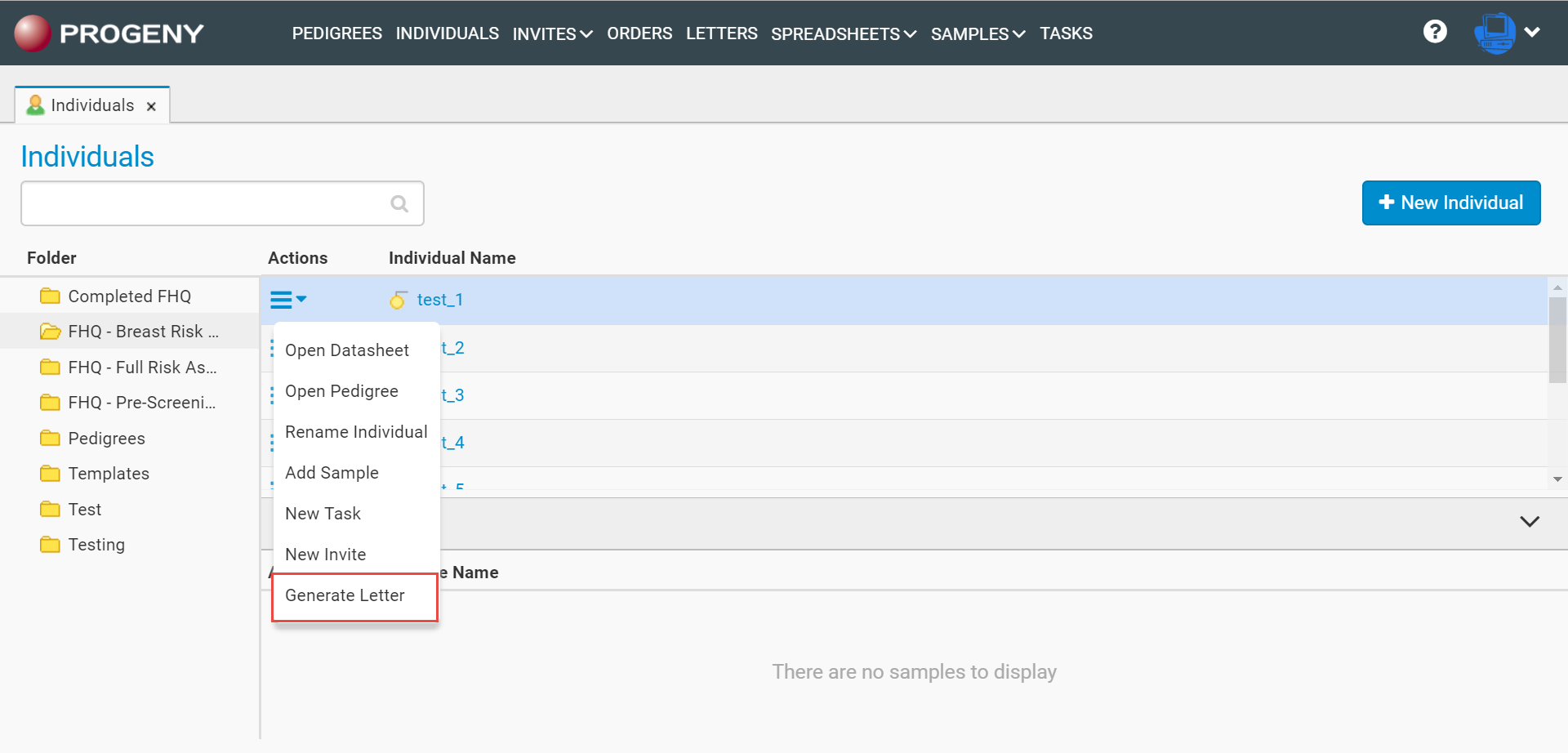
From the Individuals Module, click the Actions Menu drop-down, then click Generate Letter.

Pedigree View

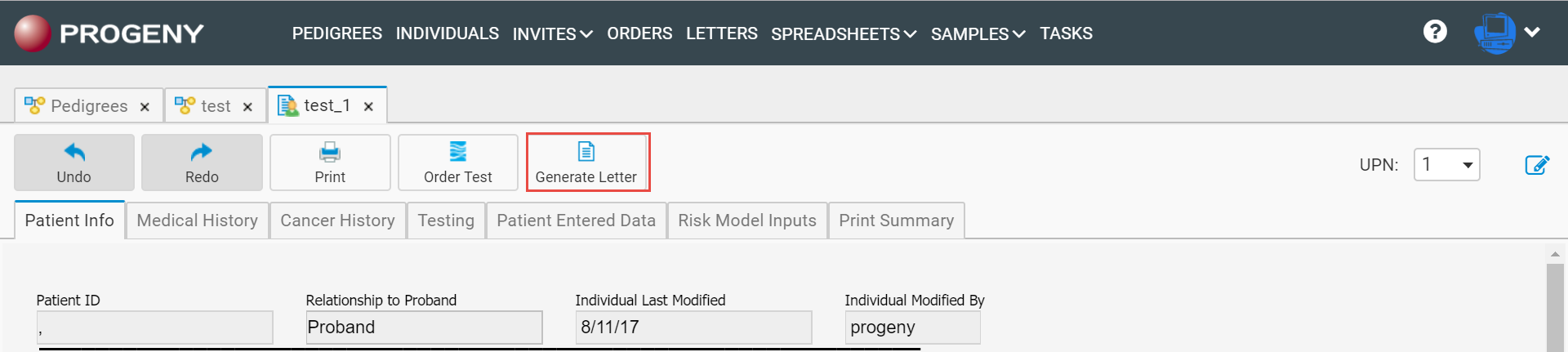
Click the Generate Letter button at the top toolbar menu for the Pedigree.

Individual Datasheet

Click the Generate Letter button on the Individual Datasheet toolbar menu.

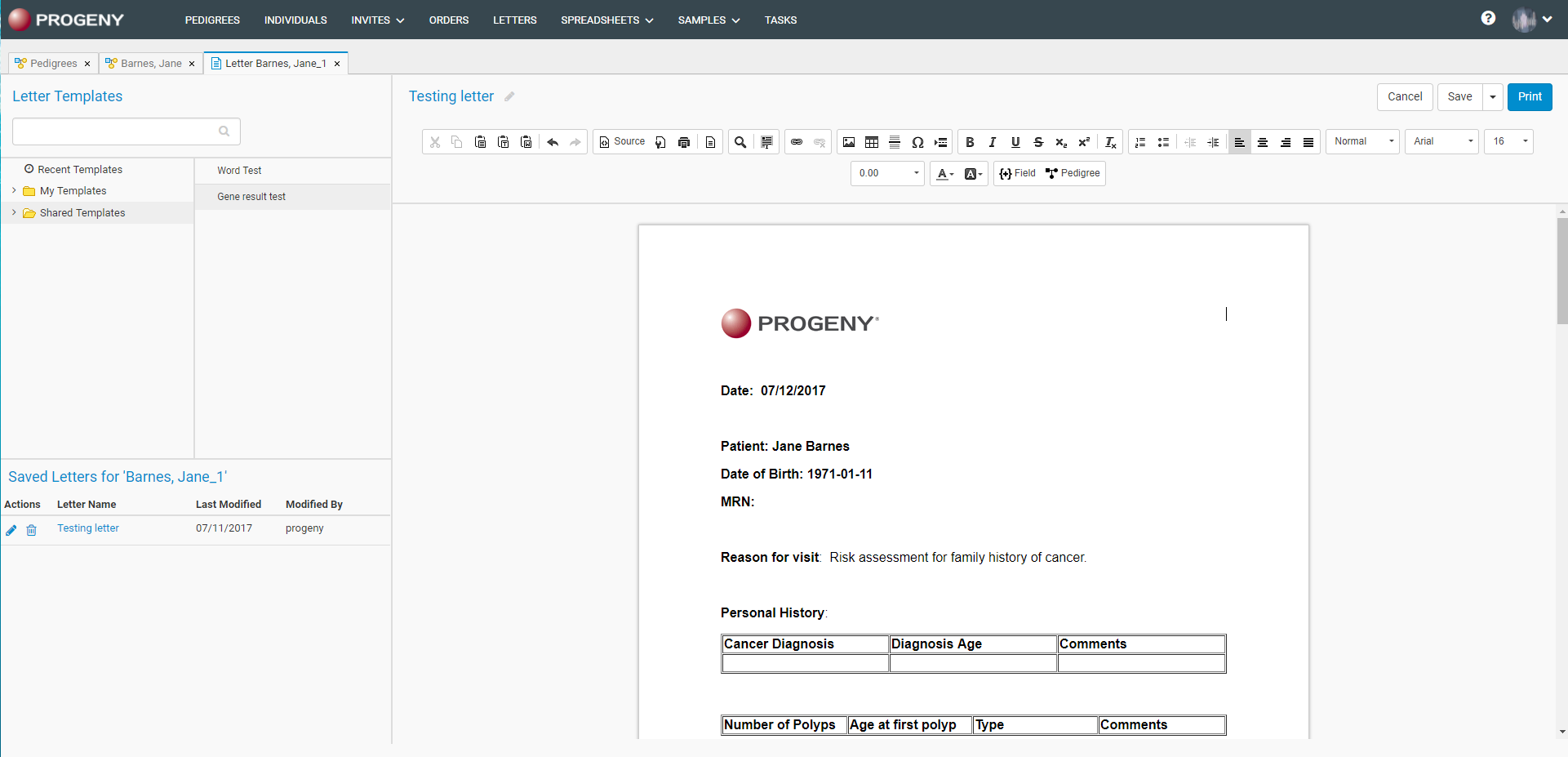
Once selecting the generate letter option, you will be given the option of which template you would like to use. You also have the ability to edit the letter however you like.  Once selecting the letter you would like to save/print, any fields that are in the template will auto-populate with the data from the individual.

Related Videos

Edit Questionnaires

On this tab, you can edit the configuration for the different questionnaires inside of Progeny.

  1. Save

    Saves any changes that are made to the questionnaire(s).

  2. New Questionnaire

    Creates a new questionnaire that can be customized.

  3. Delete Questionnaire

    Deletes the selected questionnaire.

  4. Copy Questionnaire

    Copies the selected questionnaire and all its settings to a new questionnaire.

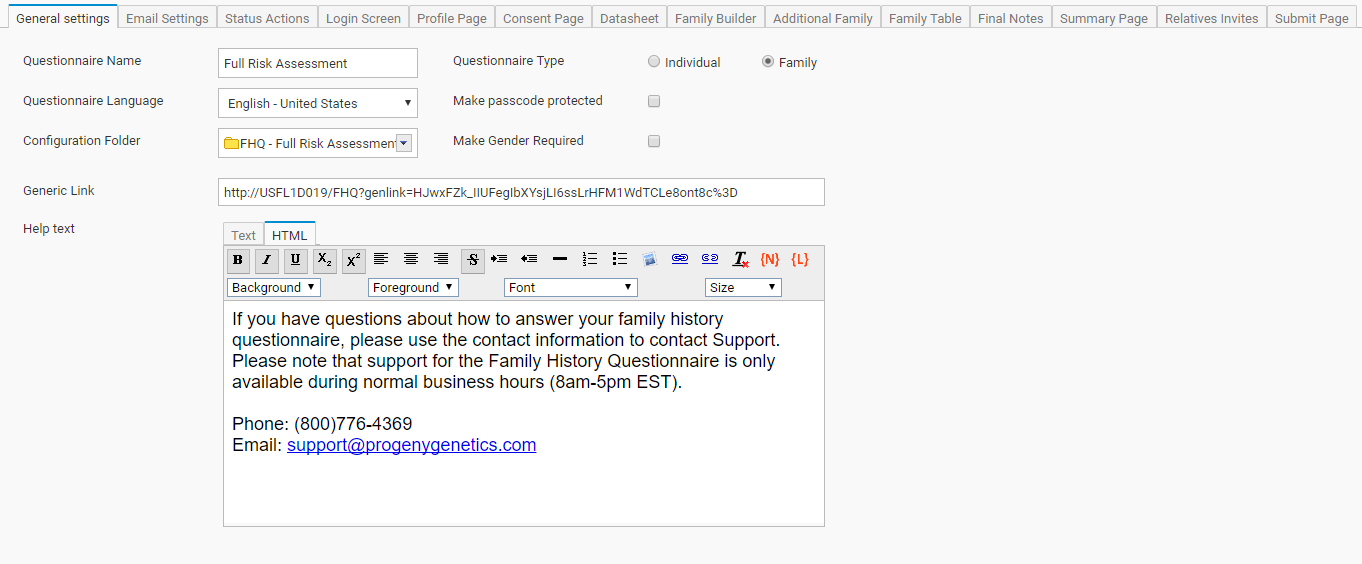
  5. General settings
    • Questionnaire Name – The name of the questionnaire.
    • Questionnaire Type – Individual questionnaires ask about the individual while family questionnaires ask about the family.
    • Questionnaire Language – the language of the questionnaire.
    • Make passcode protected – enables a second factor for authentication in which a passcode is generated for the FHQ and has to be given to each patient that is sent the questionnaire so that they can begin.
    • Configuration Folder – the folder that is configured in the web application backend to be associated with the selected FHQ.
    • Make Gender Required – makes the gender field required for the questionnaire when being filled out.
    • Generic Link – a link that is automatically created so that the FHQ can be accessed using the URL in a browser.
    • Help text – help text that will be displayed when patients click the Help button throughout the questionnaire.
  6. Email Settings
    • Invitation Email – the invitation email template.
    • Submit Email – the submit email template.
    • Unfinished Email – the unfinished email template.
    • Reminder Email – the reminder email template.
    • Turn on Automated Reminders – enables the option to set up automated reminders.
    • Remind Every – you can choose to send a reminder for the specified days/weeks.
    • Max Number of Reminders to Send – you can specify the maximum amount of reminders that are automatically sent.
    • Remind Once – you can choose to send a reminder once for the specified days/weeks.
    • Before This Date – you can specify a field in the database that points to a date so that the Remind Once function can be applied to the date field.
      View Video: Send Reminders
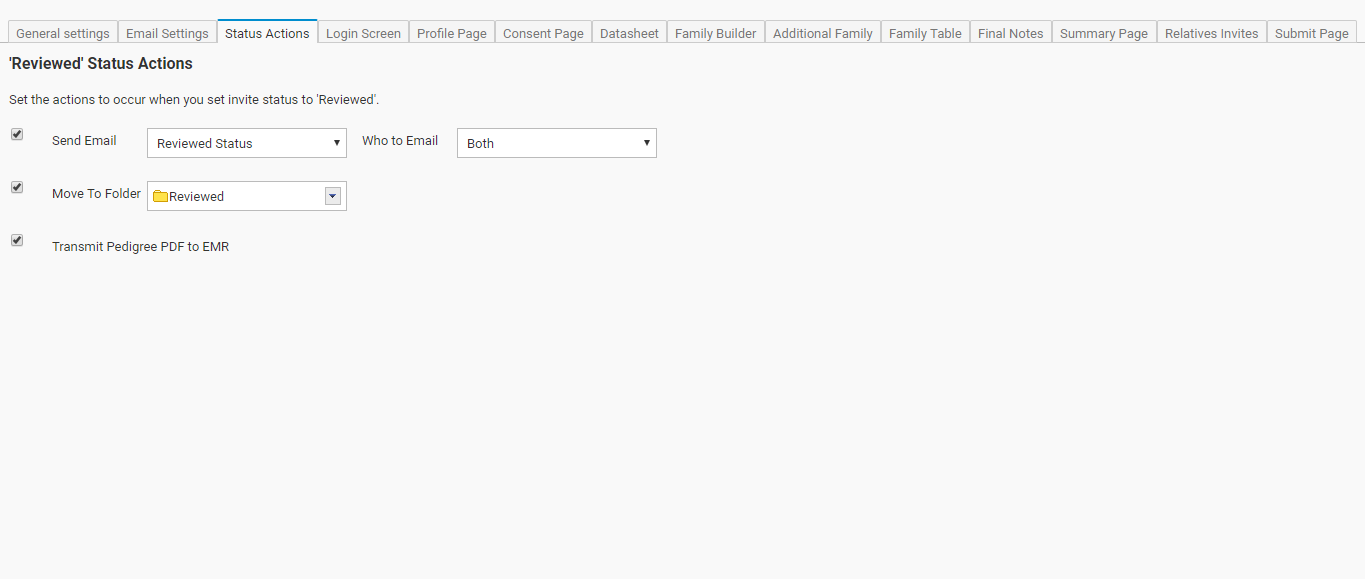
  7. Status Actions

    This section covers actions that take place once an invitation has the status manually set to Reviewed.
    • Send Email – sends the specified email template.
    • Who to Email – specifies to whom the email template will be sent to.
      • Patient – sends the email template to the patient.
      • Staff – sends the email template to the email that is specified in Email to notify from the Web Data Capture Configuration in the Progeny web configuration back-end.
      • Both – sends the email template to both the patient and the staff.
    • Move To Folder – moves the pedigree of the patient to the specified folder.
    • Transmit Pedigree PDF to EMR – if an EMR has been set up with your database, this enables the pedigree to be transmitted to the EMR.
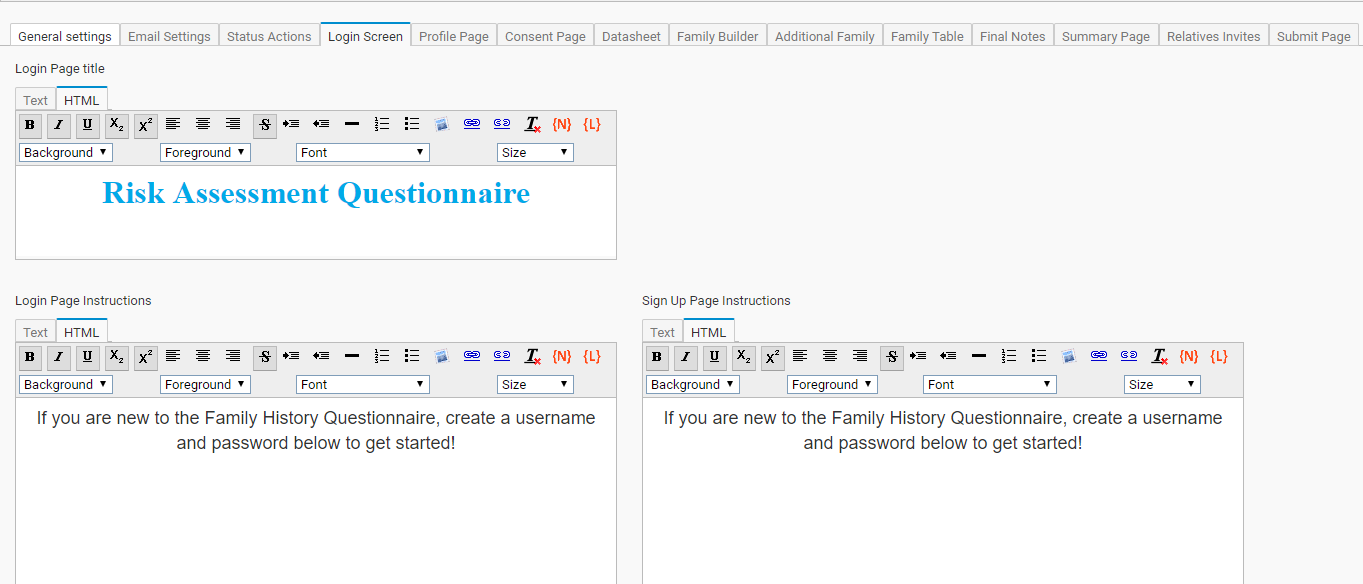
  8. Login Screen
    • Login Page title – the title of the login page.
    • Login Page Instructions – instructions on the login page.
    • Sign Up Page Instructions – instructions on the sign-up page.
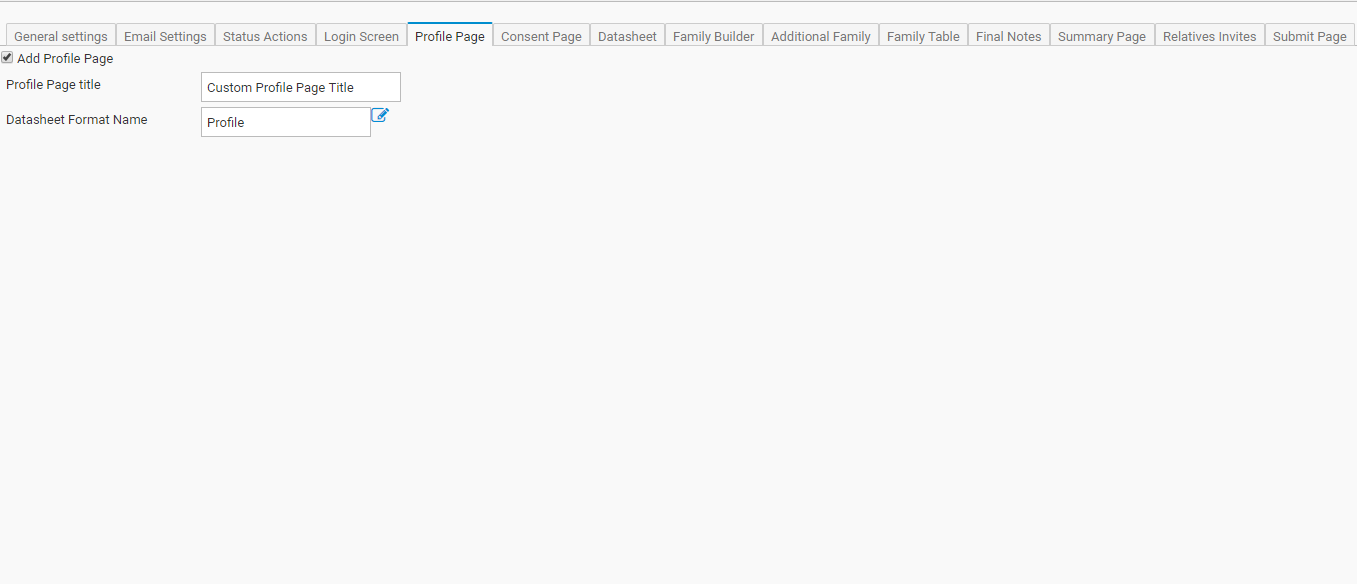
  9. Profile Page
    • Add Profile Page – specifies if the profile page will be added to the questionnaire.
    • Profile Page title – the title of the profile page.
    • Datasheet Format Name – the datasheet format for the profile page.
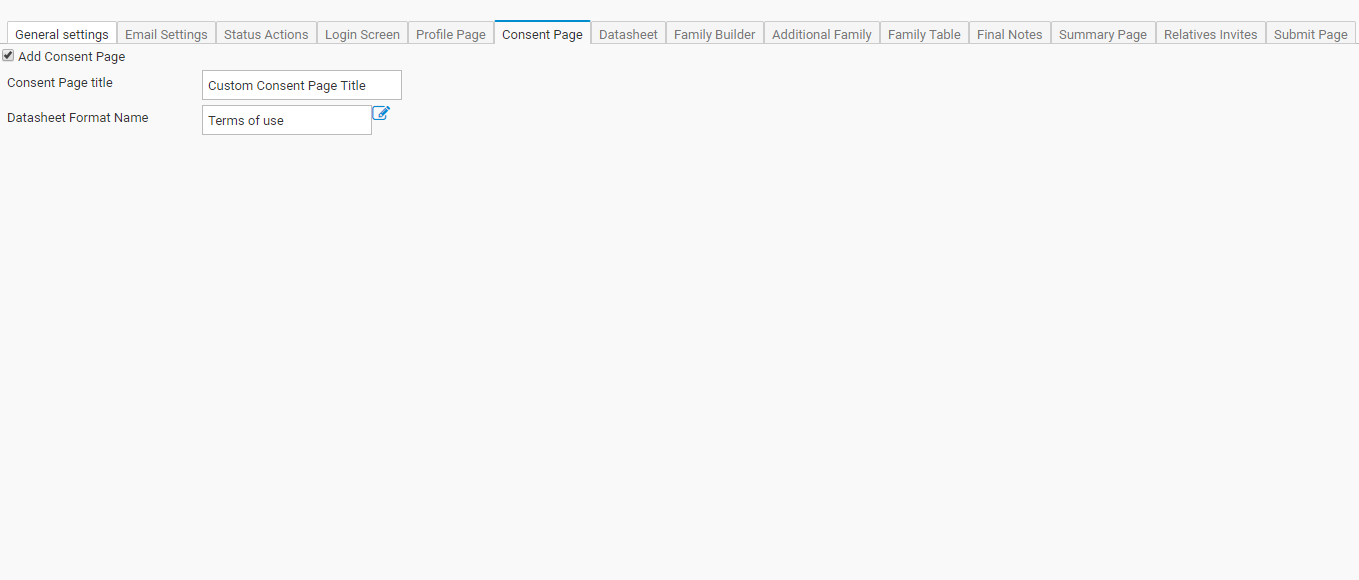
  10. Consent Page
    • Add Consent Page – specifies if the consent page will be added to the questionnaire.
    • Consent Page title – the title of the consent page.
    • Datasheet Format Name – the datasheet format for the consent page.
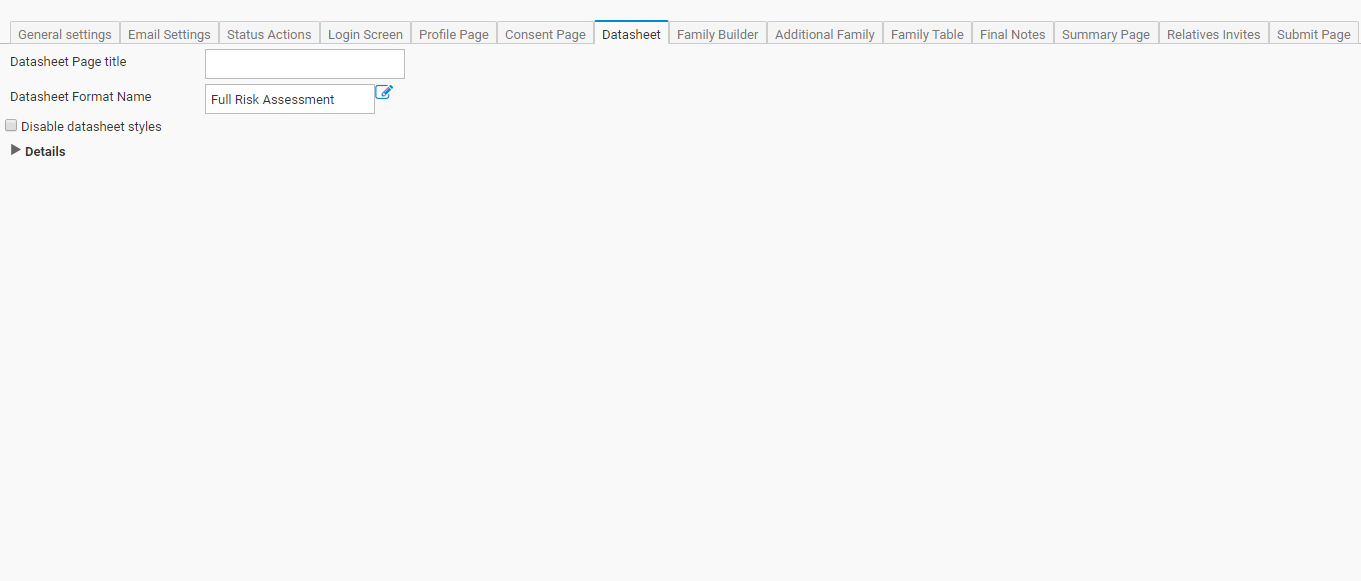
  11. Datasheet

    • Datasheet Page title – the title of the datasheet of the questionnaire.
    • Datasheet Format Name – the datasheet format for the questionnaire.
    • Disable datasheet styles – disables the styles that are configured for the specified datasheet. You can specify which format to use for the Editor Style, Editor Label Style, and Added Text Style.
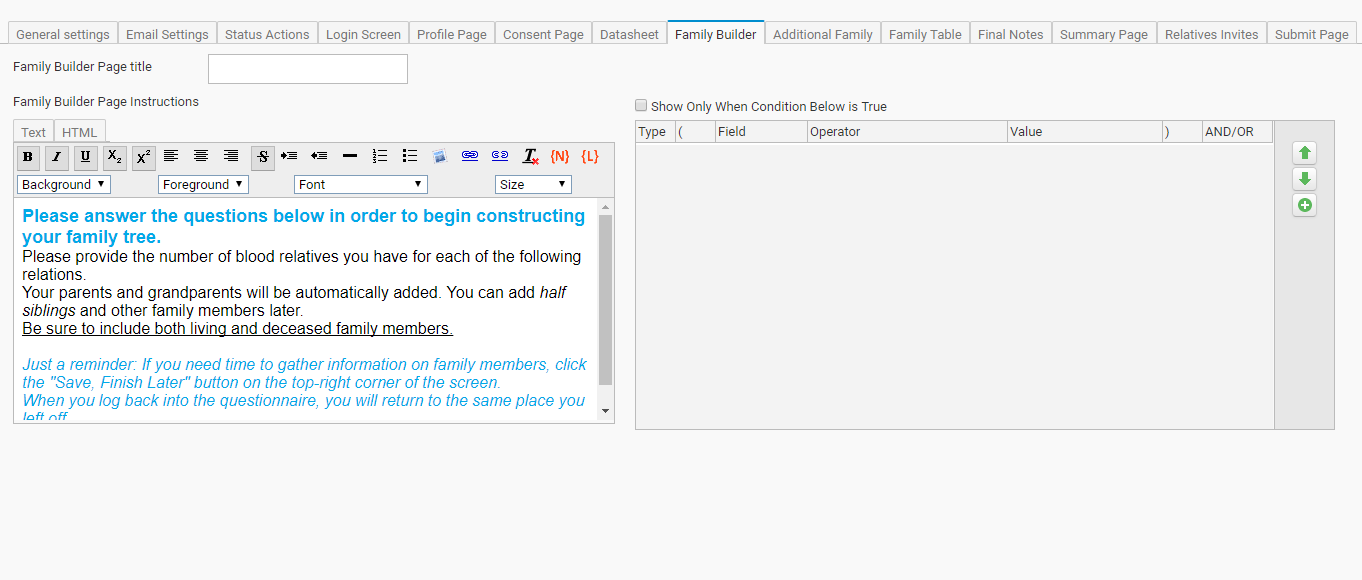
  12. Family Builder
    • Family Builder Page title – the title of the Family Builder Page.
    • Family Builder Page Instructions – instructions for the Family Builder Page.
    • Show Only When Conditions Below is True – you can specify to show the family builder page by a condition.
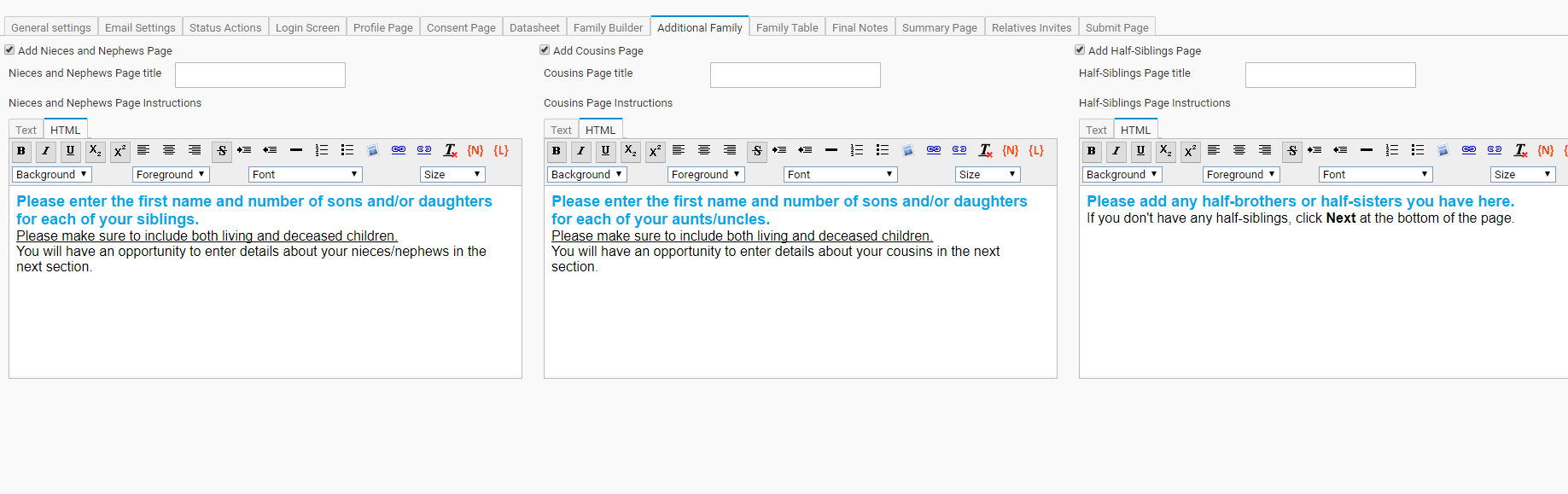
  13. Additional Family
    • Add Nieces and Nephews Page – specifies if the Nieces and Nephews Page will be added to the questionnaire.
    • Nieces and Nephews Page title – the title for the Nieces and Nephews Page.
    • Nieces and Nephews Page Instructions – instructions for the Nieces and Nephews Page.
    • Add Cousins Page – specifies if the Cousins Page will be added to the questionnaire.
    • Cousins Page title – the title of the Cousins page.
    • Cousins Page Instructions – instructions for the Cousins Page.
    • Add Half-Siblings Page – specifies if the Half-Siblings Page will be added to the questionnaire.
    • Half-Siblings Page title – the title of the Half-Siblings Page.
    • Half-Siblings Page Instructions – instructions for the Half-Siblings Page.
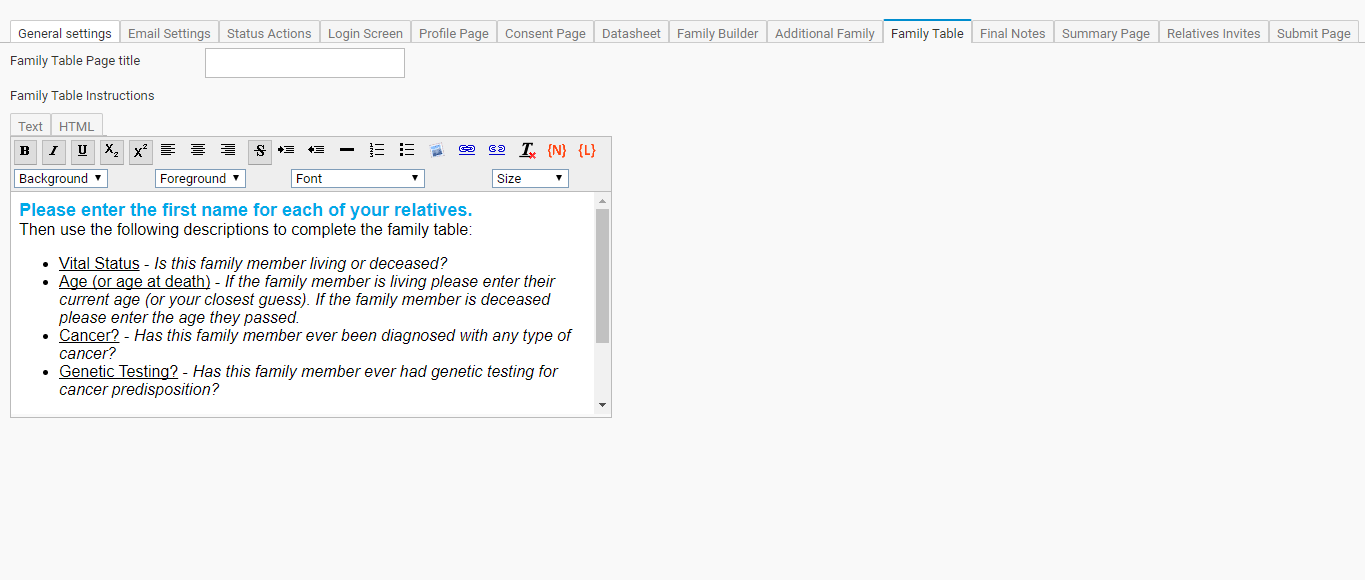
  14. Family Table
    • Family Table Page title – the title of the Family Table Page.
    • Family Table Instructions – the instructions for the Family Table Page.
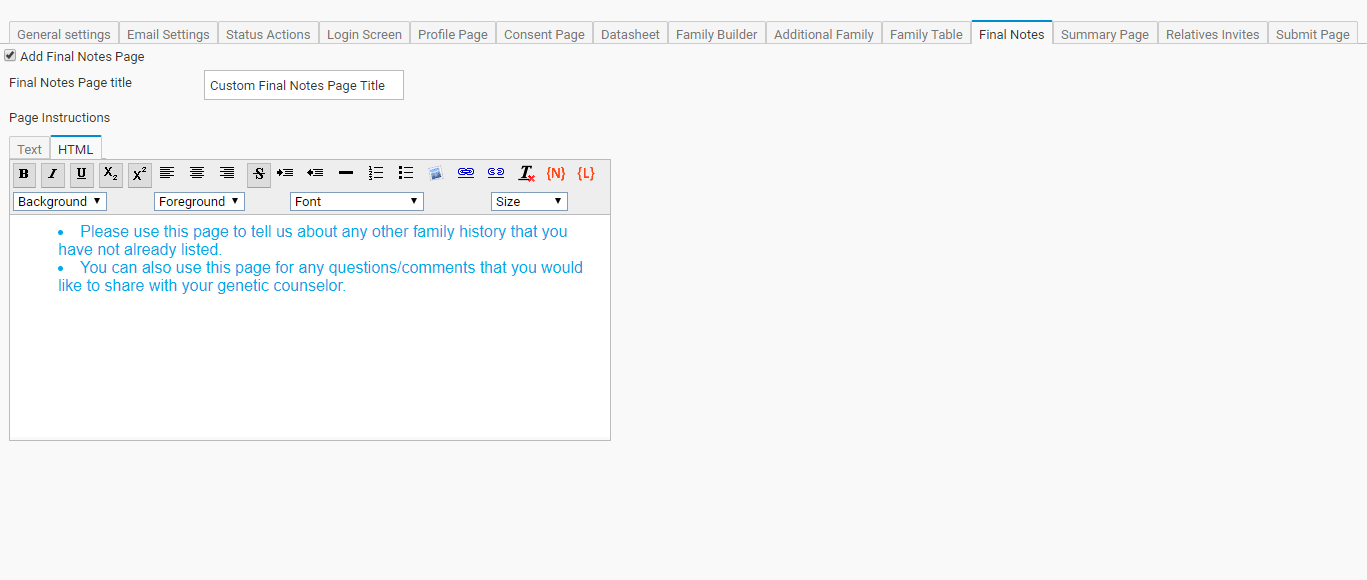
  15. Final Notes
    • Add Final Notes Page – specifies if the Final Notes Page will be added to the questionnaire.
    • Final Notes Page title – the title for the Final Notes Page.
    • Page Instructions – the instructions for the Final Notes Page.
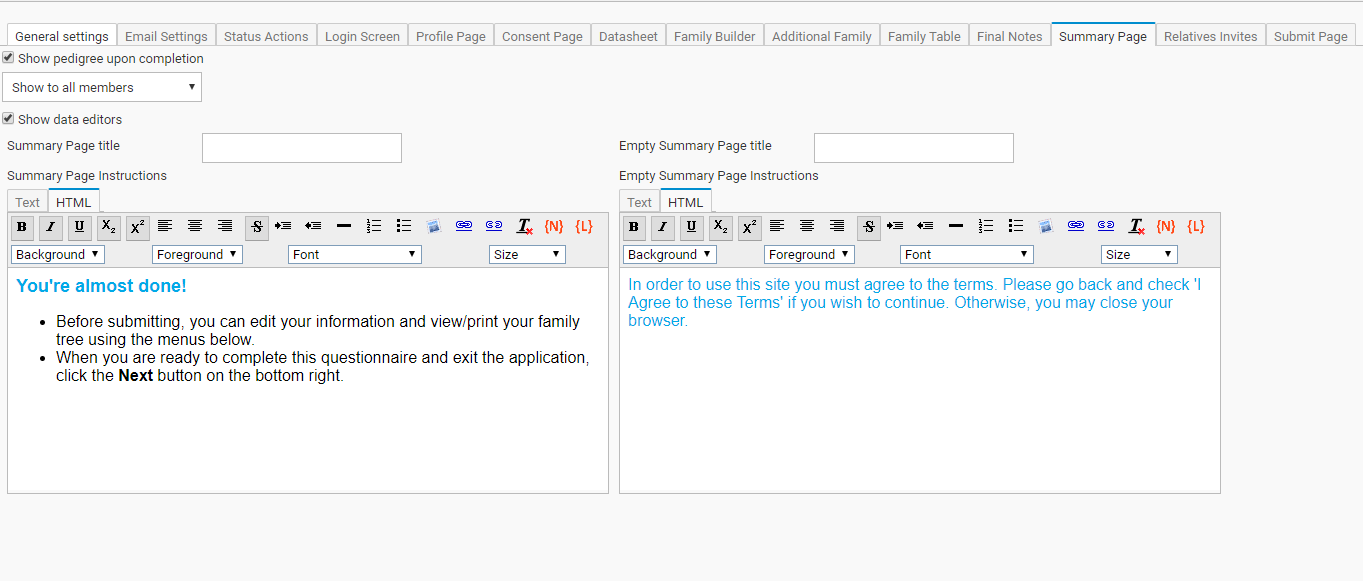
  16. Summary Page
    • Show pedigree upon completion – specifies whether to show the pedigree on the summary page and whether to display it for all members who fill out the questionnaire or only the Proband of the family.
    • Show data editors – specify if the data editors are shown on the Summary Page. These editors are used to modify information in different sections of the questionnaire.
    • Summary Page title- the title of the Summary Page.
    • Summary Page Instructions – the instructions on the Summary Page.
    • Empty Summary Page title – the title of the Empty Summary Page.
    • Empty Summary Page Instructions – the instructions for the Empty Summary Page. This page will be displayed if the patient does not agree to the terms of use page.
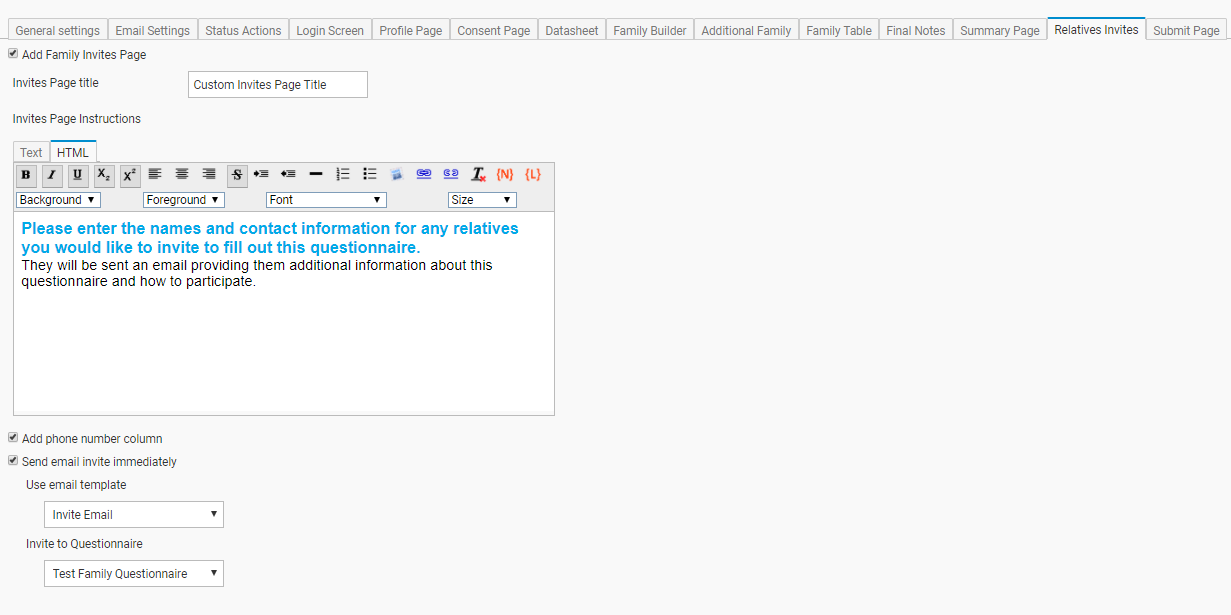
  17. Relatives Invites
    • Add Family Invites Page – specifies if the Family Invites page will be added to the questionnaire.
    • Invites Page title – the title of the Invites Page.
    • Invites Page Instructions – the instructions for the Invites Page.
    • Add phone number column – adds a phone number column.
    • Send email invite immediately – send the invite immediately.
    • Use email template – uses the specified email template for relatives.
    • Invite to Questionnaire – specifies the questionnaire to be sent to the relatives.
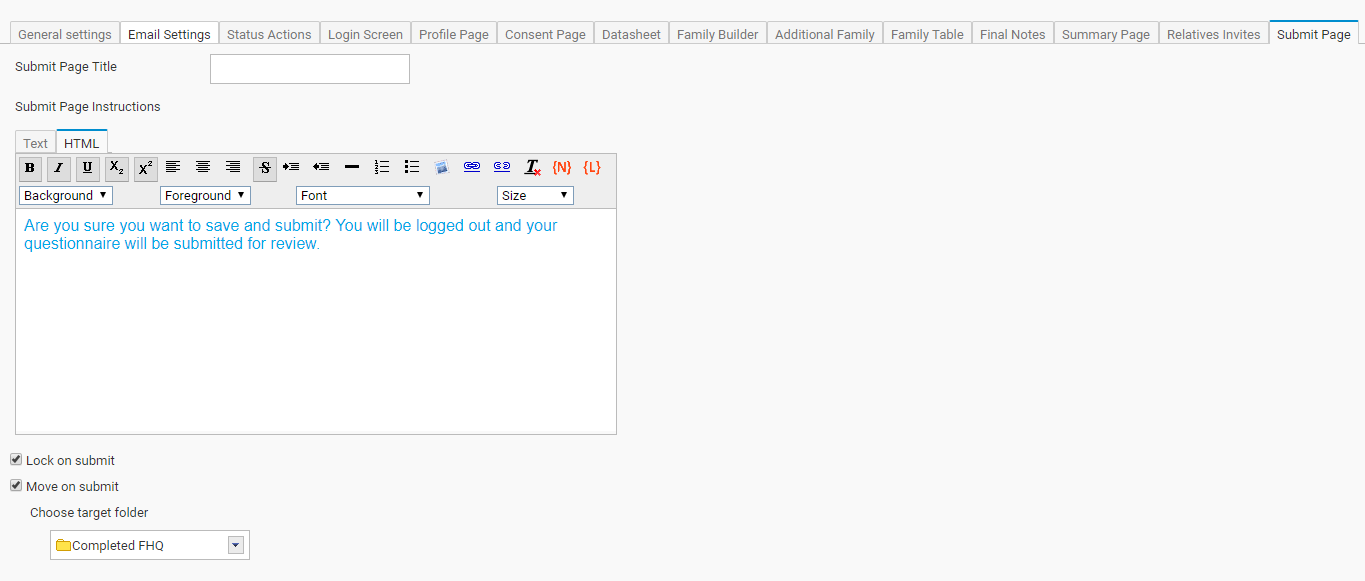
  18. Submit Page
    • Submit Page Title – the title of the Submit Page.
    • Submit Page instructions – the instructions on the Submit Page.
    • Lock on submit – locks the questionnaires once they have been submitted. This prevents accessing the questionnaire again and changing information.
    • Move on submit – moves the pedigree to the target folder once a questionnaire has been submitted.
      View Video: Move Pedigree Once FHQ is Submitted

View Video: Edit Questionnaire Module – Overview


Related Videos

View Video: Edit Questionnaire Datasheet

Invite Status

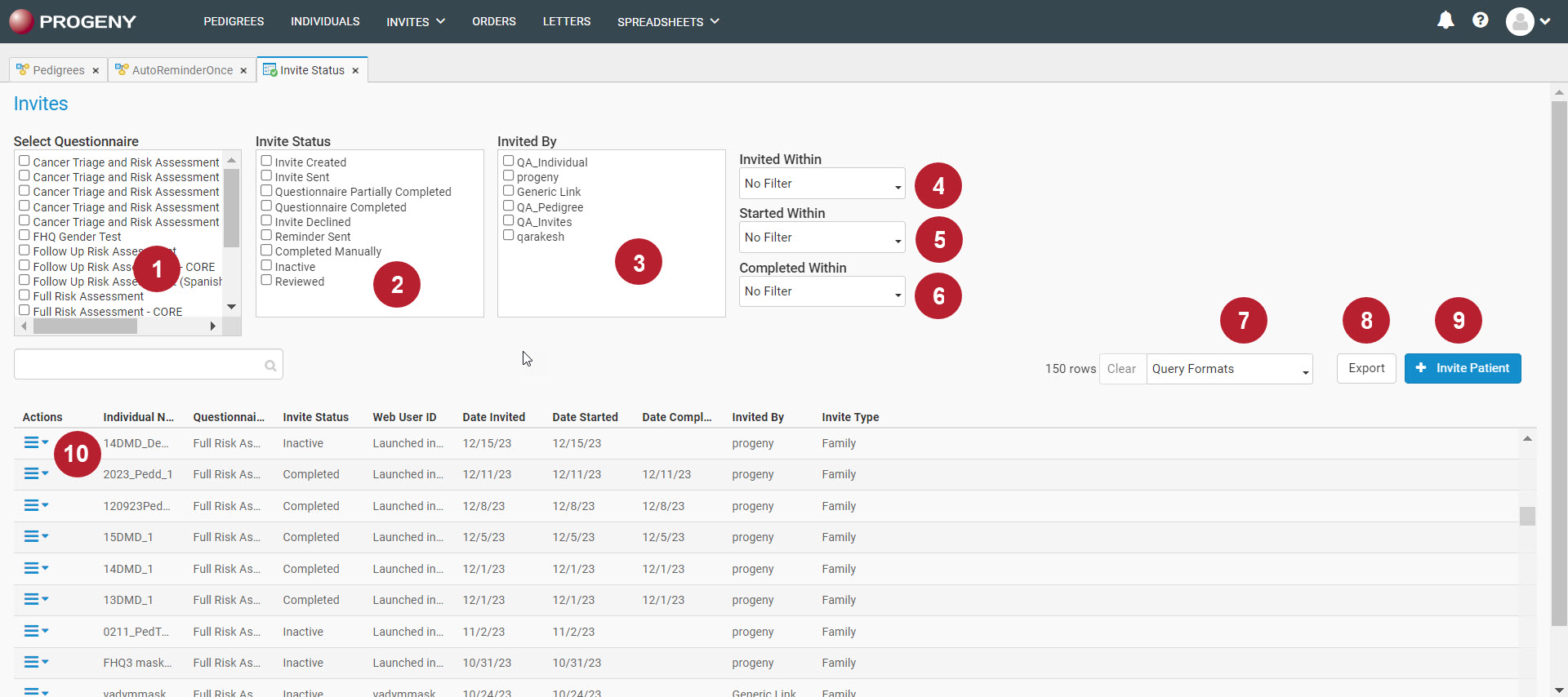
The Invite Status module is used for sending out Family History Questionnaires (FHQ’s), viewing the status of questionnaires, and applying filters to the questionnaires list.

  1. SELECT QUESTIONNAIRE
    Select the questionnaire(s) to view all of their invitations in the view pane at the bottom of the page.
  2. INVITE STATUS
    You can filter the list of invitations to view invitations with the selected status.

    • Invite Created – the invitation has been successfully created.
    • Invite Sent – the invitation has been successfully sent.
    • Questionnaire Started – the patient has logged into a questionnaire sent through either email or generic link.
    • Questionnaire Partially Completed – the questionnaire has been started and the user has clicked on the Save, Finish Later button in the questionnaire.
    • Questionnaire Completedthe patient has clicked the Submit button in the questionnaire, and the questionnaire has been completed.
    • Invite Declined – when the consent page has not been agreed to.
    • Reminder Sent – a reminder has been sent.
    • Completed Manually – an invite status was updated to Completed Manually from within Progeny.
    • Inactive – an invite status was updated to Inactive from within Progeny.
    • Reviewed – an invite status was updated to Reviewed from within Progeny.
  3. INVITED BY
    Filter the list of invitations displayed based on the selected user(s) that sent the invitation.
  4. INVITED WITHIN
    Filter the view of invitations by how recent the patient was invited.
  5. STARTED WITHIN
    Filter the view of invitations by how recent the questionnaire was started.
  6. COMPLETED WITHIN
    Filter the view of invitations by how recent the questionnaire was completed.
  7. QUERY FORMATS
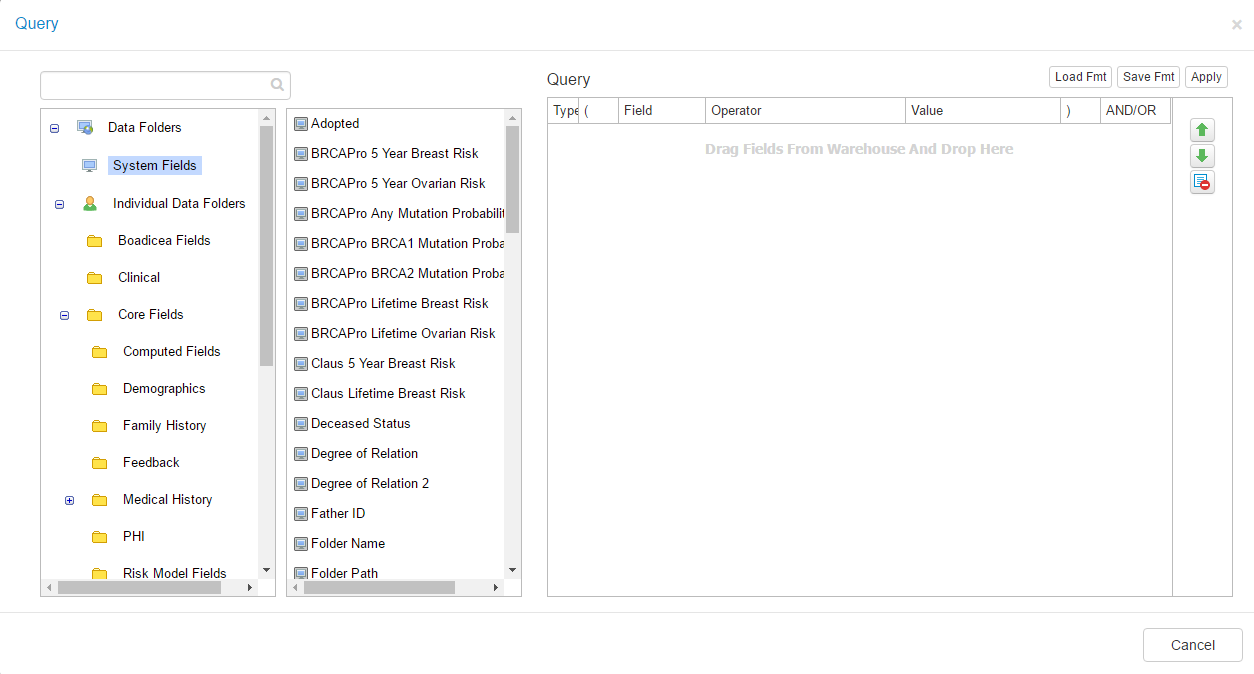
    Filter the view of the invitations even further by selecting the Query Formats drop-down and selecting either Load Query to load an existing query format or New Query to create a new query format.
    You are able to select any field in the database by using the folders on the left pane and then drag to drop the field into the right Query pane. Once you have the field(s) in the Query pane, you can then specify the operator and value. This Query pane allows the creation of complex queries which can include multiple fields with different values as well as using the AND/OR to specify multiple conditions.

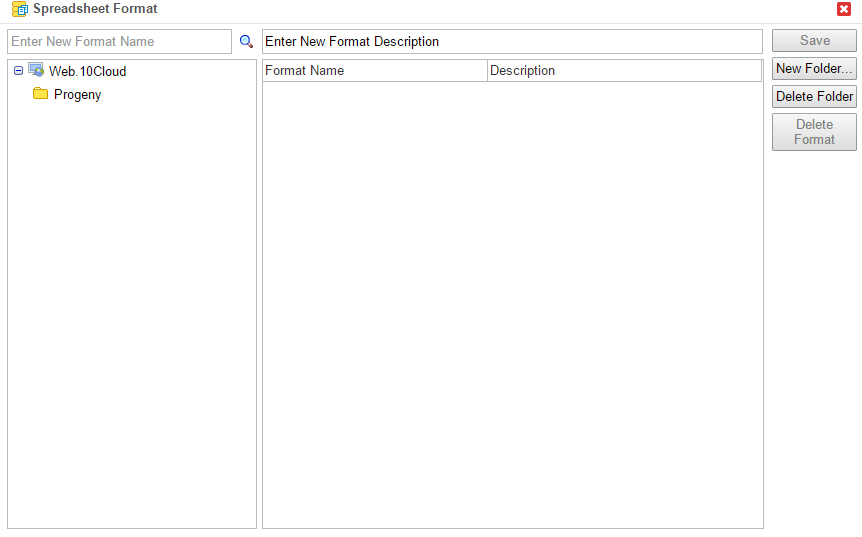
    Once you have created the query format, you can choose to save it which will then open another window asking to select the folder to save the format in. Give the format a name. You also have the option to delete a format from the selected folder, delete the selected format folder if it is empty, and optionally, give the format a description. After the format is saved, click Apply to run the query and apply the filter to the invitations view.
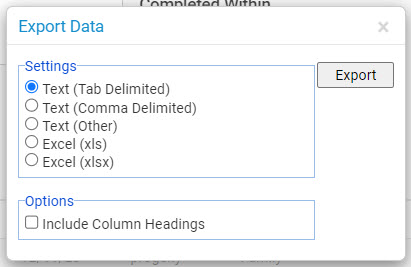
  8. EXPORT – allows Export of displayed invites to text, tab, or Excel
  9. INVITE PATIENT
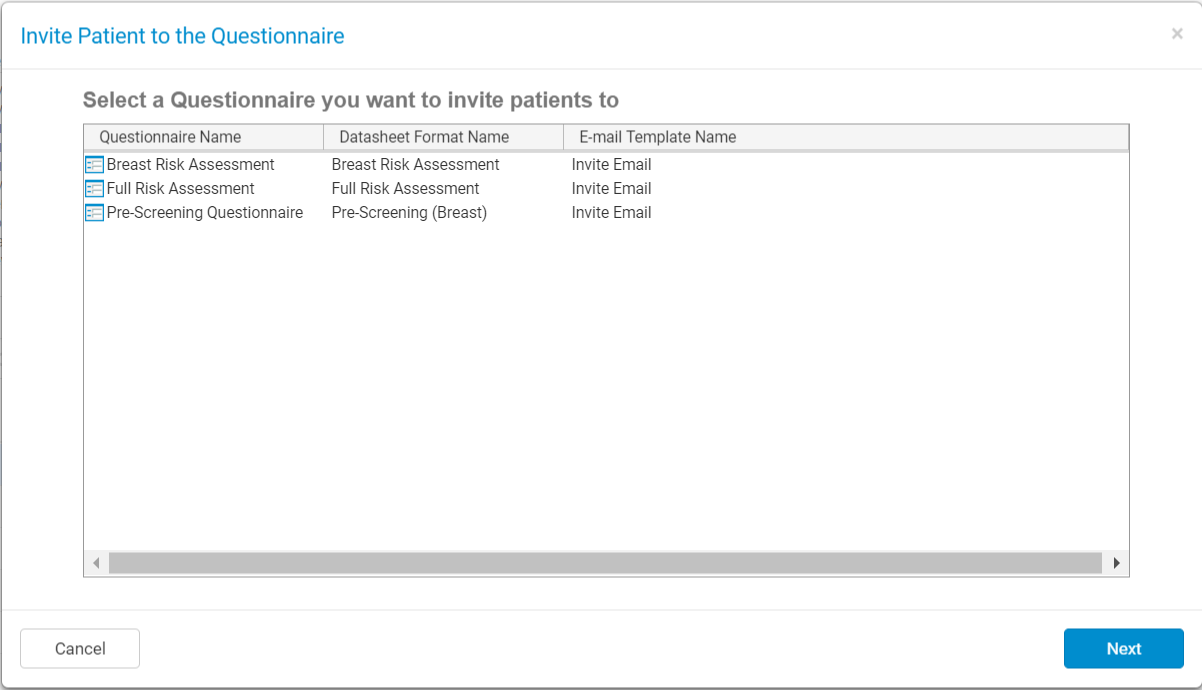
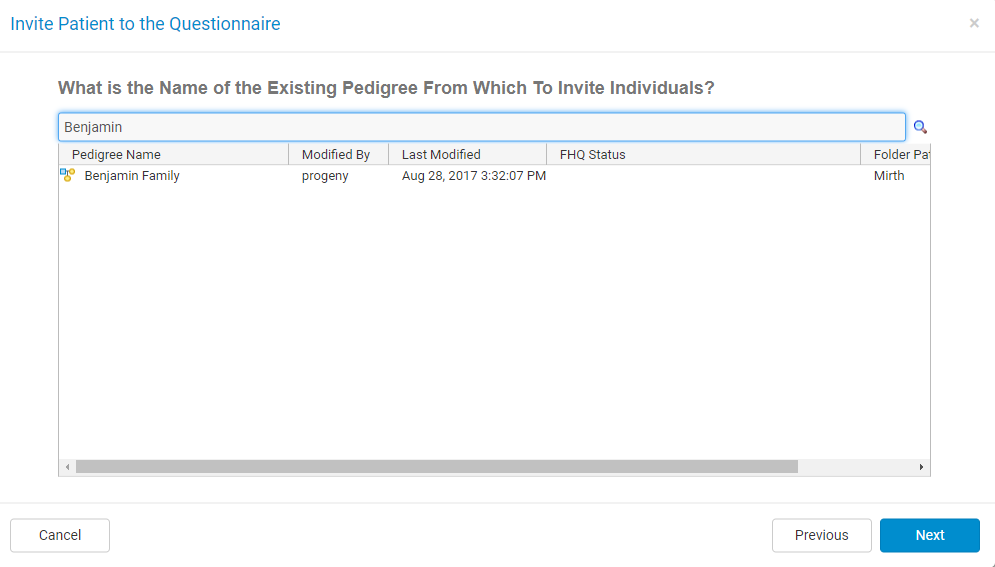
    Click the Invite Patient button to invite a patient to fill out the FHQ. The first step is to select which questionnaire to send to the patient.

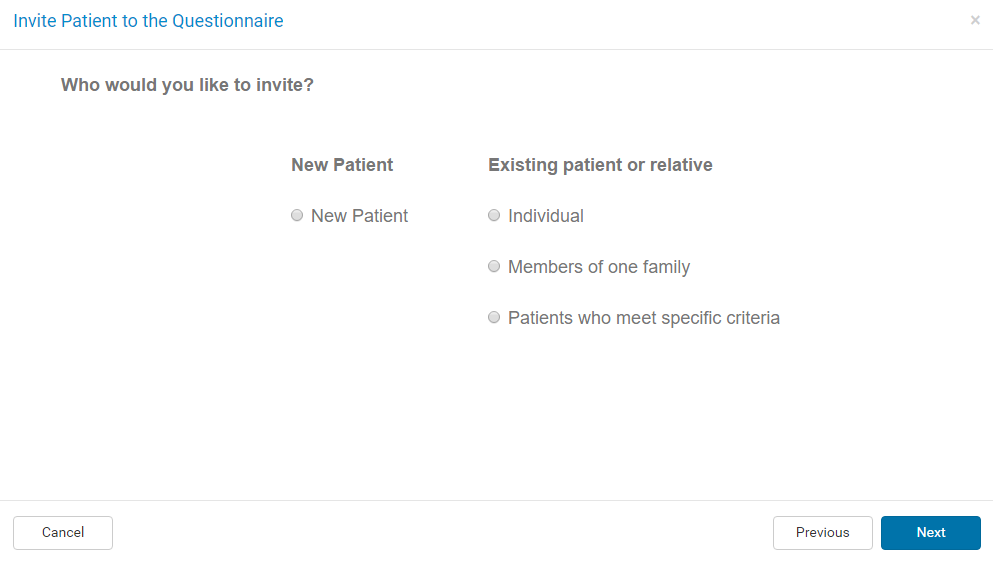
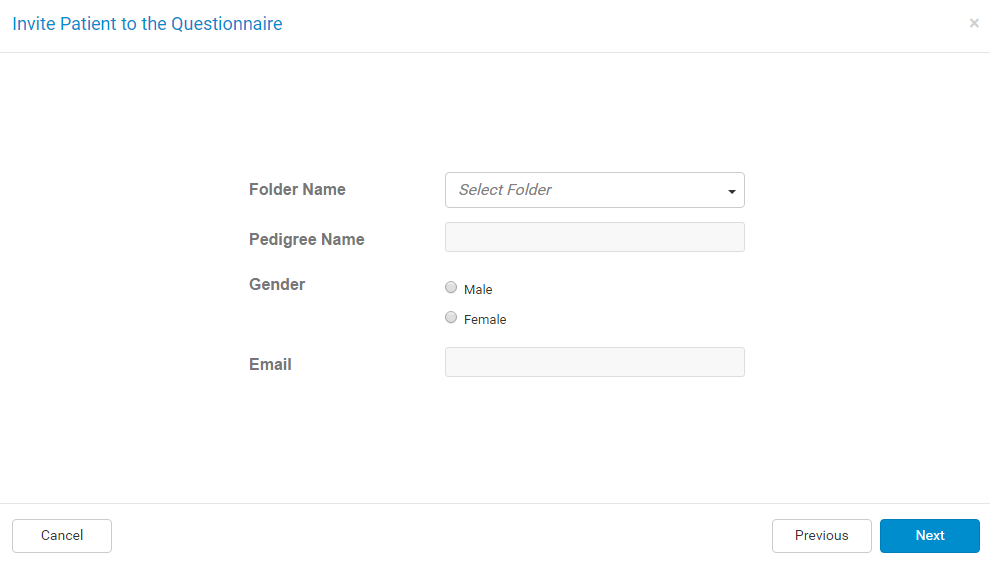
    • New Patient – invites a new patient that is not in the Progeny database.
      You will then be asked which folder to save the pedigree in, the name of the pedigree, the gender of the proband, and the email to send the questionnaire to.
    • Existing patient or relative – invites a patient or relative that is already in the Progeny database.
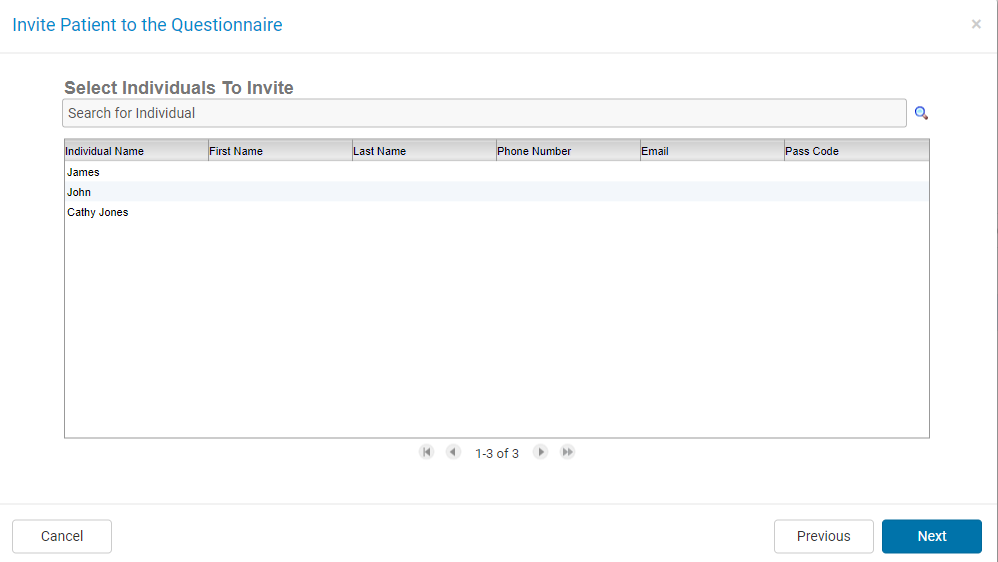
      Once you select the questionnaire to send, you will then have to select either an individual, members of one family, or patients who meet specific criteria.

      • Individual – an individual in the database that is not part of a pedigree, also called a singlet.
      • Members of one family – here you can select a member of a family to be invited.
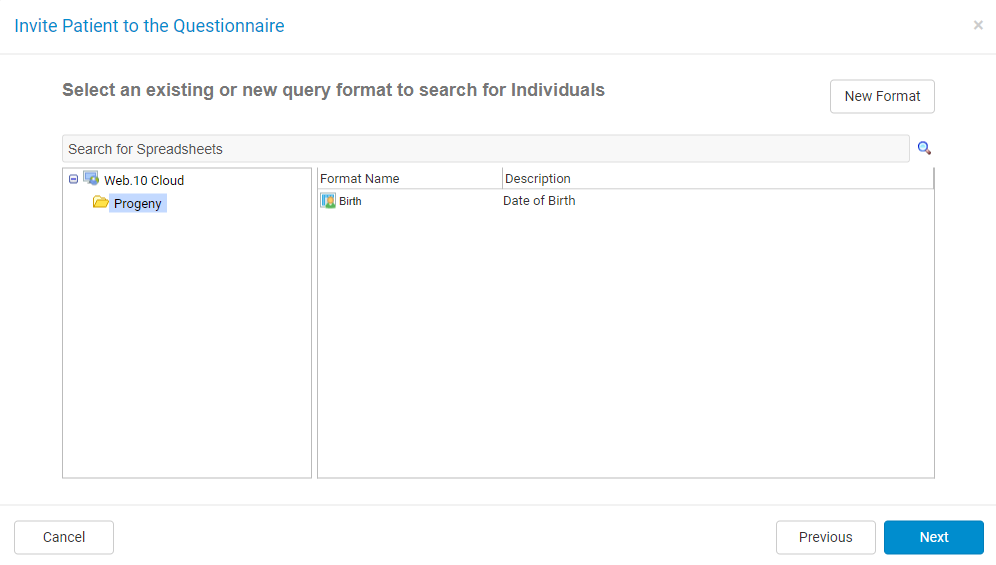
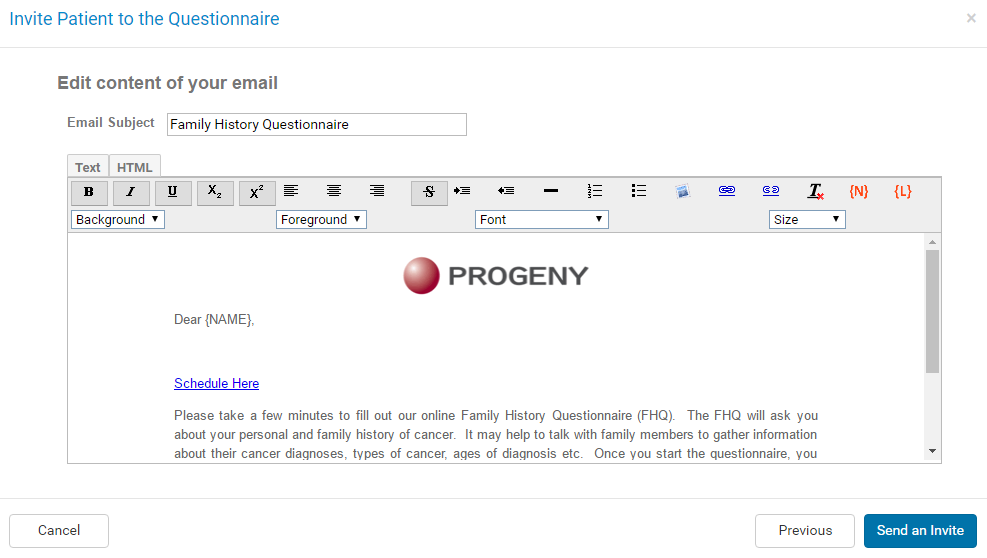
      • Patients who meet specific criteria – here you can select a query format to filter the through database so you can invite patients that meet the criteria in the query. You would first select the query format, then make changes to the query, if necessary, which will then display all individuals that match the query where you can select the one(s) to invite to the questionnaire.You can also create new formats by clicking the New Format button. This will bring you to the Review/Edit Query window. From here, you are able to add fields from the database to create a query format. You can then click Save Format to save the newly created format. It will then open a Spreadsheet Format window where you can give the created format a Format Name and optionally, a Format Description. You can also create a new format folder, delete a format folder, and delete a query format.At the end of inviting a patient, you can then edit the email before it is sent to the customer. Here you can make last-minute changes to the template before it is sent. Note: This will not overwrite the existing Invite Email template.
        View Video: Invite Patient to Complete a Questionnaire
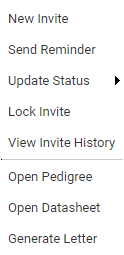
  10. ACTIONS MENU
    The actions menu provides a quick way to perform common actions for the individual.

    • New Invite – sends a new invitation to the individual.
    • Send Reminder – sends a reminder email to the individual.
      View Video: Send Reminders
    • Update Status – manually change the status of the questionnaire to Completed Manually, Inactive, or Reviewed.
    • Lock Invite or Unlock Invite – locks or unlocks the invitation so that it cannot or can be accessed.
    • View Invite History – shows a history log of the invite statuses.
    • Open Pedigree – opens the individual’s pedigree.
    • Open Datasheet – opens the individual’s datasheet.
    • Generate Letter – generates a letter for the individual.

View Video: Invite Status

Risk Module

Progeny Clinical includes validated risk assessment models to calculate 5-year, 10-year, and lifetime cancer risk, as well as gene mutation probabilities for any member of a pedigree.  Any missing or invalid data required to run these models are automatically identified for you. Risk calculation results can be easily saved and timestamped within the database or saved as a pdf file at any time.

Current Risk Models

The following models are currently available in the latest release of Progeny:

Tyrer-Cuzick 8.0b

A breast cancer risk assessment tool incorporating family history, endogenous hormonal factors, benign disease, risk factors such as age and body mass index, and genetic factors (including BRCA) into a single statistical model.(Cancer Research Technology, 2016)

  • Developed in 2005.
  • Proportional hazard model; the relative risk based on personal factors is used to adjust the calculated genetic absolute risk.
  • Incorporates features of Gail and Claus models, as well as height/BMI, use of HRT, cousins with breast cancer, and unaffected females. Only includes biopsies with atypia, hyperplasia or LCIS.
  • Also provides an estimate of BRCA1/2 mutation probability
BRCAPRO 1.2-8

A statistical model, with associated software, for assessing the probability that an individual carries a germline deleterious mutation of the BRCA1 and BRCA2 genes, based on family history of breast and ovarian cancer. (Giovanni Parmigiani, 2016)

  • Bayesian model based on an age-specific breast or ovarian cancer probabilities.
  • Bayesian = specify a prior probability and update in light of new relevant data.
  • Takes into account both affected and unaffected individuals up to second-degree relatives, breast and ovarian cancer history, male brcx, bilateral brcx, breast pathology, and oophorectomy status as well as ethnicity.
  • Does not take into account many non-hereditary risk factors or noninvasive brcx.
  • Does not incorporate non-BRCA risk elements, so will underestimate risk in breast-cancer only families
MMRPRO 1.2-8

A statistical model with associated software for assessing the probability that an individual carries a germline deleterious mutation of the MLH1, MSH2, and genes based on family history of colorectal and endometrial cancer. (Giovanni Parmigiani, 2016)

PancPRO 1.2-8

A statistical model, with associated software, for assessing
the probability that an individual carries a germline deleterious mutation of the putative susceptibility gene(s) and the risk of developing pancreatic cancer in future, based on family history of pancreatic cancer. (Giovanni Parmigiani, 2016)

MelaPRO 1.2-8

A statistical model, with associated software, for assessing the probability than an individual carries a germline deleterious mutation of CDKN2A (p16), based on family history of single primary and multiple primary melanomas.(Giovanni Parmigiani, 2016)

PREMM5

A clinical prediction algorithm designed to estimate the cumulative and individual probabilities that an individual is an MLH1, MSH2, or MSH6 mutation carrier.”(Development and validation of the PREMM5 model for comprehensive risk assessment of Lynch syndrome.), 2017)

  • Designed specifically to help determine risk for MLH1, MSH2, and MSH6.
  • Takes into account First and Second-degree relatives, ages of diagnosis for either colon or endometrial, and takes into account other Lynch-associated cancers (ovary, stomach, small intestine, urinary tract, renal, brain, pancreas and sebaceous gland tumors).
Gail

A computerized tool that estimates a woman’s 5 year and lifetime risk of developing breast cancer; also called the National Cancer Institute (NCI) Breast Cancer Risk Assessment Tool. (NIH…Turning Discovery Into Health, 2016)

  • Developed by Mitchell Gail in 1989.
  • A logistic regression model based on data from Breast Cancer Detection & Demonstration project (2,852 cases and 3,146 controls).
  • Modified in 1999 (sometimes called NCI-Gail): incidence rates are for invasive cancers only; age-specific incidence rates from SEER data; included data for African Americans.
  • Incorporates mostly nongenetic risk factors; age, race, ages at menarche and first live birth, first degree relatives with breast cancer and previous breast biopsy.
  • Only valid for women 35yo and older.
  • Takes into account atypical hyperplasia but not LCIS.
Claus

A risk model for familial risk of breast cancer in a large population-based, case-control study conducted by the Centers for Disease Control.”(Evans, 2016)

  • Provides age-specific risk estimates of breast cancer in women with a family history.
  • Based on data from the Cancer and Steroid Hormone Study (4,730 cases and 4,688 controls).
  • Incorporates maternal and/or paternal 1st and 2nd degree relatives and adjusts risk based on age at diagnosis.
Bayes Mendel includes these 4 risk models: BRCAPRO, MMRPRO, PancPRO, and MelaPRO.

Risk Server Domain Names

The Progeny software requires that the following domains be white-listed in the firewall in order for the Risk Module to be utilized in Progeny.
Ambry Risk Assessment Servicehttps://ras.ambrygen.com
Ambry Okta API Endpointhttps://ambrygen.okta.com
Risk Warehousehttps://datawarehouse.progenygenetics.com/ProgenyWarehouse/services/
Is this secure?

Absolutely, the handshake between your web client and the risk server does not pass any PHI data from your database. All data used for calculating risk are de-identified. This data includes all the necessary fields that are required for the risk mapping such as different cancers, the age when diagnosed, genes tested such as BRCA1, BRCA2, CK14, CK 5.6, MLH1, MSH2, and others.

References

Blackford, A. et al. (2021, August). BayesMendel v2.1-8: An R package for cancer risk prediction. Retrieved from Biostatistics & Computational Biology at the Dana Farber Cancer Institute: https://projects.iq.harvard.edu/sites/projects.iq.harvard.edu/files/bayesmendel/files/bayesmendel.pdf

Cancer Research Technology. (2016, December). IBIS SOFTWARE (TYRER-CUZICK MODEL). Retrieved from Cancer Research Technology: http://www.cancertechnology.co.uk/ibis-software-tyrer-cuzick-model

Cuzick, J. (2016, December). IBIS Breast Cancer Risk Evaluation Tool. Retrieved from IBIS Breast Cancer Risk Evaluation Tool: http://www.ems-trials.org/riskevaluator

Evans, D. G. (2016, December). Breast cancer risk-assessment models. Retrieved from Breast Cancer Research: http://breast-cancer-research.biomedcentral.com/articles/10.1186/bcr1750

Giovanni Parmigiani, W. W. (2016, December). Why BayesMendel. Retrieved from Bio: http://bcb.dfci.harvard.edu/BayesMendel

Kastrinos F. et al. (2017, May). Development and validation of the PREMM5 model for comprehensive risk assessment of Lynch syndrome. Retrieved from Dana Farber Cancer Institute: http://premm.dfci.harvard.edu

NIH…Turning Discovery Into Health. (2016, December). Breast Cancer Risk Assessment Tool. Retrieved from National Cancer Institute: https://www.cancer.gov/bcrisktool/about-tool.aspx#references

User Interface – Desktop

Panes

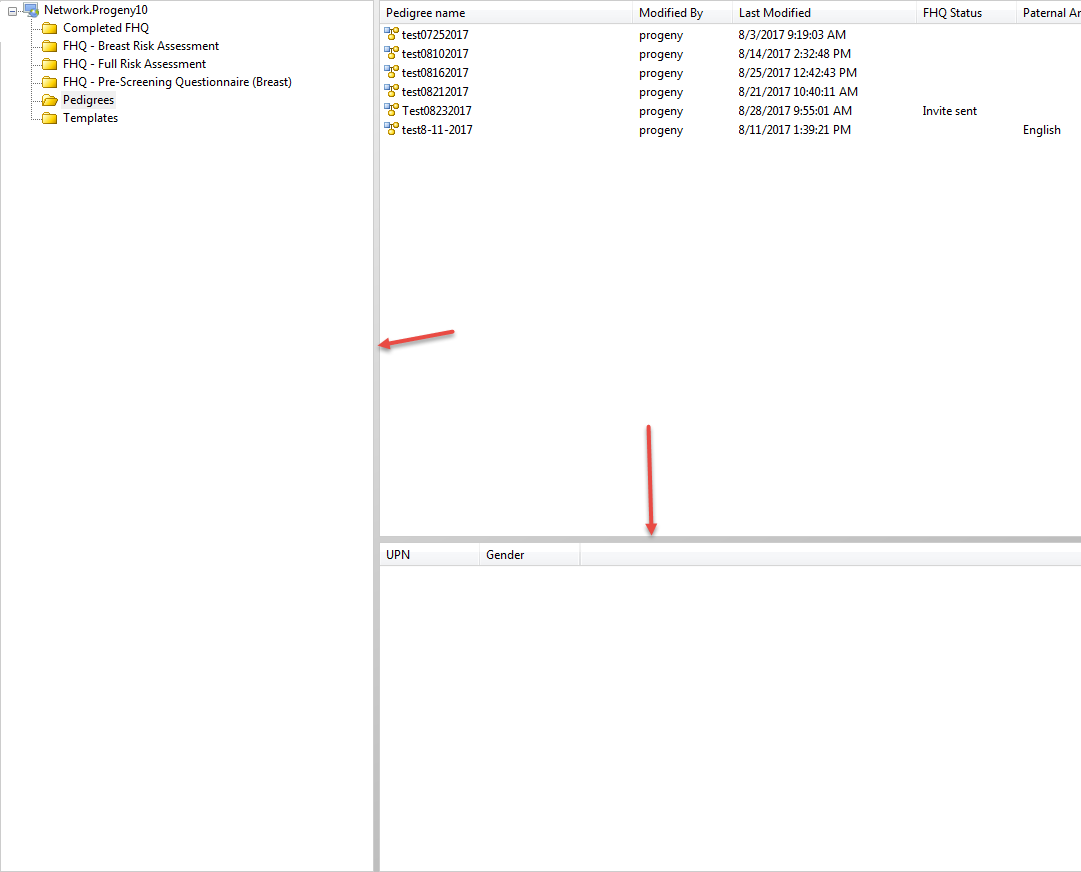
The Progeny main window has three panes.

  1. The left vertical pane displays the folder organization for a particular functional area in classic Windows Explorer-style structures. Click on a folder in the pane to open the folder.
  2. As folders and sub-folders are opened, detailed information about the folder’s content is displayed in the upper right horizontal pane.
  3. Information is displayed in the bottom pane when an item is selected in the pane above.

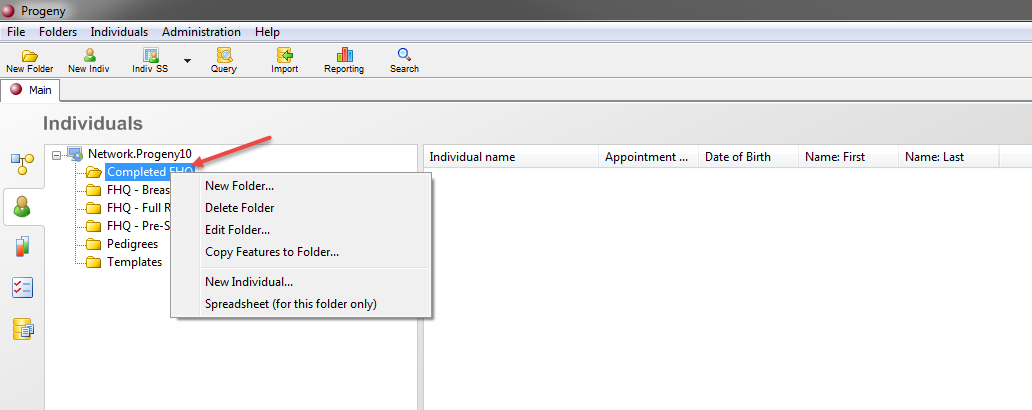
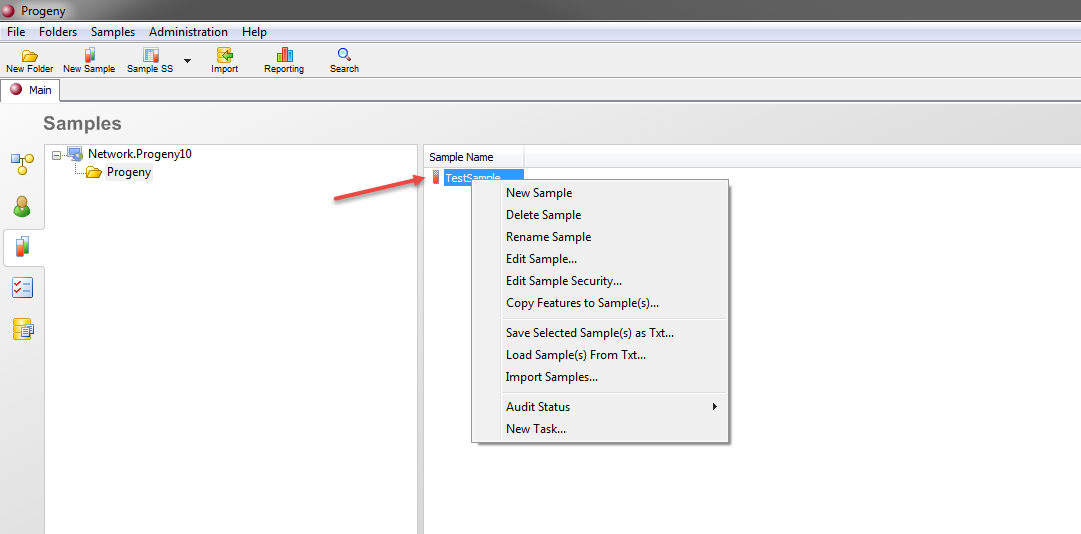
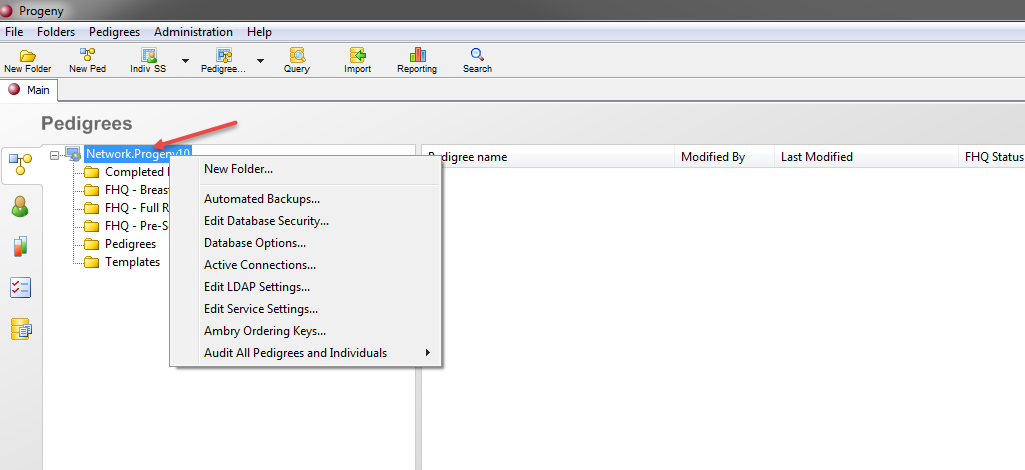
Right-click menus are available for all folders and list items which are context specific to not only the pane but also the item type. You can right-click the database in order to access its context menu and extended configuration options.

You can also right-click on each folder to gain access to their respective context menus.


Each individual record level entry whether it be a pedigree, individual, sample, etc. also has a context menu when you right-click on it.

Resizing Panes

Progeny allows you to resize all three of these window panes. You can do this by hovering over the edge of each pane until the cursor changes into a double pointed arrow. Then you can click and drag until the size meets your requirements.

Creating Smart Lists

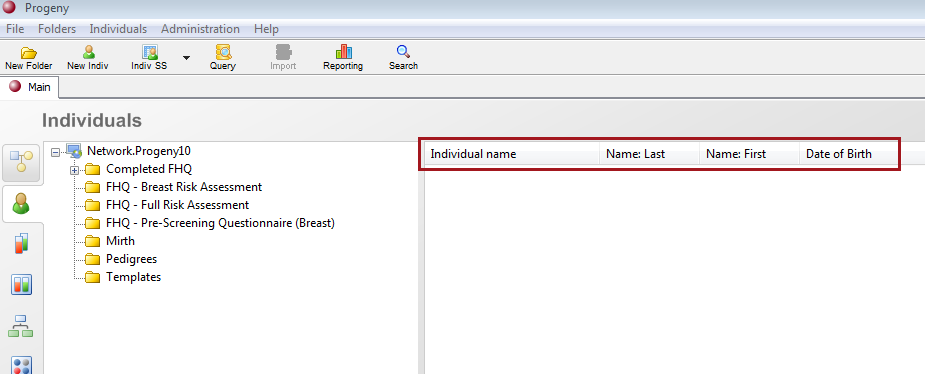
When you collect data for an individual, pedigree, marker, and so on, you typically have multiple fields in which to enter the data. For example, if you are collecting data for an individual, the fields in which you must enter data can include First Name, Last Name, Maiden Name, Address 1, Address 2, Address 3, City, State, Zip, Race, DOB, Current Age, Height, Weight, etc. When you are trying to quickly locate a specific individual, pedigree, etc. in a data folder, it is simply not feasible to display all the fields. Instead, you can customize the fields that are displayed in a smart list. A smart list displays only selected fields from all the available data fields and system fields for individuals, pedigrees, samples, markers, and inventories. Smart lists are displayed in the right panes of the Progeny main window. Multiple smart lists are available for individuals, pedigrees, samples, and inventories. Only a single smart list is available for markers. A smart list can be saved on a per-user basis so that each user can have his/her own preferred view, or the Progeny administrator can set a single default view for all users. After you or the Progeny Administrator creates the smart lists of individuals, pedigrees, etc., you can carry out a contextual search. A contextual search searches only the data that is displayed in the columns in a smart list. This provides a convenient method for quickly retrieving needed data.

To create a smart list
  1. Click on the module you would like to add a Smart List.
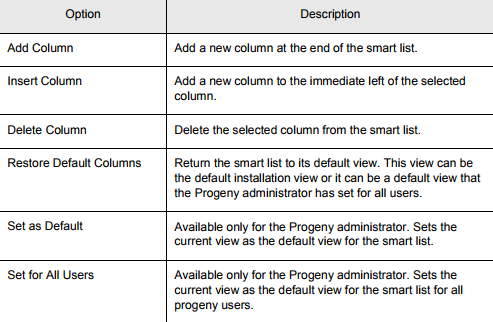
  2. Right-click in any of the column headers for a smart list. The smart list context menu opens.
  3. Select the appropriate option on the context menu.
To carry out a database global search
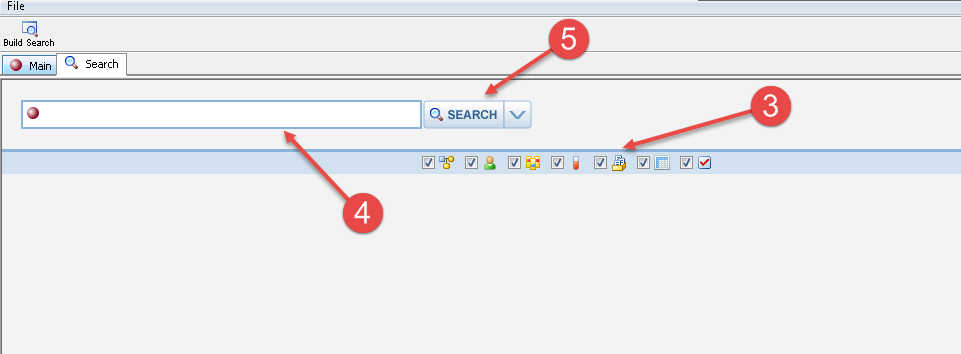
  1. On the Progeny main window toolbar, click the Search icon.
  2. A blank Search tab opens. By default, all database items for which you can search (from left to right, the icons are for pedigrees, individuals, markers, samples, containers, fields, spreadsheets, tasks, and orders) are selected.
  3. Optionally, clear the selections for the database items for which you do not want to search.
  4. In the Search field, enter the search string. Use asterisks as needed to extend the search.
  5. Click Search. All database items that meet the search criteria are returned by the search. The items are returned in a hyperlink format, which you can click to go to the referenced item.
Contextual Search

When you carry out a contextual search, only the data that is displayed in the columns in a smart list is searched. Your search is limited to the exact order of the characters in the string and you can use the asterisk (*) as a wildcard to extend the search. For example, when searching an individual smart list where the First Name is one of the columns that is displayed:

  • If you enter Bob as the search string, then only those individuals that contain the exact value of “Bob” in the First Name field are returned by the search (for example, the individual Bob Smith).
  • If you enter Bob* as the search string, then those individuals that contain the value “Bob” followed by any other characters in the First Name field returned by the search, (for example, the individual Bobbi Smith).
  • If you enter *Bob as the search string, then those individuals that contain the value “Bob” preceded by any other characters in the First Name field are returned by the search, (for example, the individual Jim-Bob Walton).

A contextual search does not distinguish between identical values in different columns. For example, if an individual smart list also displays the Last Name Column, and you enter Bob* as the search string, then not only is the individual Bobbi Smith returned, but also, the individual James Bobby, where Bobby is contained in the Last Name field. A contextual search is available on every module (Individuals, Pedigrees, Samples, Fields, Containers, and so on) that is opened from the navigation bar on the Progeny main window.

The application “remembers” the last search string entered for a contextual search. To view and/or select this string, click the drop-down arrow next to the Search icon.

To carry out a contextual search

  1. In the appropriate contextual search field, do one of the following:
    1. Enter new search criteria, or select the drop-down arrow next to the Search icon to select the last search string entered.
    2. Click on the drop-down arrow next to the Search icon and select the last search string.
  2. Click the Search icon.
  3. The smart list is updated with only those items that meet the search criteria.

Desktop Client Modules – Desktop

Main menu

The main menu is set up in a standard Windows menu format with menu commands grouped into basic categories (File, Folders, Pedigrees, Administration and Help) across the menu bar. Many of the menu options are context related and will vary depending on which tab you have selected in the Navigation bar. Other options are reserved for administrative accounts such as the ‘progeny’ (admin) user account.

Navigation bar

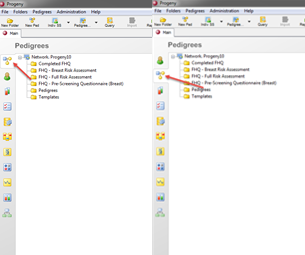
The navigation bar is the vertical bar displayed on the left side of the main window. The navigation buttons take you through the modules of each of the three products of the Progeny Suite (Clinical, Lab, and LIMS). Three of the navigation buttons (Samples, Tasks, and Fields) are common to all three products, while the others are product specific.

In the Navigation bar, you can also sort and reorder the icons to the various modules available to you. You can do this by clicking, holding and dragging the icon into the position you prefer.

Toolbar

The toolbar is located just below the main menu. The toolbar provides quick access to all the available functions for a selected product feature. The toolbar is dynamically updated based on the window that is open.

Pedigrees Toolbar
  1. New Folder – Allows you to add a new folder to your database.
  2. New Ped – Allows you to create a new pedigree in your database.
  3. Indiv SS – Allows you to access the Individual Spreadsheets module.
  4. Pedigree SS – Allows you to access the Pedigree Spreadsheets module.
  5. Query – Allows you to query your database based on the spreadsheet formats you have available to you.
  6. Import – Allows you to import pedigrees into Progeny.
  7. Reporting ­– Allows you to build pedigree level reports.
  8. Search – Allows you to perform a global database search.

Individuals Toolbar
  1. New Folder – Allows you to add a new folder to your database.
  2. New Indiv – Allows you to create a new individual in your database.
  3. Indiv SS – Allows you to access the Individual Spreadsheets module.
  4. Query – Allows you to query your database based on the spreadsheet formats you have available to you.
  5. Import – Allows you to import individuals into Progeny.
  6. Reporting ­– Allows you to build Individual level reports.
  7. Search – Allows you to perform a global database search.

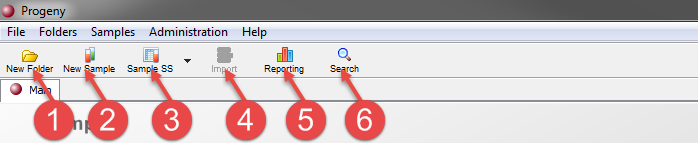
Samples Toolbar
  1. New Folder – Allows you to add a new folder to your database.
  2. New Sample – Allows you to create a new sample in your database.
  3. Sample SS – Allows you to access the Sample Spreadsheets module.
  4. Import – Allows you to import samples into Progeny.
  5. Reporting ­– Allows you to build samples reports.
  6. Search – Allows you to perform a global database search.

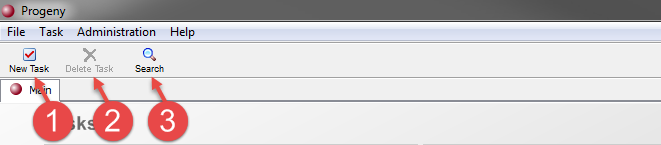
Tasks Toolbar
  1. New Task – Allows you to create a new task in your database.
  2. Delete Task – Allows you to delete a task in your database.
  3. Search – Allows you to perform a global database search.

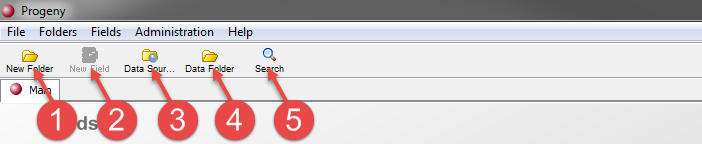
Fields Toolbar
  1. New Folder – Allows you to add a new folder to your database.
  2. New Field – Allows you to create a new field in your database.
  3. Data Sources – Allows you to link a separate Progeny or third-party database to your Progeny database using an OBDC connection.
  4. Data Folder – Allows the user to link fields from a separate database to their Progeny database.
  5. Search – Allows you to perform a global database search.

Orders Module

Orders

In the Orders module, the user is able to display “My Orders” or “Organization’s orders” as well as able to toggle between different organizations.

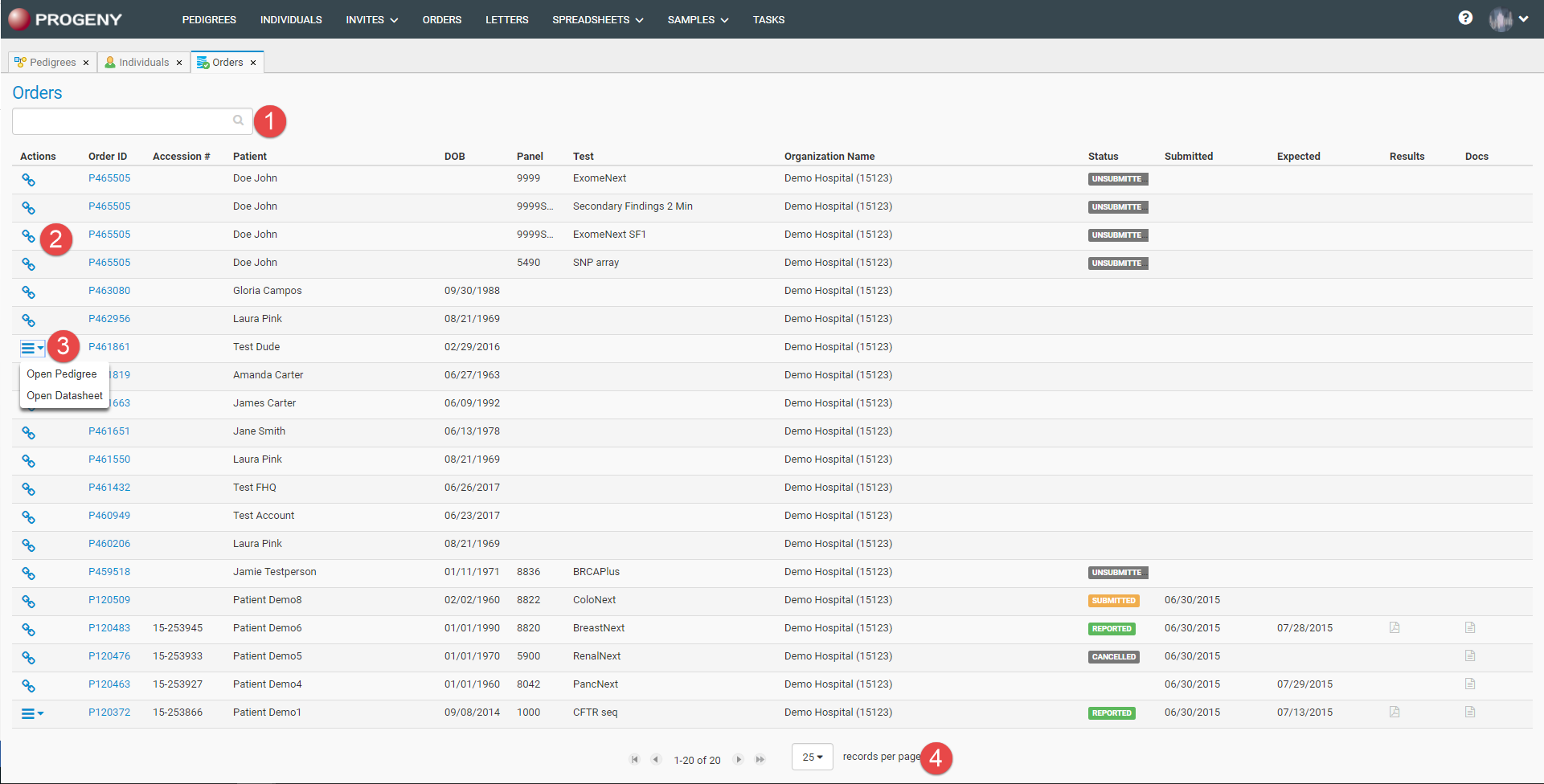
Through the Orders module, the user is able to see details on the status and results of genetic tests ordered through AmbryPort. The status of the ordered test is displayed under the Status column, and once the results come back, a link to open the results as a PDF will be displayed in the Results column.

  1. The smart search bar allows you to search for a specific patient based on a value in any of the columns.
    • You are able to sort these columns by clicking on the column name.
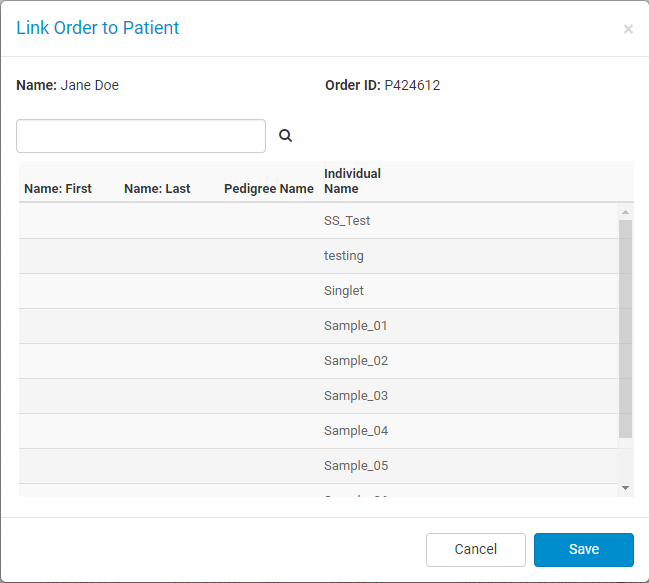
  2. The chain icon allows for you to link an order made through Ambry to a patient in Progeny. Click the chain icon and search for the correct patient to link the order to. You can also click on the Order ID next to a patient to open the AmbryPort View of their TRF.
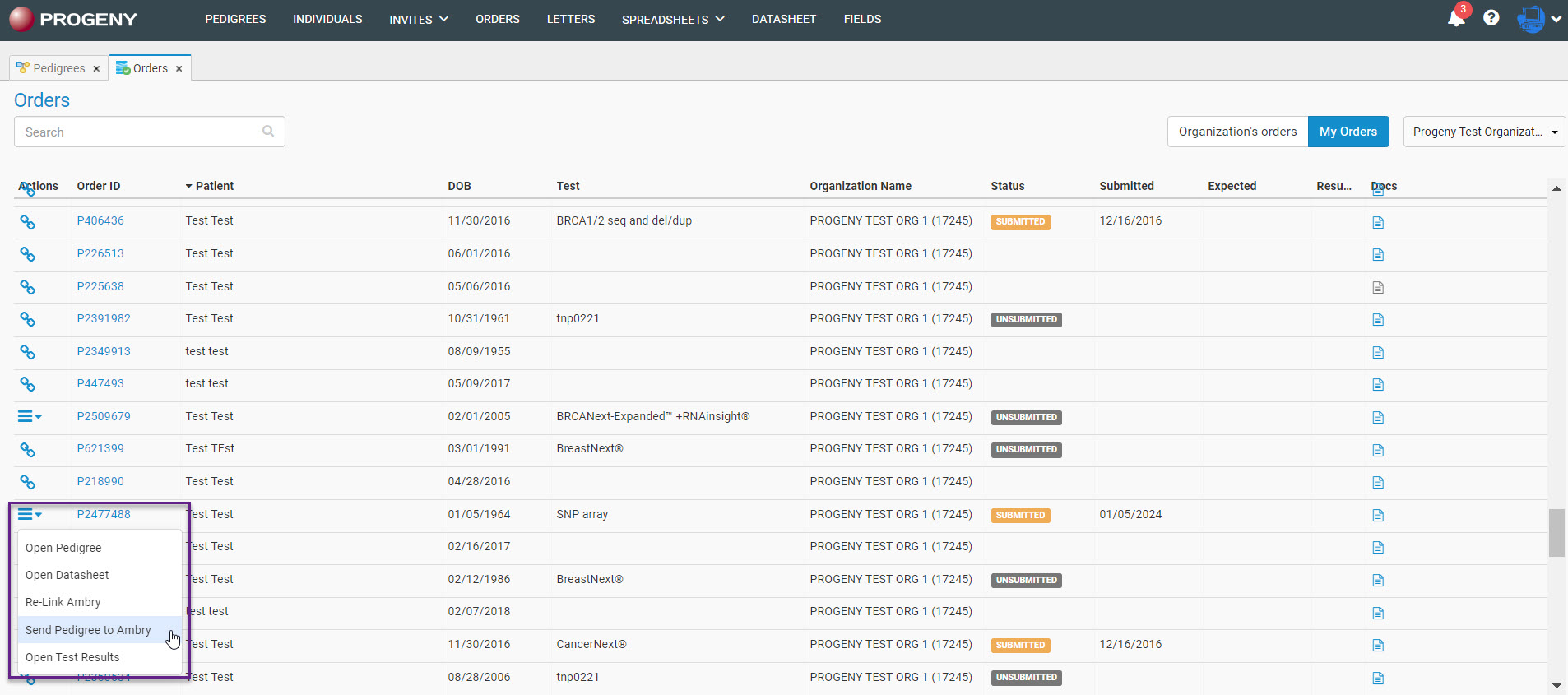
  3. The Actions menu gives you the option to Open Pedigree or Open Datasheet.
    • Open Pedigree – Opens the pedigree that patient is a part of.
    • Open Datasheet – Opens the datasheet for the patient.
    • Re-Link Ambry – Allows user to re-link order to a different patient.
    • Send Pedigree to Ambry – Allows the pedigree in current state to be sent/resent to AP.
    • Open Test Results – Opens the test results for the order.
  4. Records per page allow for you to choose how many orders you would like to display per page. The options are to display 25, 50, or 100 at a time.

Email Templates

The email templates for the Family History Questionnaires (FHQ) are saved in this module.

Each email template can be customized with the Template Name, Email Subject, and the email Body. There are four templates that are included with the FHQ and are listed below:

  • Invitation Email – the template that is used for sending invitations.
  • Submit Email – the template that is used to acknowledge when a questionnaire is submitted by patients.
  • Unfinished Email – the template that is used to remind a patient that a questionnaire has not been completed.
  • Reminder Email – the template that is sent automatically according to the Emails Settings tab in the questionnaire, or used for manually sending a reminder email using the Actions menu of the Invites and Individuals
  • Locked (IRB Approved) – indicates that the email template has been reviewed by your organization’s Institution Review Board (IRB).

There are also additional options at the top of the Email Templates page.

  • Save – saves any changes made to any of the email templates.
  • New Template – creates a new email template.
  • Delete – deletes an email template.

View Video: Edit Email Templates

Letters Module

Letters

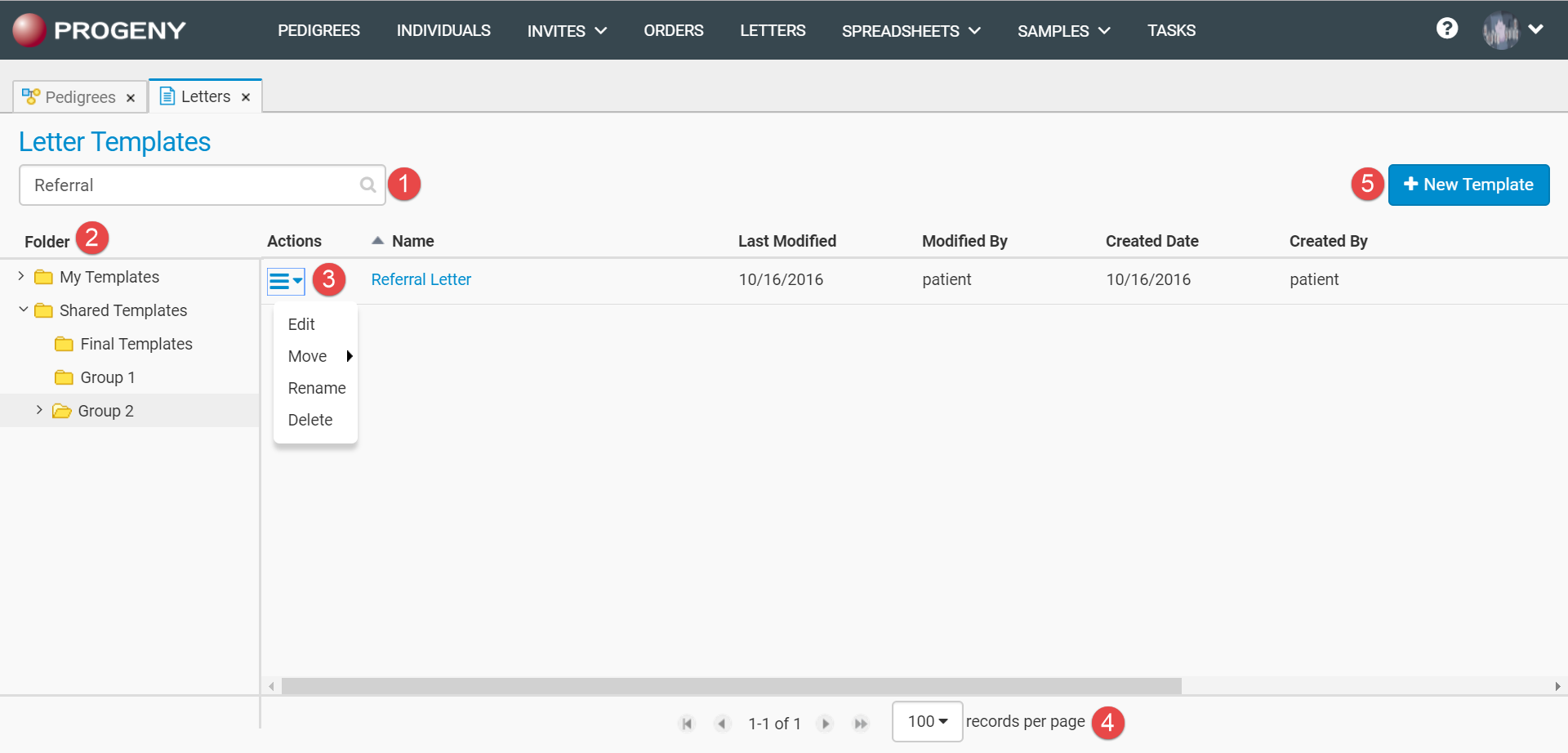
The Letters module on the navigation bar, located at the top, opens up the Letter Templates Tab. In this module, you are able to create, edit, and delete customized letter templates.


  1. Smart Search – allows for you to look through a specific letter template throughout all the folders located within the Letters module.
  2. Folders Pane – gives the user the ability to create new folders and sub-folders where you can save the customizable letter templates. Once choosing a folder, the Templates pane will show all the templates located in that folder.
  3. Actions Menu – located to the left of the letter, allows the user to edit, move, rename, or delete the letter template.
  4. Records per Page – located at the bottom of the page that gives the user the option of how many templates should be displayed per page. The user has the option to choose between 25, 50, and 100 templates displayed per page.
  5. New Template – allows for a new letter template to be created and saved.
    View Video: Create Custom Letter Template
    View Video: Edit Letter Templates
Designing a New Template


  1. Cut: deletes and copies the selection to the clipboard (Ctrl+X)
  2. Copy: copies the selection to clipboard (Ctrl+C)
  3. Paste: pastes contents of the clipboard
  4. Paste as plain text: pastes contents of the clipboard as unformatted text
  5. Paste from Word: pastes contents from Microsoft Word maintaining most formatting
  6. Undo: undoes the last change made and restores the letter to its previous state (Ctrl+Z)
  7. Redo: reverts the last undo operation (Ctrl+Y)
  8. Source: allows editing of HTML source code
  9. Document Properties: displays a window with General, Design, Meta Tags, and Preview options
  10. Print: allows printing of the letter
  11. Templates: displays window of pre-defined forms with page layout, text formatting, and styling
  12. Find: displays window that allows searching and replacing multiple occurrences of text
  13. Select All: selects all contents of the letter (Ctrl+A)
  14. Link: displays a window that allows adding of hyperlinks, anchors, and email addresses
  15. Unlink: removes a link when the cursor is placed in a link or part of a link is selected
  16. Image: displays Image Properties window that allows setting of configuration options that define image source, size, display properties, and other advanced properties
    View Video: Add an Image to a Letter
  17. Table: displays Table Properties window that allows setting of configuration options that define columns and rows, table size, display properties, and other advanced properties
  18. Insert Horizontal Line: adds a horizontal line across the letter at the location of the cursor
  19. Insert Special Character: displays a window that allows the choice of a symbol from a set containing Latin letters, numbers (including fractions), currency symbols, punctuation, arrows, mathematical operators, and others
  20. Insert Page Break for Printing: adds a separation, at the location of the cursor, between physical pages when printed
  21. Bold: bolds text (Ctrl+B)
  22. Italic: italicizes text (Ctrl+I)
  23. Underline: underlines text (Ctrl+U)
  24. Strikethrough: strikes text through
  25. Subscript: sets a character that is slightly smaller than the text that surrounds it below the baseline
  26. Superscript: sets a character that is slightly smaller than the text that surrounds it above the baseline
  27. Remove Format: removes text styling from selected text to display default formatting
  28. Insert/Remove Numbered List: creates or removes a numbered list
  29. Insert/Remove Bulleted List: creates or removes a bulleted list
  30. Decrease Indent: decreases the indentation of a block-level element containing the cursor by one tabulator length
  31. Increase Indent: increases the indentation of a block-level element containing the cursor by one tabulator length
  32. Align Left: aligns paragraph with the left margin
  33. Center: aligns paragraph symmetrically along the vertical axis
  34. Align Right: aligns paragraph with the right margin
  35. Justify: aligns paragraph with the left and right margins
  36. Formatting Styles: allows selection of a number of pre-defined block and inline styles from a drop-down list
  37. Paragraph Format: allows selection of a number of pre-defined block-level styles from a drop-down list
  38. Font Name: allows selection of a number of typefaces that are applied to the selected text
  39. Font Size: allows selection of a number of font sizes that change how large or small the selected text is
  40. Paragraph Margin: allows selection of a number of line spacing margins that change how much space is between each line in a paragraph
  41. Text Color: allows selecting the color for the selected text
  42. Add Field: displays a Field Chooser window that allows adding field placeholders from the database
  43. Add Pedigree: adds a resizable placeholder for the pedigree image

View Video: Edit Individual Letter
View Video: How to Generate a Batch of Letters