- Click INVITES.
- Select Invite Status.

- Select Invite Patient.
- Select the questionnaire to send, then click Next.
- Select whether you want to send the questionnaire to Members of one family (you will search for and select a pedigree/individual) or whether you want to use a saved query from the invites module to send this invitation to Patients who meet specific criteria (for example, send to all relatives who have cancer or to send to a patient who has completed their baseline questionnaire greater than 1 year ago -please note that this query needs to exist in the Query Formats section of the invites module)
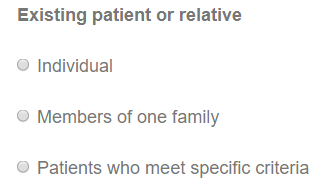
- Members of one family
- Search for the pedigree, select it and click Next.
- Select each individual to send the questionnaire to and click Next.
- A preview of the invitation email will be displayed for review and can be updated if needed (it will only update the email content for this patient, not the saved email template). Click Send an Invite to send out the questionnaire.
- A popup box will be displayed that says, The Questionnaire invitation emails were successfully submitted.
- Patients who meet specific criteria
- Select a saved query and click Next.
- Edit the query definition, if necessary, then click Next.
- Select patients who meet the query criteria for sending the invite to and click Next.
- A preview of the invitation email will be displayed for review and can be updated if needed (it will only update the email content for this patient, not the saved email template). Click Send an Invite to send out the questionnaire.
- A popup box will be displayed that says, The Questionnaire invitation emails were successfully submitted.
- Members of one family
Author Archives: Anthony Rizzo
FHQ Sending Workflow
Sending a Questionnaire to a new Patient
- Click the INVITES drop-down from the top navigation bar.
- Select Invite Status.
- Click Invite Patient.
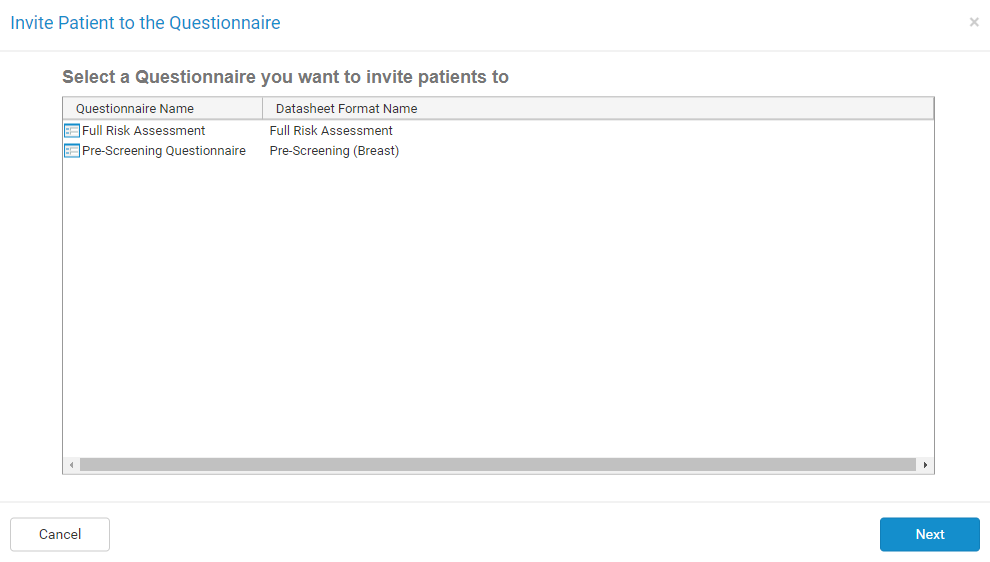
- Select the questionnaire to send, then click Next.
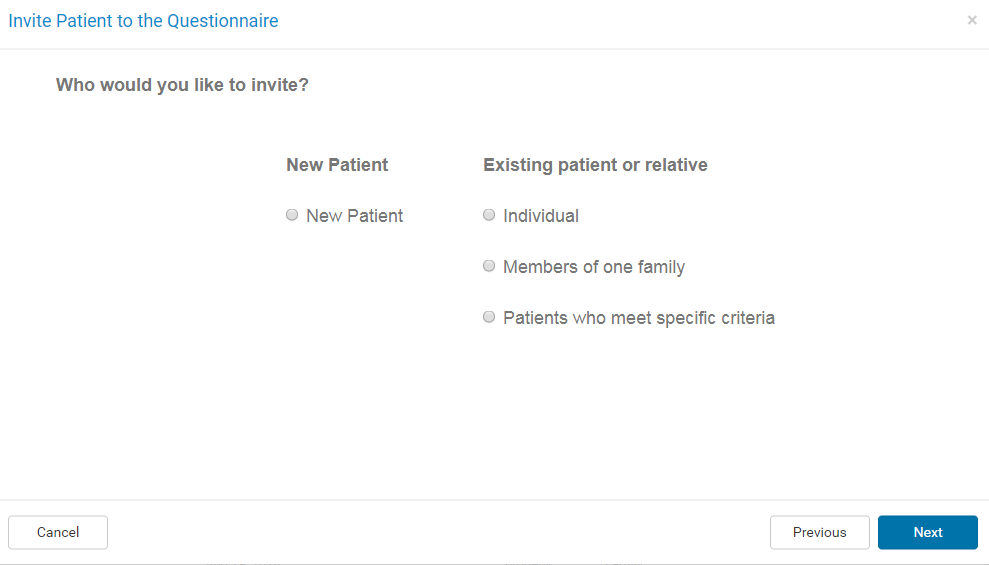
- Select New Patient and click Next.
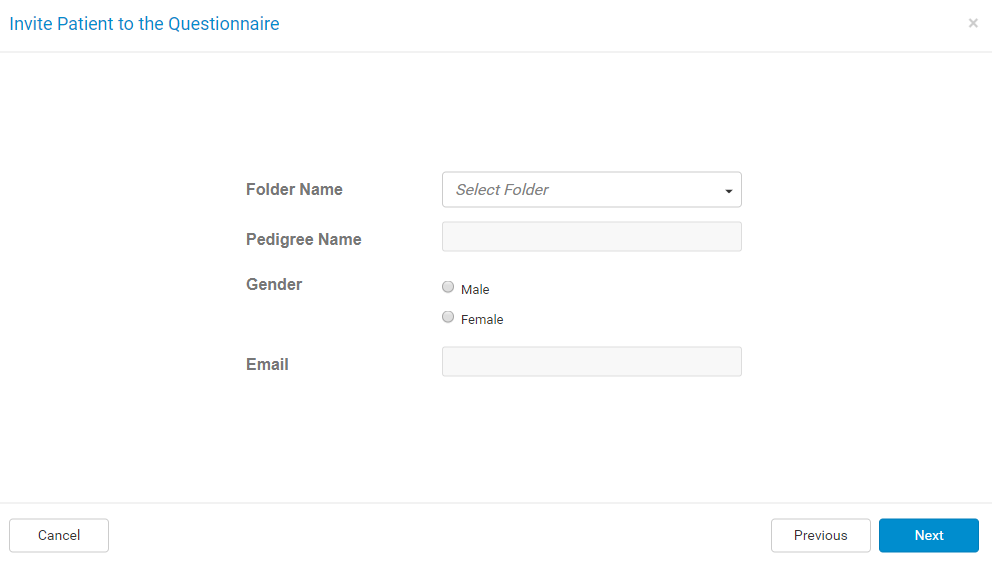
- Select the folder to create this pedigree in, enter the name of the new pedigree, enter the gender of the proband, and enter the patient’s email, then click Next.
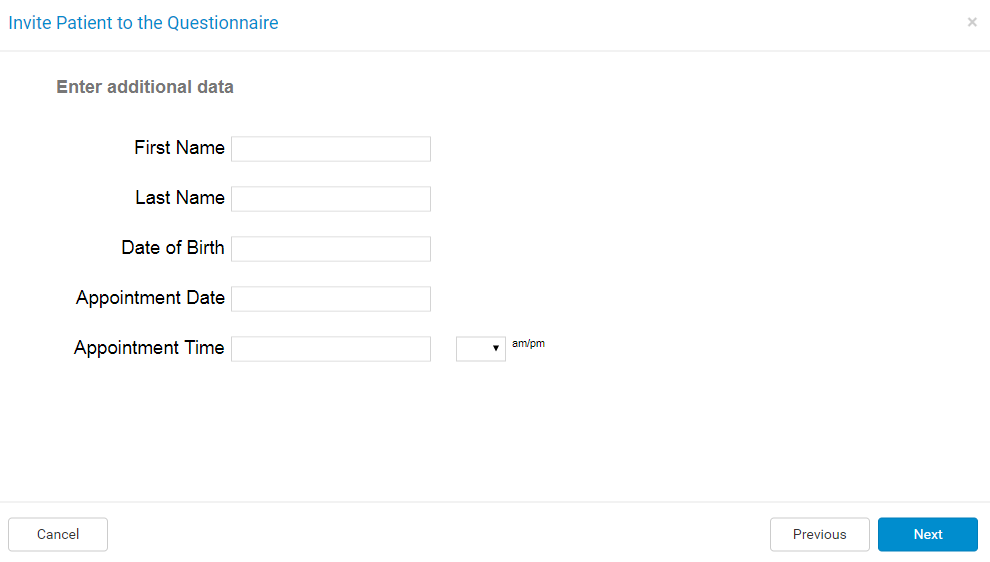
- Enter the additional data if known, to continue, click Next.
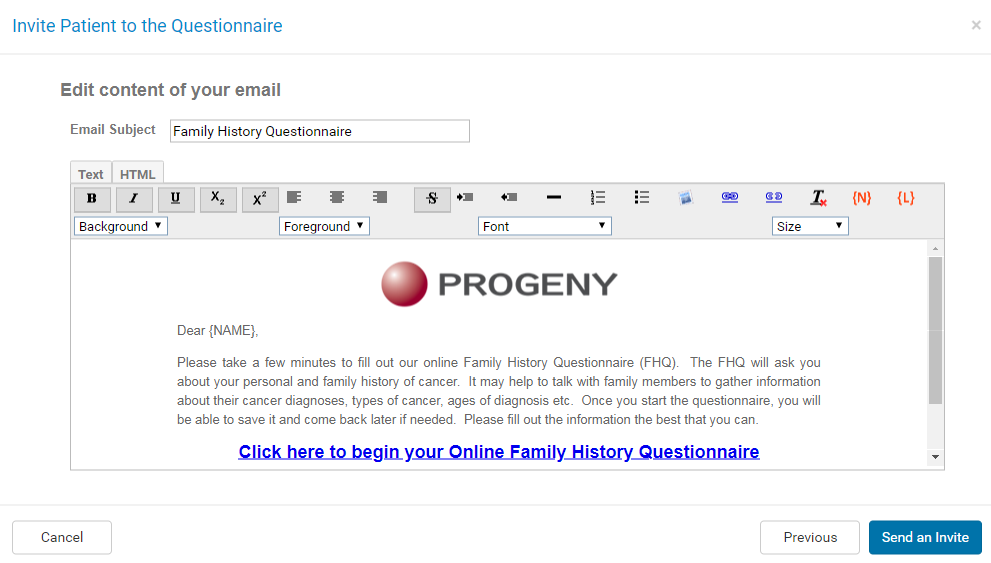
- A preview of the invitation email will be displayed for review and can be updated if needed (it will only update the email content for this patient, not the saved email template). Click Send an Invite to send out the questionnaire.
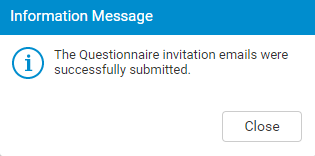
- A popup box will be displayed.
Email Service Configuration Parameters
Web Configuration Parameters Menu
From the Progeny Web Client Configuration, the following parameters are used to configure how Progeny Web handles email communication for the FHQ module. You are able to use any type of email system – on-premise server, open relay, authenticated relay, hosted provider…the specific type does not matter. The Progeny Web server can connect to any SMTP-based email service using the parameters below.
- EMAIL_TRIGGER_DB_ALIAS
- Determines which database the email service will operate under. This will be the same value for the Connection Name of the FHQ database in the Database Connection Configuration module.
- EMAIL_TRIGGER_INTERVAL
- Sets the time interval between email service activations.
- The minimum interval is 1 minute, 3-5 minutes recommended for most deployments.
- EMAIL_TRIGGER_SMTP_AUTH
- Determines login process to the email server
- 0 = unauthenticated “anonymous” connection that does not require a username or password.
- 1 = authenticated connection, passing EMAIL_TRIGGER_SMTP_USERNAME and EMAIL_TRIGGER_SMTP_PASSWD parameters entered below.
- Determines login process to the email server
- EMAIL_TRIGGER_SMTP_EMAIL_FROM
- Determines the “from” email address on all emails being sent.
- This value needs to be the email address associated with the user account used when making authenticated connections to an email server to prevent emails being marked as spam or phishing.
- EMAIL_TRIGGER_SMTP_PASSWD
- The user account password when making an authenticated connection to the email server.
- EMAIL_TRIGGER_SMTP_PORT
- The port number for SMTP connection (usually 587 or 25).
- EMAIL_TRIGGER_SMTP_SERVER
- The email server that Progeny Web will connect to.
- EMAIL_TRIGGER_SMTP_TRANSPORT_SSL
- Determines the encryption type used when connecting to the email server.
- 0 = No encryption (encryption is not required or making an unauthenticated connection).
- 1 = SSL encryption.
- 2 = TLS encryption (most Exchange servers and hosted services like Gmail and Office 365 use this type).
- Determines the encryption type used when connecting to the email server.
- EMAIL_TRIGGER_SMTP_USERNAME
- The username for the account used when making an authenticated connection to the email server.
User Access to Invites Module
Progeny Desktop Client
- Login to the Desktop Client.
- Go to Administration and then User Maintenance.
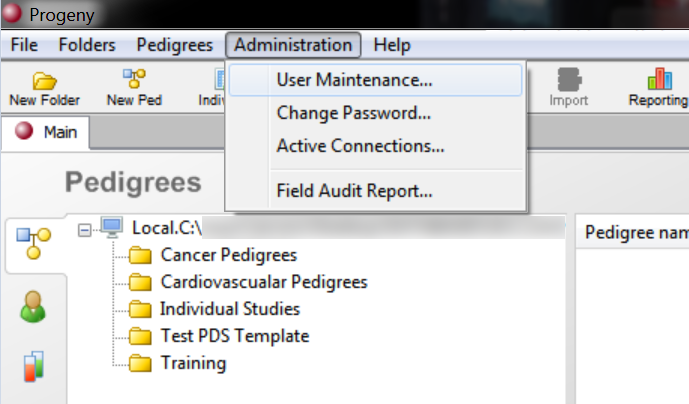
- If the user is in a user class, make sure to update the user class to include Invites.
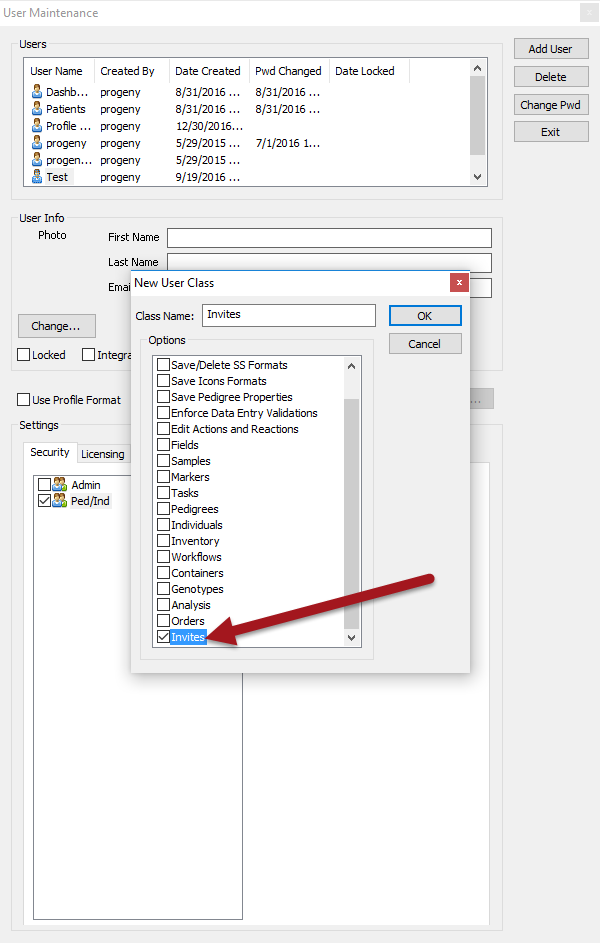
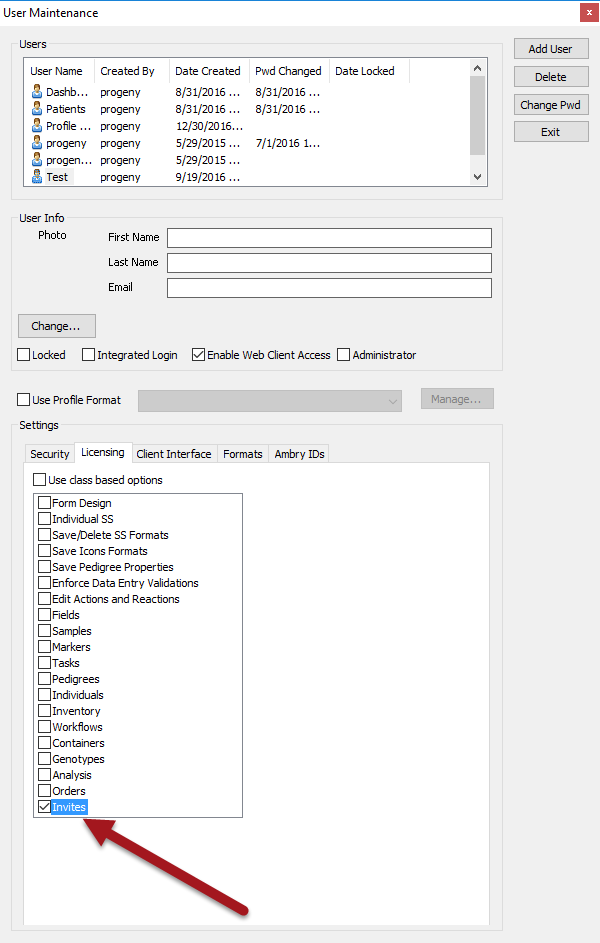
- If the user is not in a user class and you set permissions based on the Licensing tab, make sure to update to include Invites for each user.
Updating the Questionnaire Logo
On the FHQ, external DMZ, server
- Locate the Apache Tomcat png folder. You will find your current logo file(s) in this folder. For example: C:\Program Files\Apache Software Foundation\Tomcat 8.0\webapps\ROOT\png.
- If you name your new logo the exact same name, there is NOTHING you need to do after replacing the old logo file with the new logo file.
- If the logo file(s) has a new name, then follow the steps below:
- Login to the Progeny Web Configuration back-end and go to the Web Data Capture Configuration module.
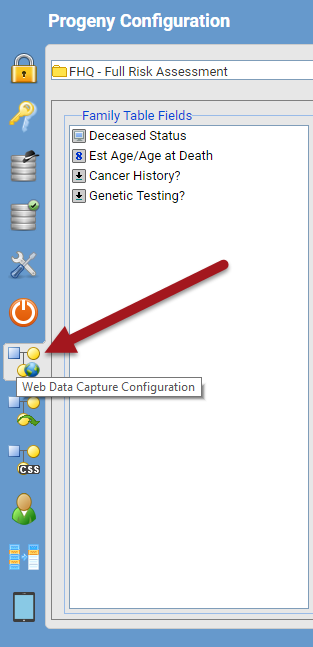
- Select the questionnaire from the drop-down at the top. Select the Login Logo URL and Logo Questionnaire URL configurable options and update the URL of the new logo (for example if the name of the logo file changes)
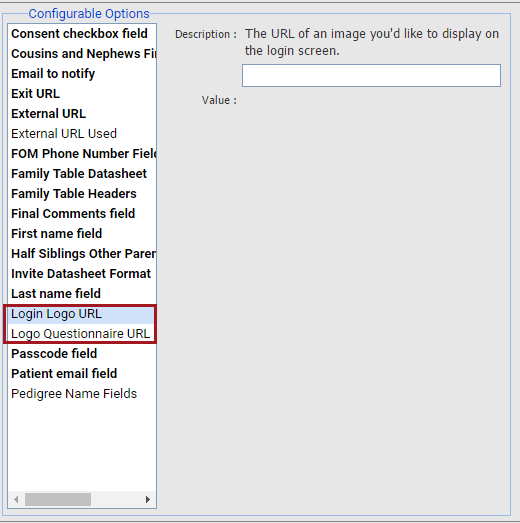
- Login Logo URL: the logo on the FHQ login screen.
- Good height=75-100px. Max width=1123px
- Logo Questionnaire URL: the logo that appears on every page of the questionnaire.
- Good height=75-100px. Max width=800px
- Login Logo URL: the logo on the FHQ login screen.
- Login to the Progeny Web Configuration back-end and go to the Web Data Capture Configuration module.
Progeny Web Client
- Login to Progeny web.
- Select Email Templates from the Invites Module.
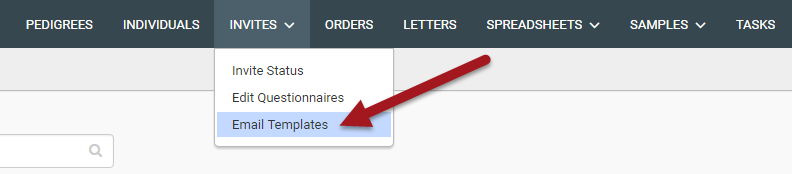
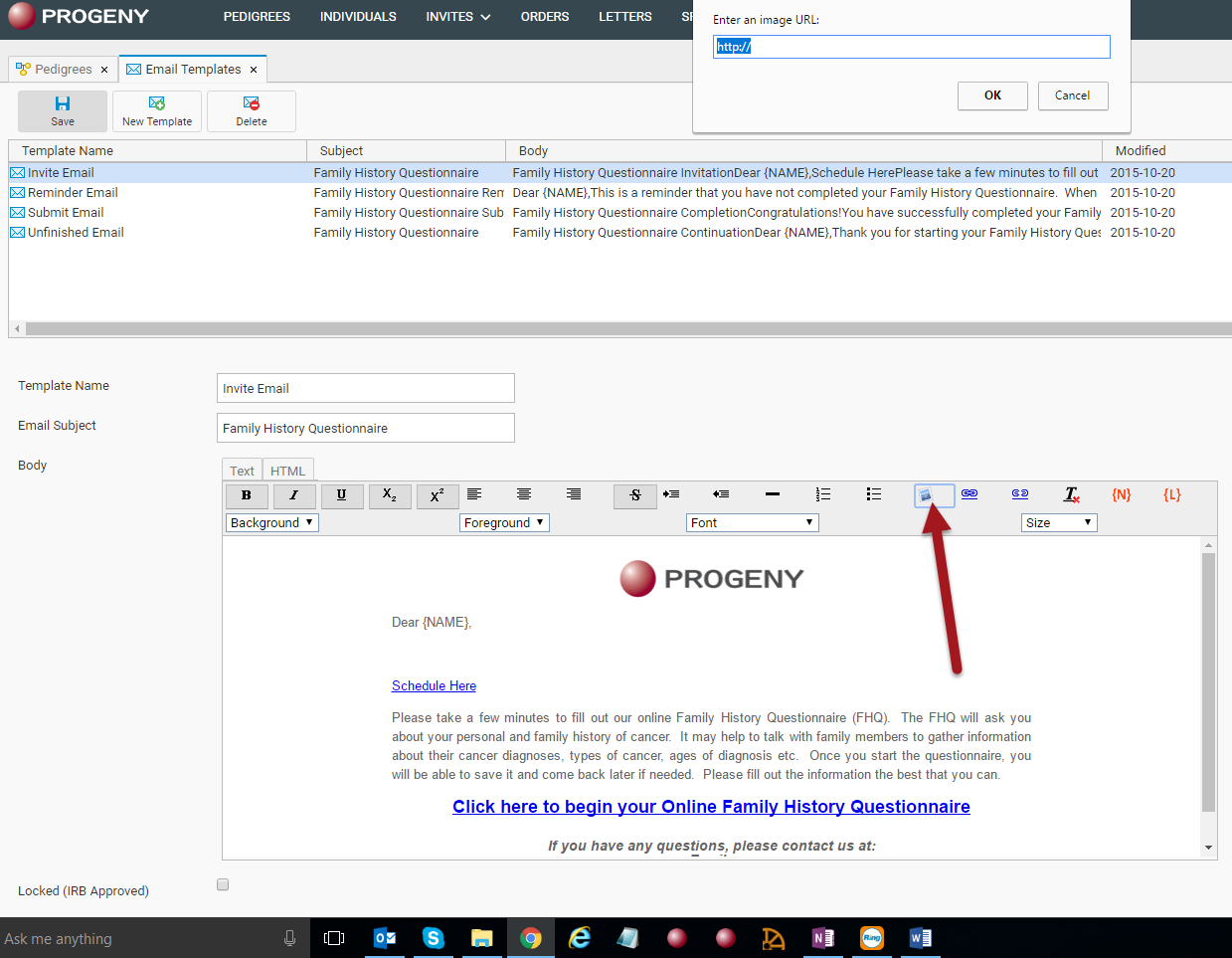
- Select an email template. Highlight the logo in the HTML editor box and click on the little insert image button in the HTML editor (red arrow below) and enter the new image URL that you want to use in the email format. Repeat for each email template as necessary.
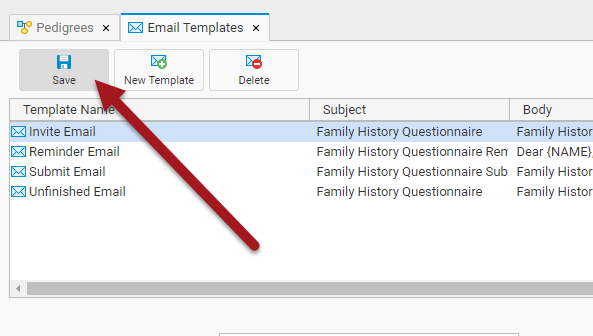
- Click Save.
Updating the Questionnaire
Progeny Desktop Client
- To update a page of the patient/proband questionnaire, you need to update the FHQ/questionnaire individual datasheet format. Open any individual in the Templates folder.
- Typically there is a ‘Family History Questionnaire Template’ pedigree with one individual in it that can easily be used for template updates.
- Select Form Design.

- You will notice that each tab is one of the pages of the patient/proband portion of the questionnaire.
- Find the tab/page that needs to be edited.
- Select and edit the text that needs to be edited.
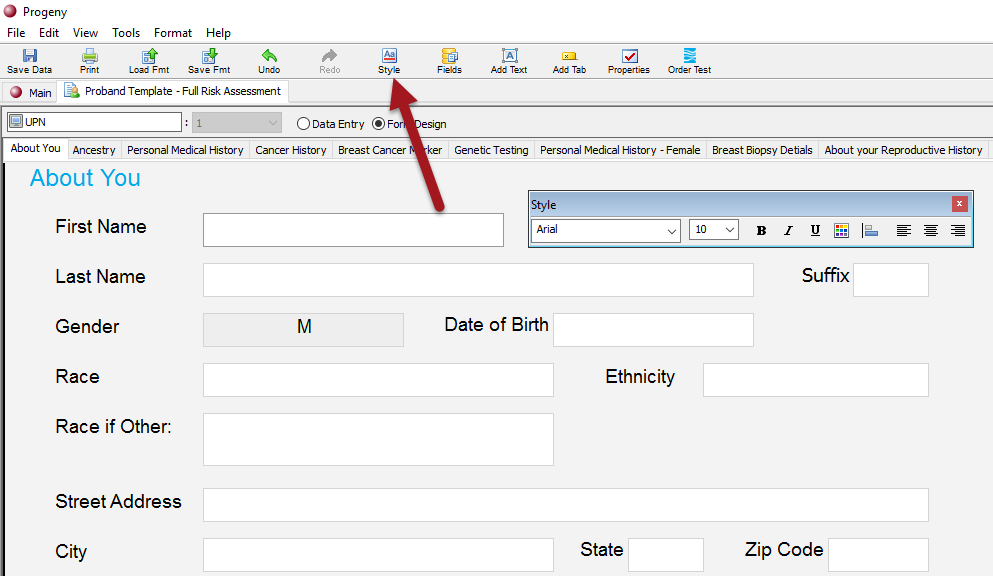
- You can update the text settings by clicking the Style button.
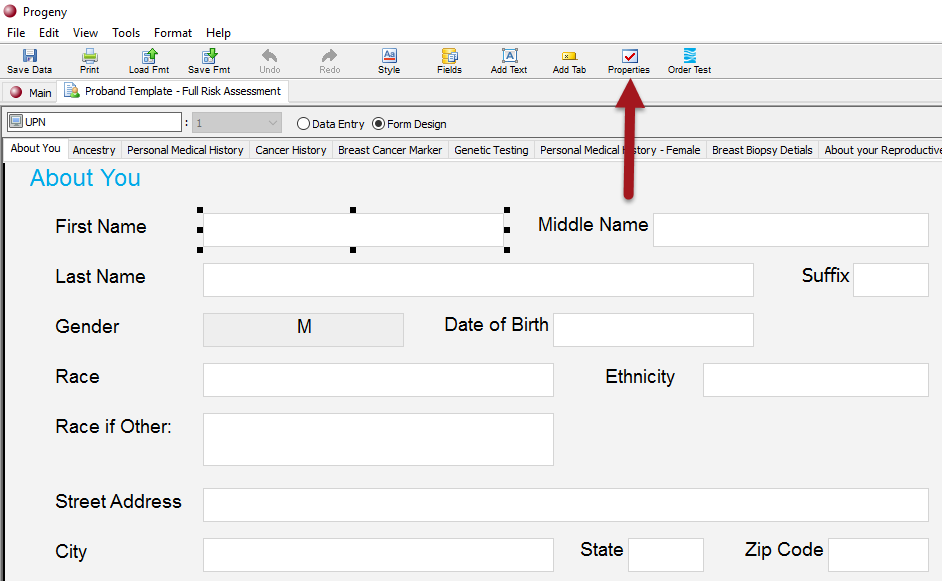
- If the text does not highlight, it means that the text is a field display heading. Select the field and click Properties.
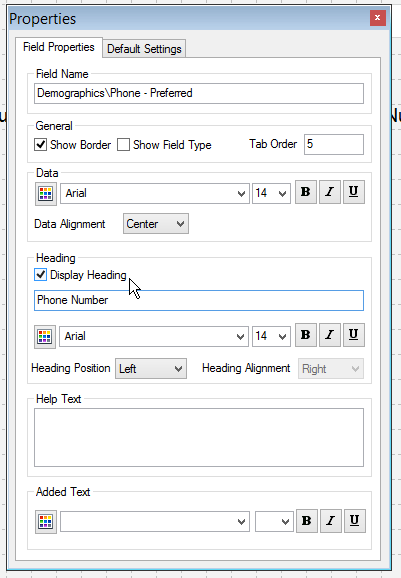
- Edit the Display Heading in the middle of the Properties box.
- You may need to move the field around on the tab/page display if the display heading is longer/shorter than it was before.
- If the text does not highlight, it means that the text is a field display heading. Select the field and click Properties.
- Additional fields/questions can be asked by using the Fields button and adding fields to the datasheet – you can then use added text or display headings to edit the question that is supposed to go with the new field/question added to the datasheet.
- Ensure that you keep all text boxes and field boxes within a width of 44 grid boxes or it will cause the FHQ to have a left/right scrollbar for that page.
- Click Save Fmt and click Save in the Save Format dialog box.

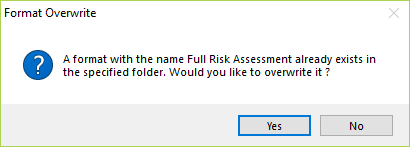
- Click Yes when prompted that there is a format with that name that already exists and would you like to overwrite it. You want to overwrite the existing individual datasheet format so that the skip logic for your questionnaire remains intact.
Updating Skip Logic
Web Client Configuration Module
- Login to the Progeny Configuration Web back-end.
- Navigate to the Skip Logic Configuration module.

- Select a format from the Select Format drop-down (choose folder and name of individual datasheet).
- Each tab from the datasheet is displayed on the left-hand side.

- Choose which tab needs the skip logic added/updated.
- Select Show only if condition below is true.
- Click the green plus symbol to add a field to the conditions.

- Add as many fields as needed for the query for what is required for this page to display.
- After the query setup is complete, click Save.

Updating Phone Number/Email Address
Progeny Web Client
- Login to Progeny Web.
- Navigate to the Invites module.
- Click Edit Questionnaires.
- Select the questionnaire in which the phone number/email address needs to be updated
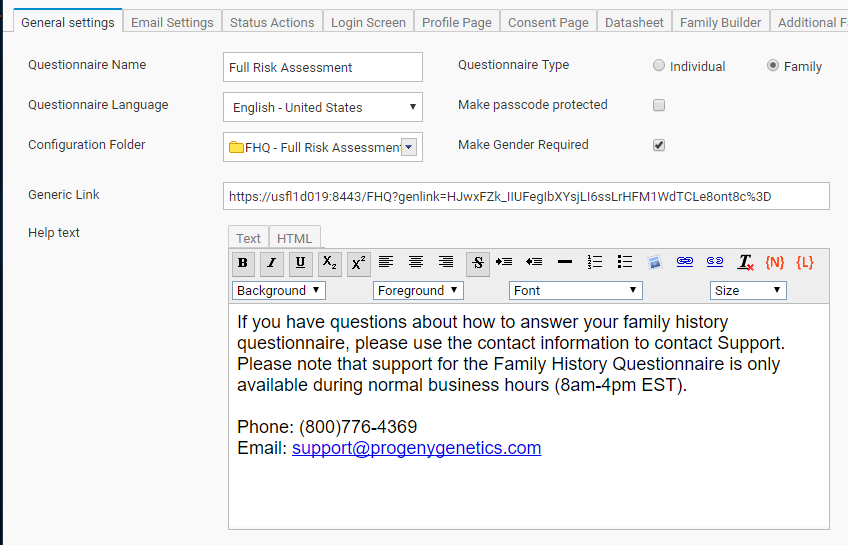
- Help Text
- Select the General settings tab.
- Update the phone number/email address in the Help text section.
- Login Screen
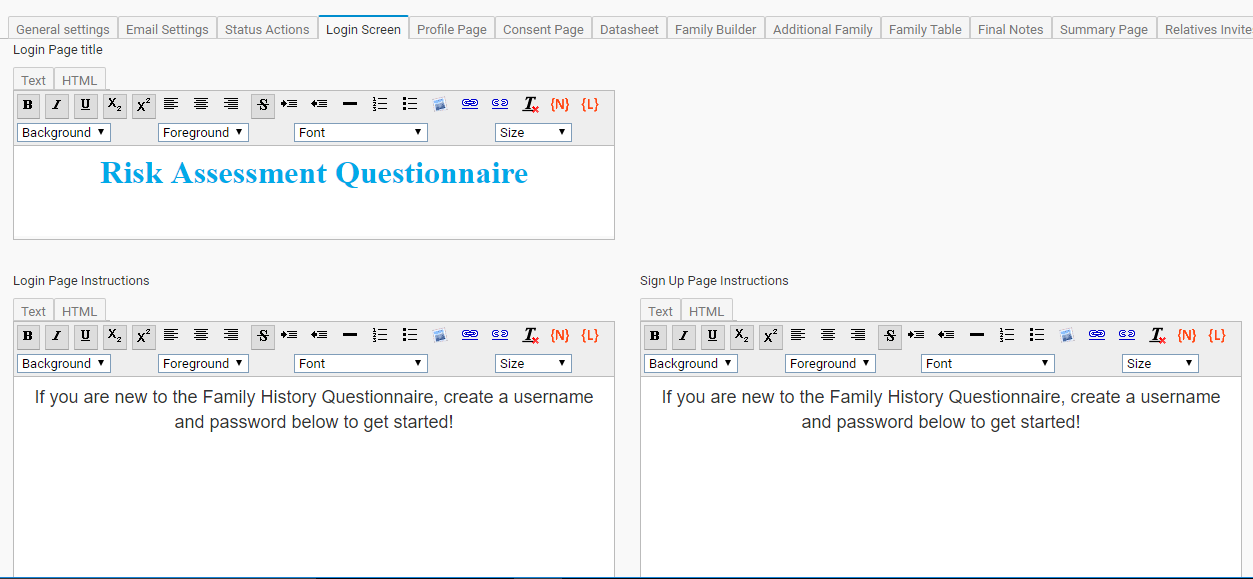
- Select the Login Screen tab.
- Update the phone number/email address in Login Page Instructions.
- Update the phone number/email address in the Email Templates (see Setting up email templates workflow).
Progeny Web Client Configuration
- Login to the Progeny Web configuration back-end.
- Navigate to the Web Data Capture Configuration module.
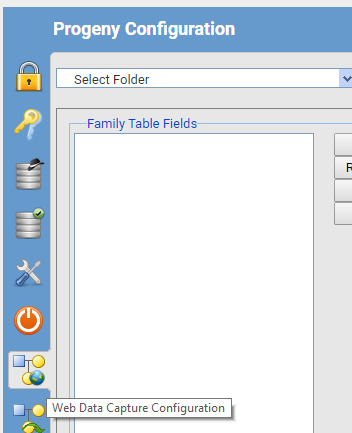
- Select the FHQ folder from the Select Folder drop-down at the top.
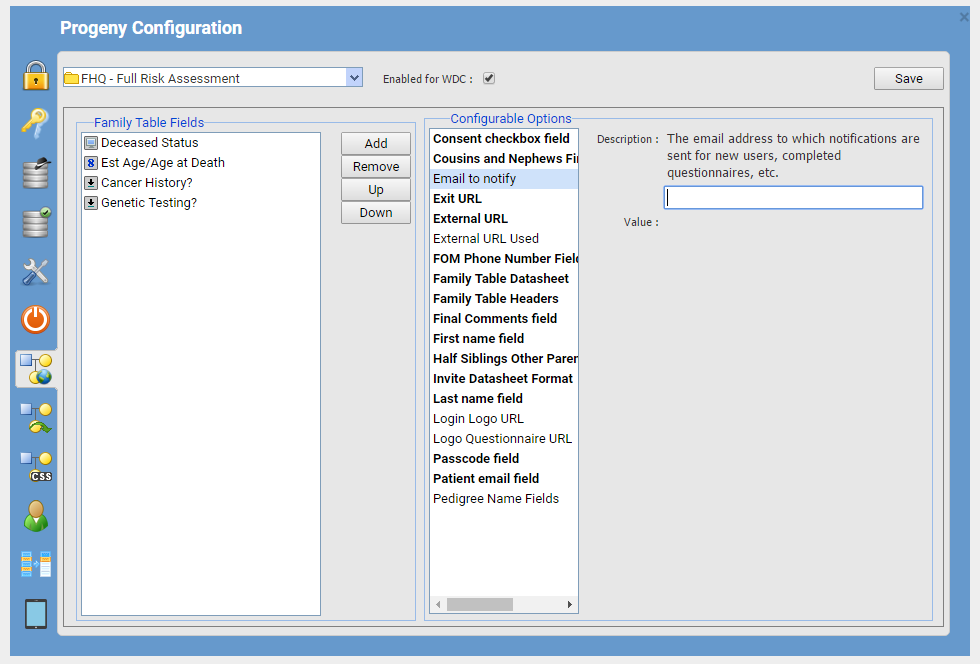
- If the email that gets the notifications when patients started, edit, and finishes the FHQs needs to be updated, select the Email to notify option and update the email address.
Setting Up ‘Reviewed’ Status Actions
- Go to Invites module.
- Click Edit Questionnaires.
- Select the questionnaire in which you want to add/update automatic reminders.
- Go to Status Actions tab.
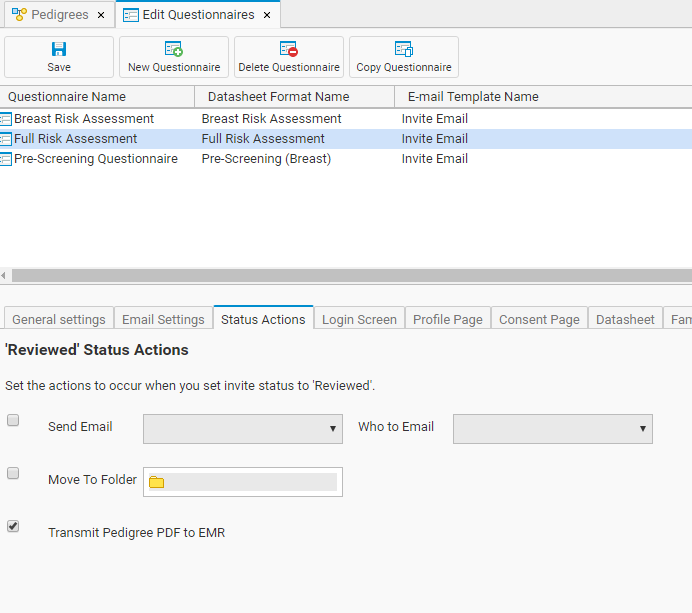
- Three different actions can occur when an invitation is marked as Reviewed in the invites module. You can use one, two, or all of the status actions.
- Send Email
- Upon setting an invitation as Reviewed in the invites module, this status action setting can also send an email to either the patient, staff (the same email address that receives questionnaire status notifications), or both. A new separate email format specific for this status action can be created in the Email Templates section and then selected here.
- Move To Folder
- Just like when a pedigree is moved to the completed folder after a patient submits the Family History Questionnaire when you mark an invitation has Reviewed in the invites module, this action can automatically move the pedigree to another folder.
- Transmit Pedigree PDF to EMR
- If you have Progeny and EMR integration setup and you transmit your pedigrees to your EMR, marking the invitation as Reviewed can also submit this transmit request.
- Send Email
Setting up Email Templates
Progeny Web Client
- Login to Progeny Web.
- Navigate to the Invites module.

- Click Email Templates.
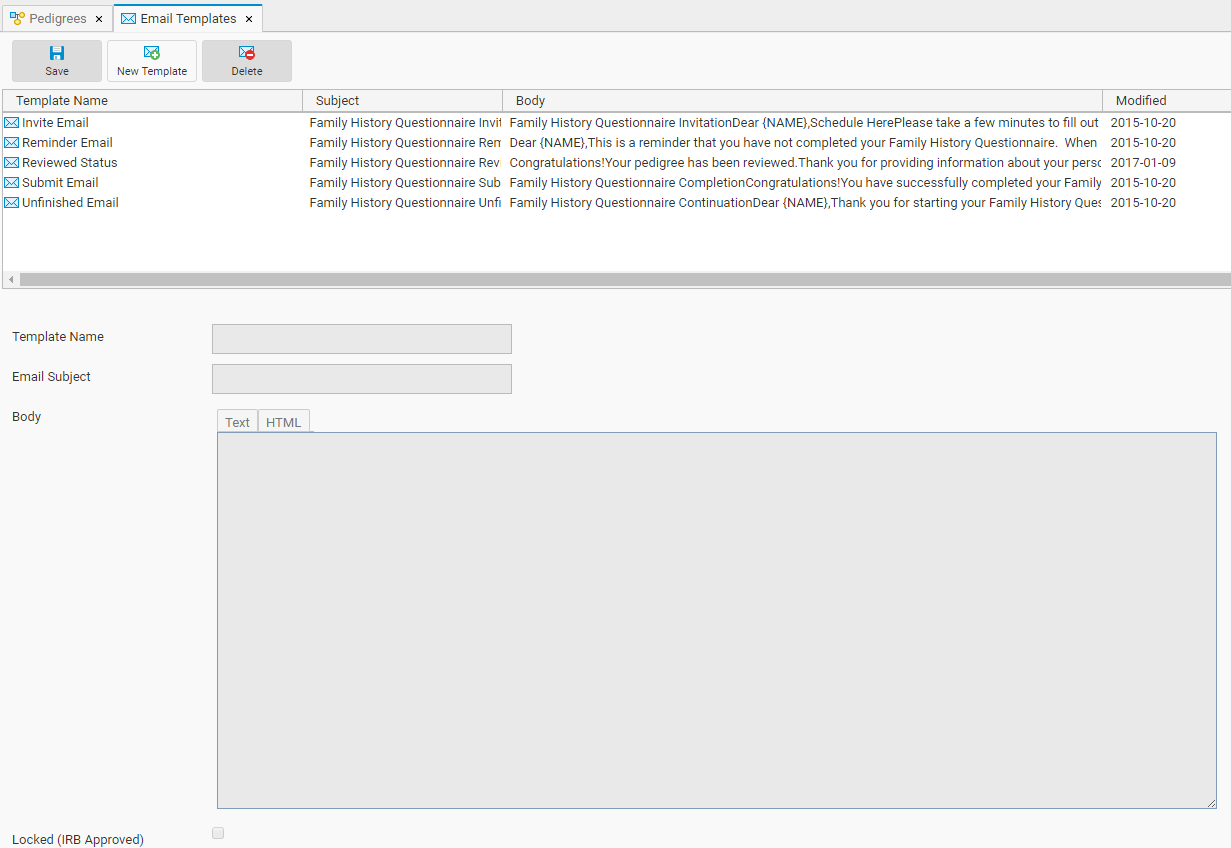
- In the email template management window, you can create or modify email templates. Once the email template(s) you want to use is created (or if they are already created) you can specify which template to use for the questionnaire (see step 5).
- Navigate back to the Invites module and select Edit Questionnaires.
- Select the questionnaire you would like to edit.
- Select the Email Settings tab, and choose the appropriate formats for the emails you would like to use in the fields labeled
- Invitation Email
- Submit Email
- Unfinished Email
- Reminder Email
- Click Save to save all changes made to the questionnaire.
